
You know that sinking feeling when you click on a bookmarked YouTube video and get the dreaded "This video is unavailable" message? It's incredibly frustrating, whether you accidentally deleted your own video or you're trying to track down a tutorial that vanished.
The good news? In many cases, you can still find or recover deleted YouTube videos. But you need to act quickly and know exactly where to look.
This guide walks you through every proven method for finding deleted YouTube videos in 2025, including YouTube's new 30-day recovery window for creators, advanced archive techniques, and smart prevention strategies. Whether you're a creator who made a mistake or a viewer hunting for lost content, you'll find step-by-step solutions here.
To be upfront: Not every video is recoverable. Success depends on how the video was removed, how long ago, and whether anyone archived it. But with the methods below, you'll have the best possible chance of getting that content back.
Why Do YouTube Videos Get Deleted or Become Unavailable?
Before you start hunting for a deleted video, it helps to understand why it disappeared. The reason matters because it directly affects your recovery options.
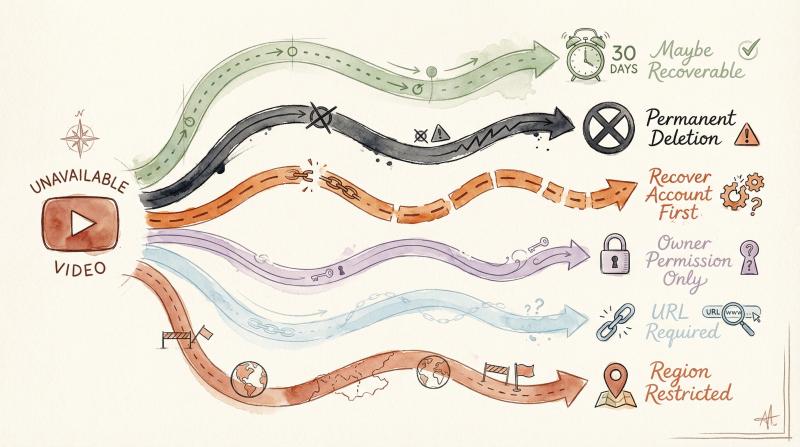
When you encounter an "unavailable" video on YouTube, it could be in one of several states:
Status - What It Means - Can You Recover It?
- User Deletion - The uploader deleted it themselves - Maybe (30-day window for owners)
- Policy Removal - YouTube removed it for guideline violations - Unlikely (immediate permanent removal)
- Channel Deleted - The entire channel was terminated - Need to recover account first
- Private - Owner restricted access - Only if owner grants permission
- Unlisted - Not searchable, requires direct link - Yes, if you have the URL
- Geo-Blocked - Restricted to certain regions - Yes, from allowed regions only
User Deletion (The 30-Day Grace Period)
If you're the creator and you clicked "Delete" in YouTube Studio, there's good news. YouTube introduced a Trash feature in 2025 that holds deleted videos for 30 days. During this window, you can restore videos with a few clicks.
After 30 days? The video is permanently wiped from YouTube's servers. No appeals, no exceptions, no recovery from YouTube's side.
Policy or Copyright Removal
When YouTube removes a video for violating guidelines or responding to a copyright claim, there's no safety net. These videos are immediately and permanently deleted.
Your only option is to appeal the decision (which doesn't always work) or find the video archived elsewhere.
Channel or Account Deletion
If someone's entire YouTube channel disappeared, all their videos become unavailable. In this case, the channel owner needs to recover their account first before any videos can come back. For a detailed walkthrough of the account recovery process, see our comprehensive guide on how to recover a YouTube account.
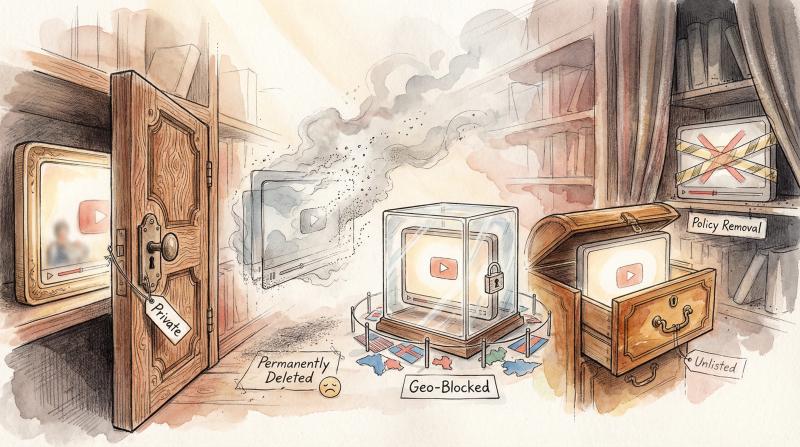
Private, Unlisted, and Geo-Blocked Videos
These aren't technically "deleted," but they feel that way if you can't access them:
Private videos can only be viewed by the owner and specific people they invite. Even with a direct link, you won't be able to watch unless the owner explicitly grants you access.
Unlisted videos are viewable by anyone with the link, but they don't appear in search results or the channel's public video list. If you lose the URL, it's effectively gone (unless you can find it in your browser history or YouTube watch history).
Geo-blocked videos are available in some regions but blocked in others due to rights holder restrictions. You'll need to view from an allowed region or wait for the rights situation to change.
Understanding which category your missing video falls into will help you choose the right recovery approach.
Quick Decision Tree: Where to Start Looking for a Deleted Video
Not sure which recovery method to try first? This decision tree will point you in the right direction based on what information you have.
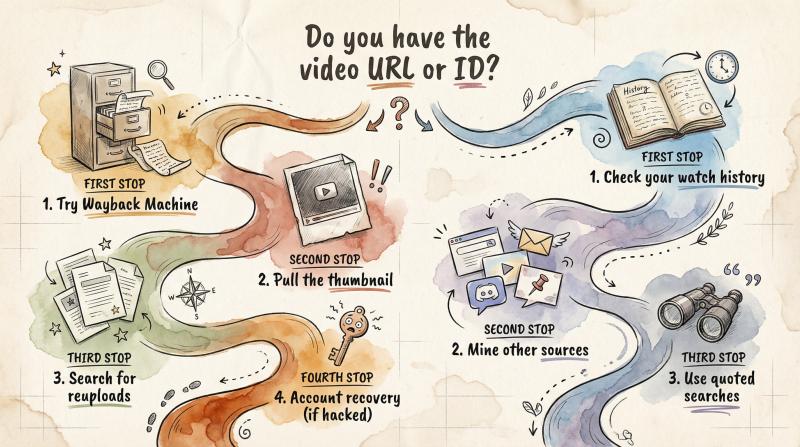
Start here: Do you have the exact video URL or Video ID?
If You Have the URL/ID:
- Try historical snapshots on Wayback Machine
- Pull the last-known thumbnail if it's still accessible
- Use advanced search techniques to find reuploads or mirrors
- If it's your video and was hacked/removed, begin account recovery
If You Don't Have the URL/ID:
- Extract it from your YouTube watch history or Google Takeout export
- Check browser history, playlists, emails, Discord chats, or website embeds
- Use quoted searches and site filters to narrow results by title fragments and channel name
The rest of this guide is organized by user type. Jump to the section that matches your situation.
For Creators: How to Recover Your Own Deleted YouTube Videos
Accidentally hit delete on one of your videos? Don't panic. You have several options, and the first one is remarkably effective if you act fast.
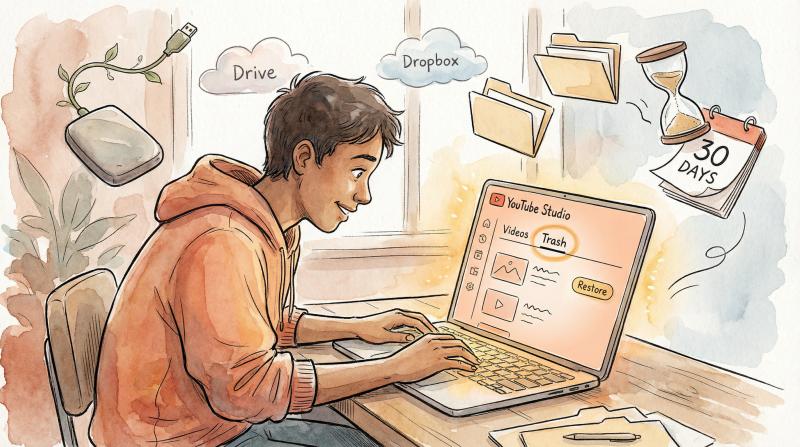
How to Restore Videos from YouTube Studio Trash (Within 30 Days)
This is by far your best option if the deletion happened recently. YouTube's Trash feature gives you 30 days to undo deletions.
Here's how to restore a deleted video:
- Log in to YouTube Studio with your channel account
- Click "Content" in the left sidebar
- Select the "Trash" tab at the top
- Find your deleted video in the list
- Click the three-dot menu next to it and select "Restore"
The video will instantly reappear on your channel with its original URL, views, comments, and watch history intact. It's like the deletion never happened.
Important: Once the 30-day window closes, YouTube permanently deletes the video from their servers. There's no way to recover it through Studio after that point.
Pro tip: Check Trash immediately if you've recently deleted anything. Don't assume you'll remember to check back before the 30 days are up.
Check Your Personal Backups
If the 30-day window has passed (or you just want to be thorough), your next move is to hunt through your personal backups. Many smart creators keep copies of all their content, and this habit pays off exactly in situations like this.
Where to look for backup copies:
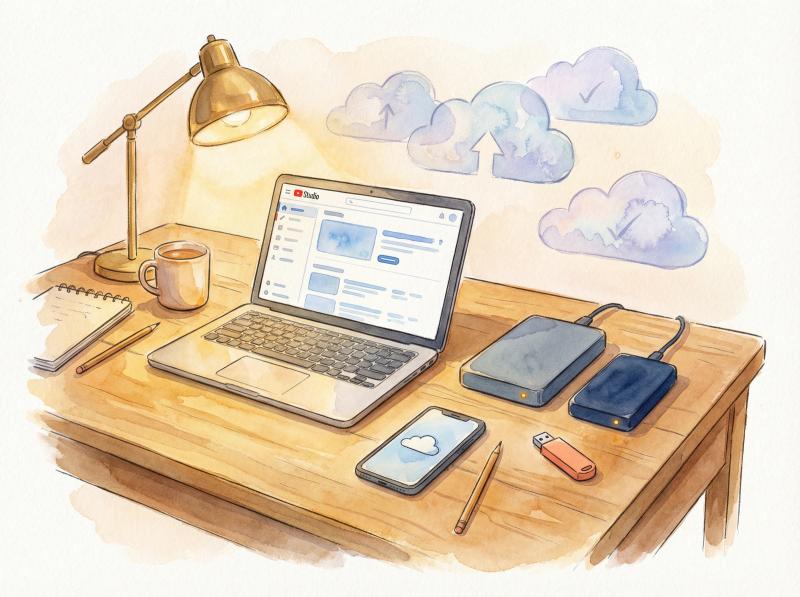
Where to look for backup copies:
Computer Storage
Check your PC, laptop, external hard drives, and USB sticks for the original video file. Try searching by:
- The video title or filename
- Your editing software's export folder (Adobe Premiere, Final Cut Pro, DaVinci Resolve, etc.)
- Common video folders (Documents/Videos, Desktop, Downloads)
- Project files that might contain rendered exports
Cloud Storage Services
Many creators automatically sync their work to cloud storage. Check:
- Google Drive, Dropbox, OneDrive, iCloud
- Creative Cloud if you use Adobe products
- Phone backups (some phones auto-backup media to the cloud)
- Any specialized cloud services you use for video work
If you find the original file, you can re-upload it to YouTube. You'll need to manually restore the title, description, tags, and other metadata (hopefully from memory or notes you kept). The downside? You lose the original view count, comments, likes, and URL. But at least your content is back online.
Download Your Own Uploads from YouTube Studio (Prevention)
For future peace of mind, YouTube lets you download your own uploads directly from Studio before you delete anything:
- Go to YouTube Studio → Content
- Find the video you want to backup
- Click the three-dot menu
- Select "Download"
This gives you a high-quality copy for safekeeping. Always keep personal backups of your content, especially videos that perform well or have sentimental value.
Check Your YouTube Download (Offline Videos)
If you had YouTube Premium and downloaded your own video for offline viewing, that copy might still exist on your device.
On mobile devices:
- Open the YouTube app and go to Library → Downloads
- See if your video is listed and still playable
- If the video was removed from YouTube, the offline copy might have disappeared too (YouTube's policy on this varies)
On your phone's storage:
- Android: Check
Internal Storage/Android/data/com.google.android.youtube/files/ - iOS: Look in the Files app under YouTube
If you find a video file but it won't play or seems incomplete, you could try using data recovery software like Dr.Fone or Recuva to scan for remnants. This is a last resort and works best if you act soon after deletion (before new data overwrites the file).
Contact YouTube Support (Partner Creators Only)
For most users, YouTube support will not restore deleted videos. Once the 30-day Trash window passes, the video is gone from their perspective.
However, if you're part of the YouTube Partner Program (you're monetized, typically requiring 1,000 subscribers and 4,000 watch hours), you have access to creator support. Very occasionally, they've helped restore accidentally deleted content, but only for eligible creators. Learn more about when YouTube starts paying you and what it takes to join the Partner Program.
To try this route:
- Go to YouTube Help and click "Contact Us" (you'll see this option in Studio if you're a Partner)
- Explain your situation clearly: provide the video URL, title, and exact deletion date
- Politely ask if they can recover it from internal backups
Be prepared for them to say it's not possible. YouTube typically doesn't keep deleted videos beyond the 30-day Trash period. But if you have Partner access, it doesn't hurt to ask.
Note: If your video was removed for policy violations or copyright, support won't reinstate it unless you successfully appeal the decision through the official process.
How to Recover Hacked YouTube Channels with Deleted Videos
Did your channel get hacked and videos suddenly disappeared or were set to private by bad actors? This requires a different approach.
YouTube provides an official hacked-channel recovery flow designed for this exact scenario. For the complete step-by-step process with additional troubleshooting tips, check out our detailed guide on how to recover your YouTube account.
Recovery steps:
- Start with YouTube's account recovery process to secure your Google Account
- Use YouTube's guided support assistant (introduced in 2024) for hacked-channel restoration guidance
- After you regain control, immediately remove any unauthorized channel managers in YouTube Studio settings
- Review the visibility settings for all your uploads and re-publish anything that was wrongly hidden or deleted
- Change your password and enable two-factor authentication to prevent future attacks
The 2024 support assistant has significantly streamlined the recovery process for creators. Act quickly when you notice suspicious activity, as faster response time improves your chances of restoration.
For Viewers: How to Find Someone Else's Deleted YouTube Video
What if you're not the uploader? Maybe you're looking for a music video, tutorial, news clip, or that hilarious video a friend shared that's now gone. While you can't restore someone else's channel, you have plenty of detective work you can do.
The key is to gather any information you can about the video: its URL (specifically the Video ID), title, channel name, or even just a memorable phrase from it. This information makes the following methods much more effective.
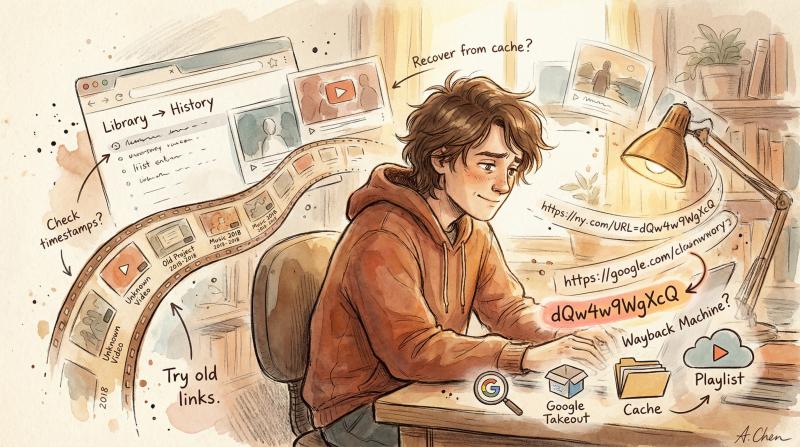
How to Find Deleted Video URLs from Your Watch History
Having the exact YouTube URL or Video ID significantly improves your chances of finding the video elsewhere. YouTube Video IDs are 11-character strings of letters and numbers (example: CpSewSHZhmo). They appear in every video's URL as watch?v=VIDEOID.
How to retrieve the URL or ID if you don't already have it:
Pull It from Your Own Data (Fastest and Most Reliable):
Your YouTube watch history
If you watched the video before it was deleted, check your history:
- On YouTube, go to Library → History or visit myactivity.google.com for your complete Google activity
- Scroll to roughly when you watched it, or use the search feature in your history
- Search by channel name or keywords you remember
- Even if the video is gone, the entry often remains with the title and channel info
- Click the entry (it won't play, but you'll see the URL in your browser's address bar)
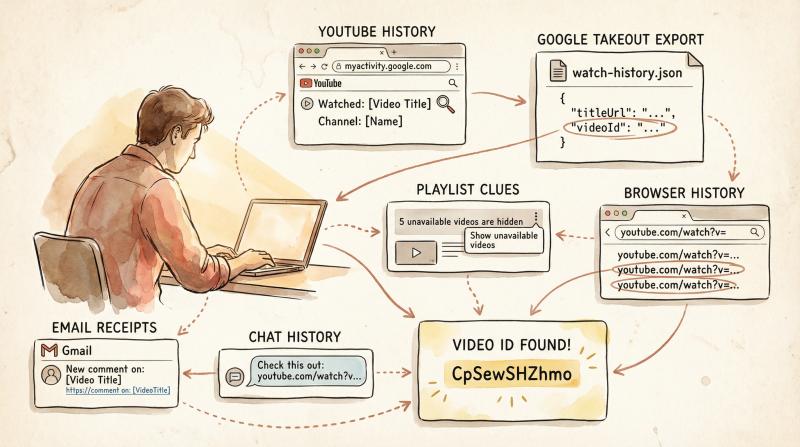
Google Takeout export
Google Takeout lets you export all your YouTube data, including your watch history:
- Select "YouTube and YouTube Music" → "History (JSON)"
- Download and extract the archive
- Open
watch-history.jsonin a text editor - Search for keywords related to the video
- The file includes the original
titleandtitleUrl(which contains the Video ID)
Playlists
If the video was in one of your playlists (or a public playlist you saved):
- Open the playlist
- Click the three-dot menu and select "Show unavailable videos"
- YouTube will reveal entries for removed videos (might just say "Deleted video")
- Click the blank entry and you'll see the URL with the Video ID in your address bar
Example: A playlist shows "5 unavailable videos are hidden." Selecting "Show unavailable videos" reveals the deleted entries, and clicking them gives you the URL even though the video won't play.
Mine Other Sources:
Browser history and cache
If you previously opened the video page:
- Search your browser history for the title or channel name
- Google's cache might still have the URL (though it updates quickly to show "unavailable")
- Video IDs are distinctive 11-character strings, so searching for even partial matches can help
Email receipts and notifications
YouTube sends emails when you like, comment on, or receive replies to comments:
- Search your email for "YouTube" or the channel name
- These emails often contain direct links to specific videos
Discord, Slack, and messaging apps
Did someone share the video in a chat?
- Search your Discord servers, Slack workspaces, or other messaging platforms
- Direct links to videos persist even after deletion
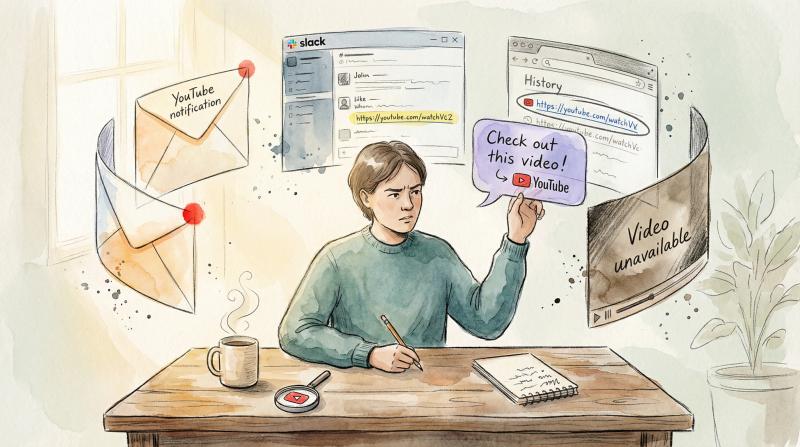
Website embeds and old posts
- The video might have been embedded in blog posts, Reddit threads, or forum discussions
- Try searching Google for fragments of the title along with keywords like "embedded" or site names
If you absolutely cannot find the URL or exact title, don't worry. You can still try searching by broader keywords, but having the Video ID makes several of the following methods much more powerful.
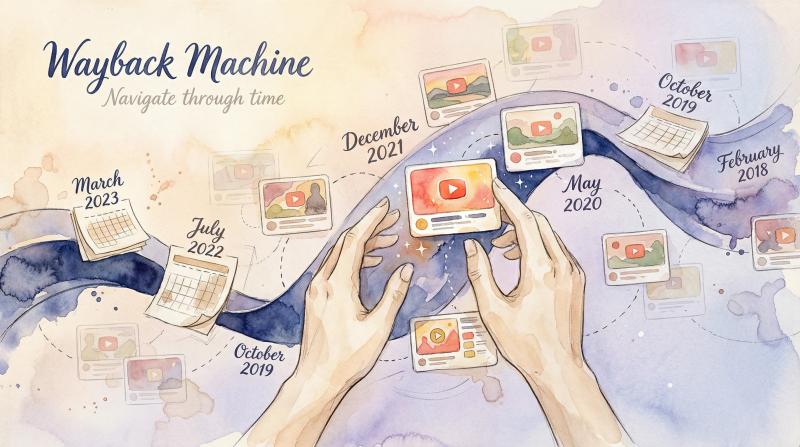
How to Use Wayback Machine to Find Deleted Videos
The Wayback Machine at Archive.org is one of your best tools for recovering information about deleted videos. It periodically takes snapshots of websites, and with some luck, it captured the YouTube video page when it was still live.
How to use the Wayback Machine:
- Go to archive.org/web
- Enter the full YouTube URL (e.g.,
https://www.youtube.com/watch?v=VIDEOID) in the search bar - If the Wayback Machine has any records, you'll see a timeline with highlighted dates
- Click on different dates to view archived snapshots (try dates when the video was likely popular or recently uploaded)
What you'll typically recover:
- Video title and description as they appeared on that date
- Upload date and channel name
- View count, likes, and other stats from that snapshot
- Comments section if it was captured
- Sometimes the thumbnail image
What you usually won't get: The actual video playback. The Wayback Machine archives the page text and metadata, but YouTube's video content is hosted separately and rarely gets captured. For very short videos or certain circumstances, you might get lucky, but don't count on being able to watch the video itself.
(2024 update): Google Search now often surfaces Wayback links via the three-dot menu → "More about this page", making it easier to jump to archived versions directly from search results.
Tip: If you only know the channel name, you can also try archiving the channel's page or playlists on Wayback Machine. Sometimes entire channel pages get archived, which can lead you to specific video details.
Limitations: Not every video gets archived. The Wayback Machine might never have crawled it, especially if it was short-lived or had low views. If the video was deleted before the archive could save it, you won't find it here.
Try Other Archive Services
If Wayback Machine comes up empty, a few alternative archive sites might have captured the page:
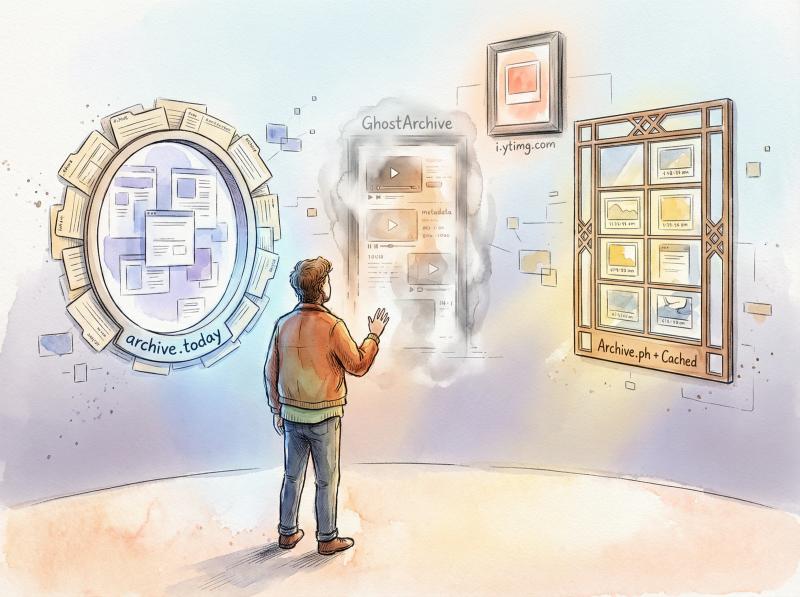
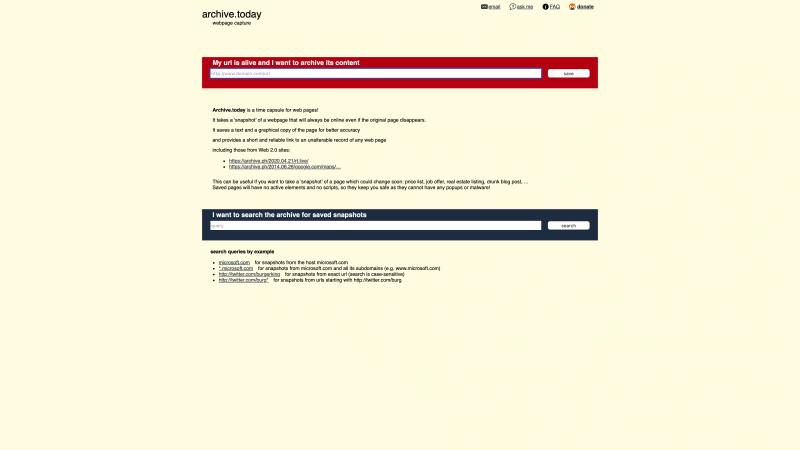
Archive.today (archive.ph)
This service sometimes captures watch pages that other archives miss:
- Go to archive.today or archive.ph
- Paste the full YouTube URL
- Expect page snapshots with metadata, not guaranteed video playback
GhostArchive.org
GhostArchive is a free archiving tool often used for social media:
- Enter the video URL and check for snapshots
- GhostArchive may save video content if it's under 100MB or 30 minutes, but don't count on full playback
- Most useful for page metadata and thumbnail preservation
Archive.ph and CachedViews.com
These work similarly to Wayback:
- Archive.ph is another general web page archiver
- CachedViews.com checks Google Cache and Archive.org simultaneously for convenience
Remember, these methods typically only recover the video page and information, not the video itself. But if you just need to know what a deleted video was called or who uploaded it, archives are incredibly useful.
How to Recover Thumbnails from Deleted YouTube Videos
Even if the video is deleted, YouTube's thumbnail images sometimes remain accessible on their servers. If you have the Video ID, try these URL patterns:
https://i.ytimg.com/vi/VIDEOID/hqdefault.jpg
https://i.ytimg.com/vi/VIDEOID/maxresdefault.jpg
Replace VIDEOID with your 11-character ID. Not every thumbnail survives deletion, but it's worth checking. This is documented in the YouTube Data API's thumbnails reference.
If you get the thumbnail image:
Use reverse image search to find other copies of the video:
- Drop the thumbnail into Google Images or Google Lens
- Try TinEye as well
- This can surface reuploads, blog posts that embedded the video, or social media shares
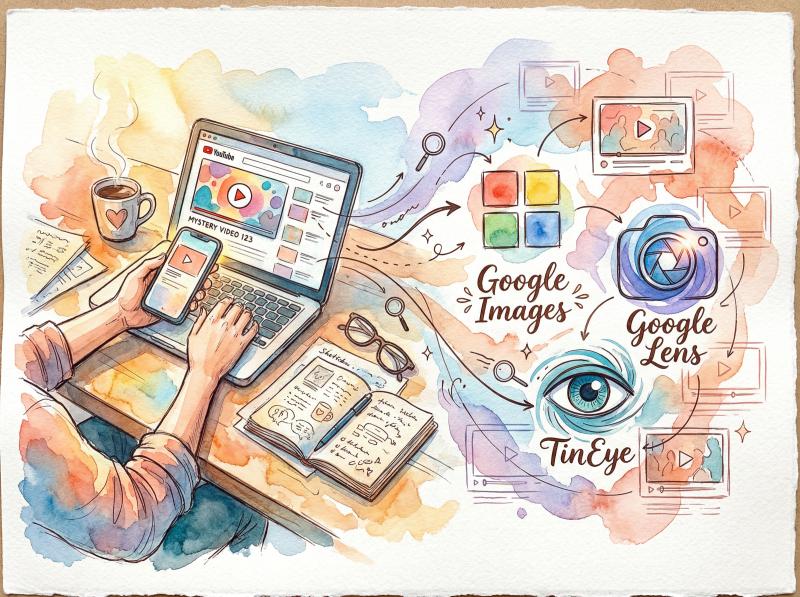
Reverse image searching a distinctive thumbnail is surprisingly effective for tracking down reuploads and mirrors.
How to Find Reuploads of Deleted YouTube Videos
Popular videos rarely disappear completely from the internet. Someone often reuploaded the video to YouTube or another platform, especially if it was noteworthy or went viral.
Exact-Match Searches on YouTube:
Search by exact title:
- If you got the title from an archive or playlist, enter it in YouTube search
- Use quotes for exact matches:
"exact video title here" - Try variations or add keywords like "original" or the channel name
- Some reuploads might have slightly altered titles to avoid detection
Use YouTube's filters:
- After searching, click Filters and sort by Upload date, Duration, Subtitles, etc.
- This helps you sift through results to find the specific video you remember
Advanced Google Search Operators:
These are incredibly powerful for pinpointing videos and related content:
"exact video title" site:youtube.com→ Finds exact title matches on YouTube"VIDEOID"(quoted) → Searches for the Video ID across the web, catching embeds and referencessite:reddit.com VIDEOID→ Finds Reddit discussions that linked to the video"distinct quote from video" + "creator name"→ Narrows search to specific content
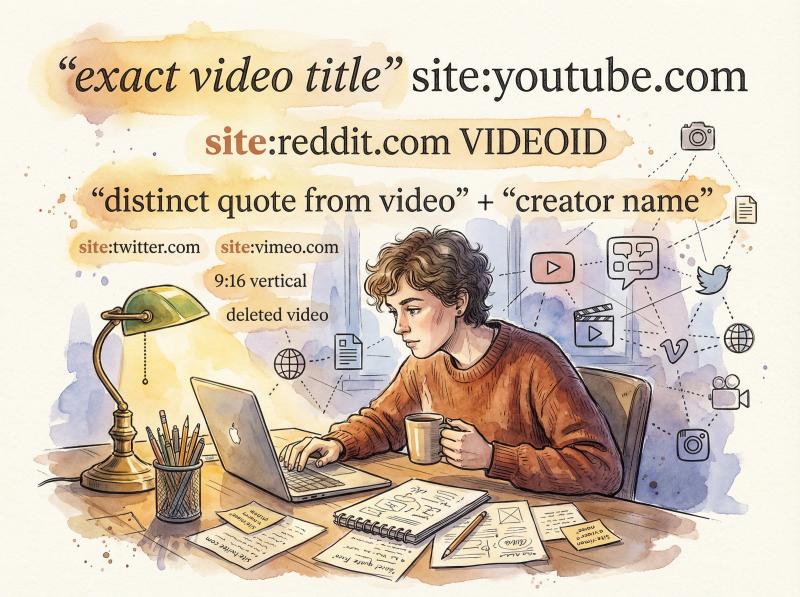
Google's help docs explain how quotes and the site: operator work for precision searching.
Search Other Video Platforms:
Don't limit yourself to YouTube. Check:
- Vimeo (popular for creative content and tutorials)
- Dailymotion (general video hosting)
- Facebook Video (viral clips often migrate here)
- TikTok and Instagram (short-form content)
- Bilibili (Chinese video site with international content)
- Odysee (decentralized platform popular with removed content)
Use Google as well: Search the video title and filter by videos. Sometimes searching by the video filename helps too, if you happen to know it (occasionally visible in URLs or archives).
Reddit, Twitter, and Forums:
Do a web search for the video title or ID on:
- Reddit (
site:reddit.com "video title") - Twitter / X (
site:twitter.com VIDEOID) - Niche forums related to the video's topic
Enthusiast communities often discuss deleted videos and sometimes share archived copies (exercise caution with random links, of course).
Other Languages and Regions:
If the video had global appeal, try:
- Searching in other languages (use Google Translate for the title)
- Region-specific search engines (Baidu for China, Yandex for Russia)
- Sometimes a video blocked on YouTube USA might still be accessible on YouTube in another country
Tip: Be specific with your search. If the title was generic ("Cute cat video"), add the channel name or unique details you remember. If there was a distinctive phrase or quote, search for that in quotes to surface transcripts or reaction videos.
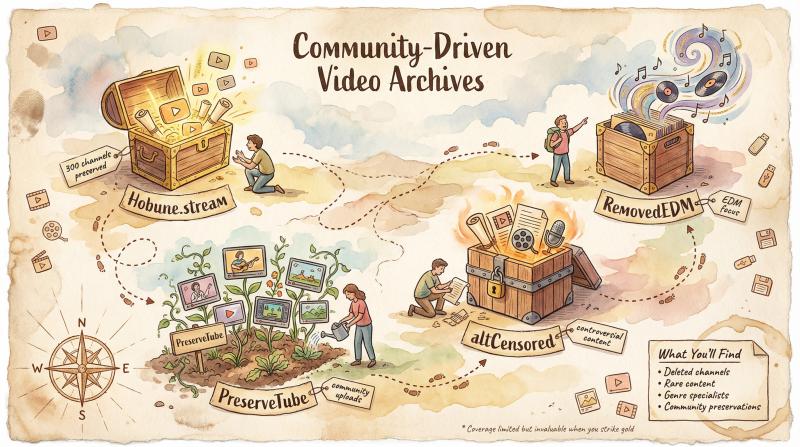
Use Specialized "Deleted Video" Archives and Tools
Beyond reuploads, some community-driven archives specifically preserve YouTube content that gets removed. Their coverage is limited, but they're goldmines if your video happens to be in their collection.
Hobune.stream
Hobune.stream is a personal archive project preserving videos from over 300 YouTube channels:
- The owner archives channels with beloved or nostalgic content that got removed
- You can browse or search the archived channels
- If your video is from one of these channels, you can watch or download it on Hobune
- Coverage is limited to the curated channel list
- Because it's a one-person project, the site may change or go down at any time
Removed.YT
Deleted video finder tools like Removed.YT (if still operational) can show you the title of a deleted video if you input the URL:
- These tools often leverage Google's API or cached data
- Results are hit or miss
- Search for "YouTube deleted video finder" to find current tools in 2025
RemovedEDM.com
RemovedEDM is a niche archive focusing on Electronic Dance Music:
- Archives videos from EDM YouTube channels (1000+ subscribers, meeting certain criteria)
- If you're after a music track or festival set from a supported channel, you can likely stream it here
- Organized by channel name
- Obviously only useful for that genre, but quite comprehensive within it
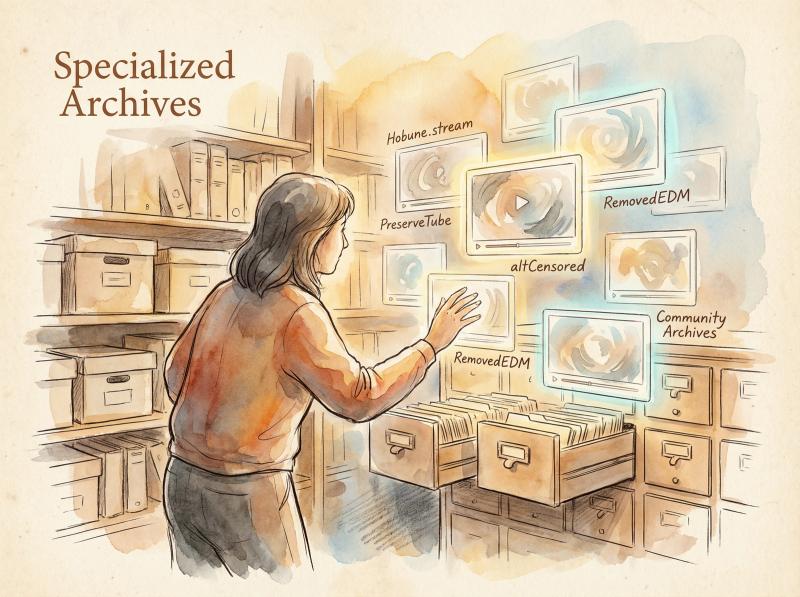
altCensored.com
altCensored archives videos removed for controversial content:
- Focuses on political speech, news, and sensitive content
- Has indexed hundreds of thousands of videos and thousands of banned channels
- Search by channel or keywords
- Note: altCensored's focus is on contentious content, so it won't have random vlogs or gaming videos
PreserveTube.com
PreserveTube is a newer platform where users can upload copies of YouTube videos to preserve them:
- Community-driven preservation
- Search by YouTube URL or video name
- If someone foresaw removal and saved it, you'll be able to view it
- Coverage depends on user uploads
Invidious Instances
Invidious is a third-party YouTube front-end:
- Try plugging the Video ID into an Invidious instance (e.g.,
yewtu.be/watch?v=VIDEOID) - Often just errors out for deleted videos (since they fetch from YouTube)
- Occasionally, if an instance had metadata cached, you might retrieve the title or thumbnail
These specialized archives are a bit of a treasure hunt. You might strike gold or find nothing, but they're worth trying when the video is rare or important to you.
Search for Embedded Copies or References
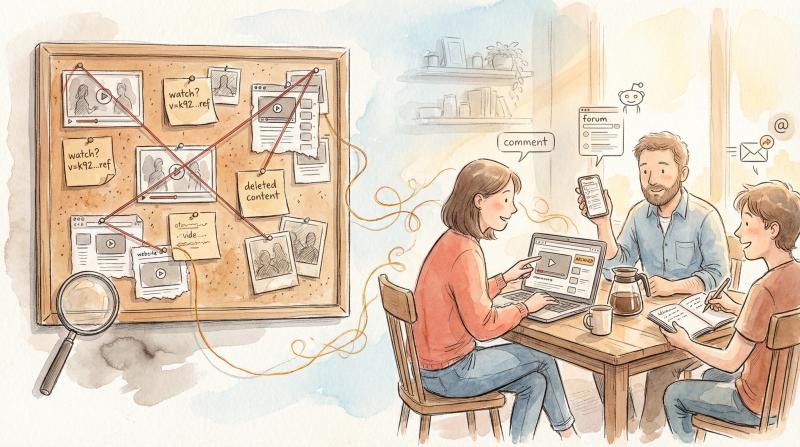
Sometimes a video no longer exists on YouTube, but parts of it or references to it survive elsewhere.
Embedded videos on other websites:
- If the video was embedded in a news article, blog post, or educational site, that page might still exist
- Even if the video no longer plays, the embed often displays the video's title, channel, or thumbnail
- Try searching:
"video title" embeddedor"video title" site:example.com - Right-click on the embed and choose "Copy video URL" or inspect the page's HTML source to extract the Video ID
Transcripts and captions:
- If the video had subtitles or a transcript and was popular, those text files sometimes get copied to websites
- Search for a unique phrase from the video to find transcript repositories or fan-made subtitle files
- This at least confirms the content existed and provides context clues
Thumbnails in image caches:
- Search Google Images for the video title or ID
- Google's image cache might show the thumbnail
- Check Pinterest and other image-sharing platforms where thumbnails might have been pinned
Recognizing the thumbnail confirms you've found the right video and might lead you to reuploads.
Ask the Uploader or Community
If all digital methods fail, it's time to go directly to the source.
Contact the video's uploader:
- If you know the channel or creator, reach out via their "About" page contact info or social media
- Send a polite message explaining you're looking for their deleted video
- Ask if they have it available elsewhere or could send you a copy
- Be respectful. Creators delete videos for various reasons (quality concerns, rebranding, personal issues), and they might not want to share it
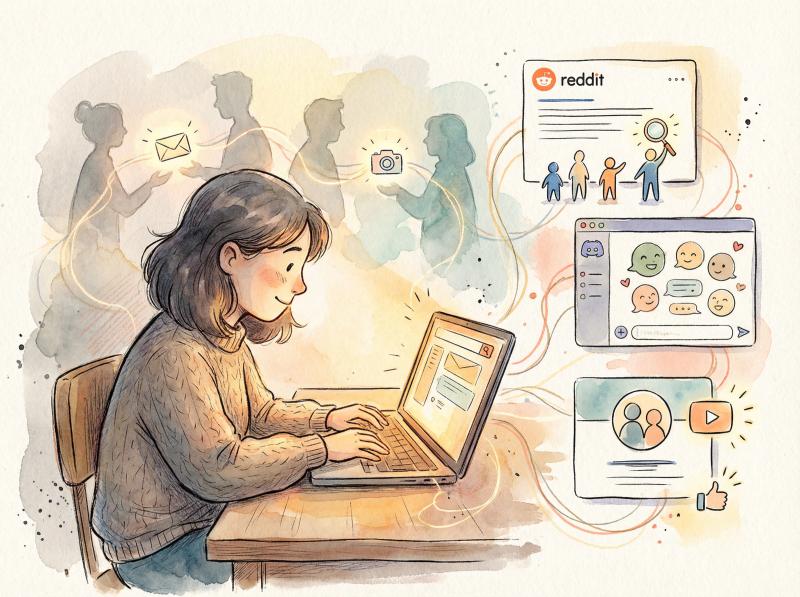
Ask the community:
- Post a request on Reddit (try r/YouTube, r/Lostmedia, or r/TipOfMyTongue)
- Provide as much detail as possible: video title, channel, when it was up, memorable content
- Sometimes another fan happened to download it and can privately share
Scam warning: Be cautious of websites or individuals offering to "recover your video" if you download their program or pay them. Outside of the legitimate methods in this guide, there's no magic software that can retrieve a deleted video from YouTube's servers. Avoid downloading random "YouTube video recovery" tools from unknown sources, as they can be malware.
Geo-Blocked, Private, or Restricted Videos
Not every "unavailable" video is actually deleted. Sometimes it's just inaccessible to you for specific reasons.
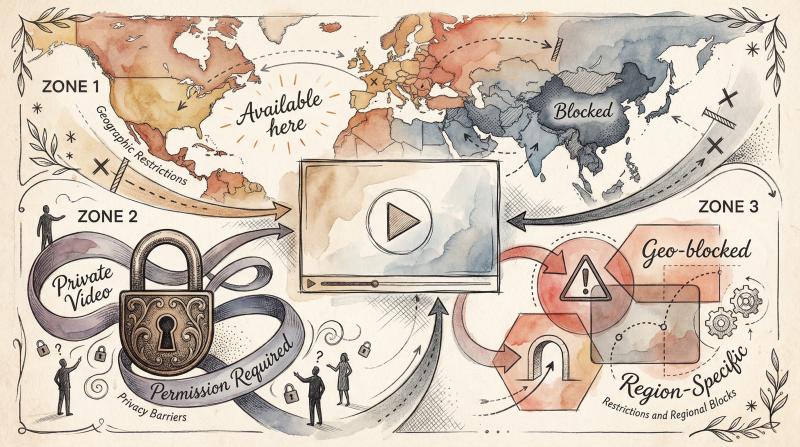
Geo-Blocked Videos (Rights Holder Restrictions)
YouTube explains that video owners can limit availability by country. This is typically due to licensing agreements or legal restrictions.
If you're the owner:
- Adjust your distribution policy in YouTube Studio under "Restrictions"
- You can choose which countries can or can't view your video
If you're a viewer:
- You'll only be able to watch from an allowed region
- The video isn't deleted; it's just not available in your country
- Some people use VPNs to access geo-blocked content (though this may violate YouTube's Terms of Service)
Private Videos
Private videos can only be viewed by the owner and specific people they invite. Even if you have the direct link, you'll get an "unavailable" or "private video" error.
Your options:
- Contact the owner and politely ask them to share the video with you
- They can add your Google account email to the video's privacy settings to grant access
- If the owner won't grant access, there's no way to view a private video
"Locked as Private" status means the uploader has full control over who sees the video. YouTube's Help Center clarifies that this is a privacy feature, not a deletion.
How Post bridge Helps Creators Protect Their Content
Here's something most creators don't think about until it's too late: Distributing your content across multiple platforms isn't just about reach. It's also your backup strategy.
When you publish a video only on YouTube, you're putting all your eggs in one basket. If that video gets flagged, hacked, accidentally deleted, or caught in a policy change, it's gone unless you have a personal backup.
This is where Post bridge changes the game.
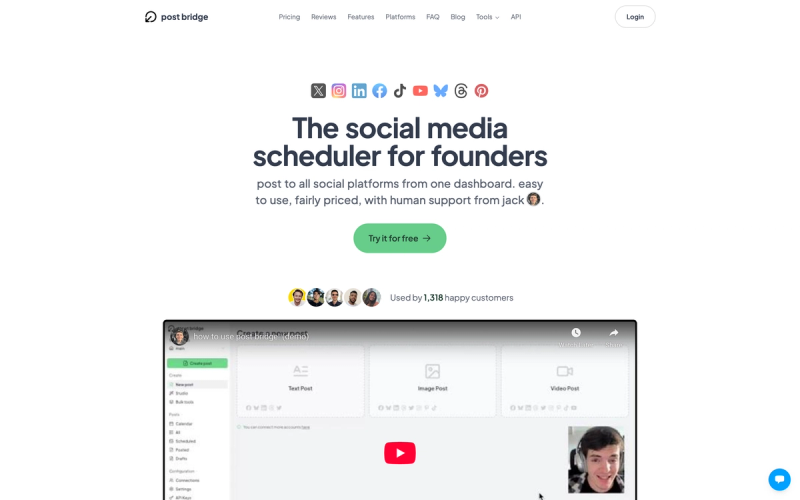
Multi-Platform Distribution as Insurance
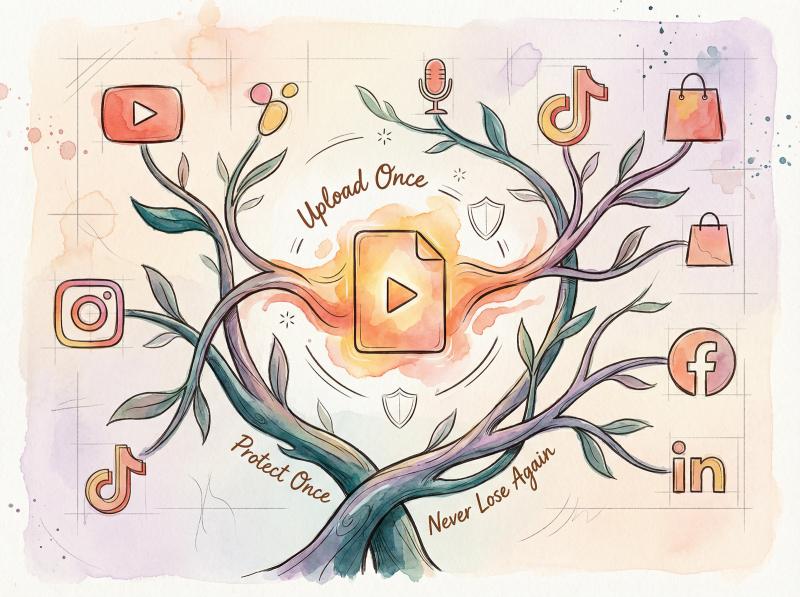
Post bridge is a social media scheduling tool built for creators and small teams who need to publish content to 10+ platforms simultaneously. Instead of manually uploading the same video to YouTube, Instagram, TikTok, Facebook, and LinkedIn separately, you upload once to Post bridge and schedule it everywhere.
But beyond the time savings, Post bridge's approach creates a distributed backup network for your content:
- If your YouTube video gets taken down, you still have copies live on Instagram, TikTok, Facebook, and other platforms
- If one platform's algorithm buries your content, you have multiple other channels driving traffic
- If you accidentally delete from one platform, Post bridge keeps your upload history and you can re-publish quickly
Features That Prevent Content Loss
TikTok Draft Posting
Post bridge includes a unique feature where you can save TikTok posts as drafts directly in the TikTok mobile app, then publish natively. This avoids potential reach penalties from third-party posting while maintaining your workflow.
YouTube Shorts Auto-Detection
When you upload a video to Post bridge, it automatically recognizes 9:16 videos under 3 minutes and posts them as YouTube Shorts. This ensures your content hits the right format without manual adjustments. Learn more about creating faceless YouTube videos and other automation strategies that work well with Post bridge's scheduling system.
Scheduling Prevents Rushed Mistakes
How many videos get accidentally deleted because creators are managing everything in a rush? When you plan your content schedule ahead of time in Post bridge, you reduce the chaos that leads to mistakes:
- Upload once, schedule for the optimal time on each platform
- Review and edit before anything goes live
- No more frantically clicking buttons at the last minute
API for Advanced Workflows
For creators with programming skills or who work with developers, Post bridge offers a simple API for $5/month. This lets you automate:
- Batch uploading from your video editing software
- Creating backup scripts that preserve copies before publishing
- Integrating with your existing workflow tools
Simple, Affordable, Reliable
I built Post bridge to be the anti-enterprise-tool. It's refreshingly simple to use:
- Plans start at $9/month for 5 connected accounts
- $29/month for 15 accounts (most popular for growing creators)
- $49/month for unlimited accounts (best deal for agencies or multi-brand creators)
- 40% off if you pay yearly
- Free trial to test it out
Check out the full pricing details to find the plan that fits your needs.
No bloated features you'll never use. No confusing interfaces. Just straightforward multi-platform scheduling that works.
Want to prevent future video loss? Try Post bridge and start distributing your content safely across all your channels. You'll save time and sleep better knowing your videos aren't dependent on a single platform's whims.
Plus, Post bridge offers a library of free creator tools including a LinkedIn text formatter, Instagram carousel splitter, and YouTube tag generator to help with your content workflow.
Prevention Tips to Avoid Losing Videos
After all this effort to find deleted videos, you're probably thinking: How do I make sure this never happens again?
Whether you're a creator or a viewer, here are proven strategies to minimize future losses.
For Creators: Protect Your Content Library
Always Keep Backups (This Cannot Be Overstated)
Follow the 3-2-1 backup rule for your video masters:
- 3 copies of your video (original + 2 backups)
- 2 different media types (e.g., external hard drive + cloud storage)
- 1 offsite copy (cloud or at a different physical location)
This protects you against hard drive failures, ransomware, house fires, and platform deletions.
Backup locations to use:
- External hard drives or NAS (Network Attached Storage)
- Cloud storage like Google Drive, Dropbox, Backblaze
- Second computer or office location
Once that 30-day YouTube Trash window closes, only your personal backup can save you.
Export Your Data Periodically
Run Google Takeout every few months:
- Select "YouTube and YouTube Music"
- Include your channel's videos, playlists, subscriptions, and history
- This creates a comprehensive archive of your channel
Keep in mind the Takeout archive can be very large if it includes videos, so plan your storage accordingly. But it's a lifesaver if your channel gets hacked or suspended.
Harden Your Security
Prevent hacks that lead to mass deletions:
- Enable two-factor authentication (or passkeys) on all Google accounts connected to your channel
- Audit your channel managers regularly in YouTube Studio → Settings → Permissions
- Remove any old collaborators or stale invitations (a common security hole after channel recoveries)
- Use YouTube's hacked-channel recovery flow immediately if you notice suspicious activity
Cross-Post to Multiple Platforms
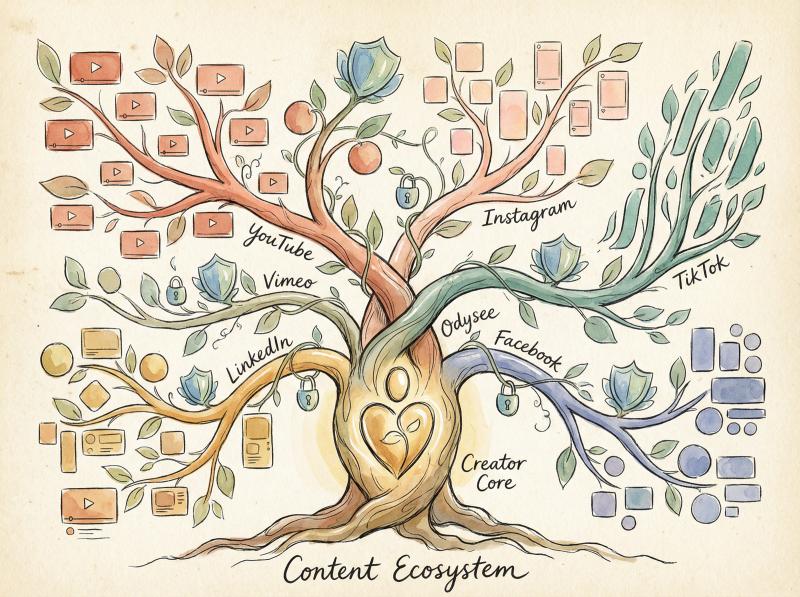
Don't publish exclusively on YouTube. When appropriate, upload your content to:
- Instagram (especially Reels for short-form)
- TikTok (short-form content)
- Facebook (for audience overlap)
- Vimeo (for creative/professional content)
- Odysee (decentralized platform)
If one platform removes your video, it's still accessible on the others. Tools like Post bridge make multi-platform publishing simple by letting you upload once and schedule everywhere.
Publish with Redundancy
Create different versions for different platforms:
- Short vertical teasers (TikTok, Instagram Reels, YouTube Shorts)
- Full-length videos (YouTube, Facebook)
- Platform-specific edits with captions and cover images
This way, discovery isn't tied to a single asset. If your main video disappears, you have alternative versions live elsewhere. For guidance on format optimization, check out our comparison of Instagram post vs story vs reel.
Maintain an Operational Metadata Spreadsheet
Keep a simple spreadsheet tracking:
- Video title and URL
- Upload date
- Description and tags
- Thumbnail filename
- Custom chapter timestamps
- Important links in the description
If you ever need to re-upload, you can restore everything exactly as it was.
Be Mindful of Policy
Avoid getting videos removed by YouTube in the first place:
- Understand the Community Guidelines
- Review YouTube's copyright policies before uploading
- If a video gets flagged, consider editing out the problematic parts instead of deleting the whole thing
For Viewers: Save What You Love
Save Copies of Valuable Videos
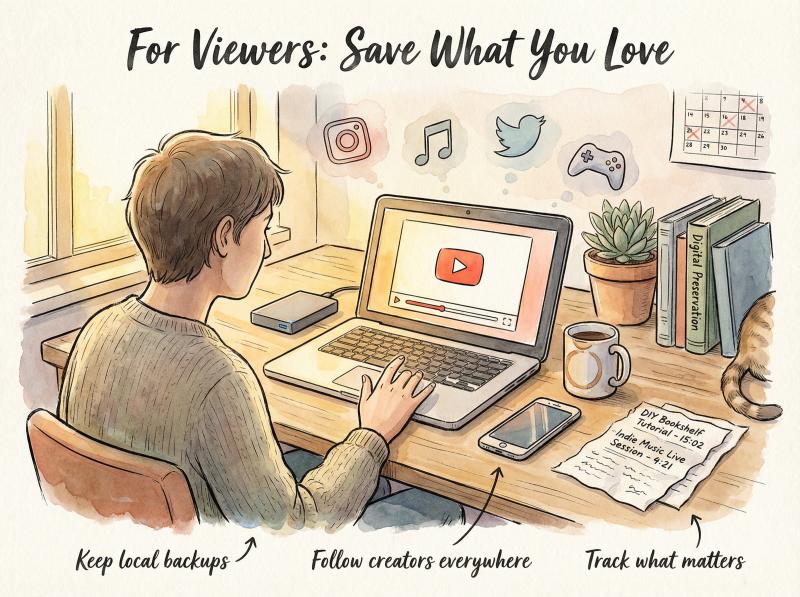
If there's a video (or whole channel) you truly treasure and worry might disappear:
- Use YouTube Premium to download videos for offline viewing in the app
- Use legal third-party tools for personal archiving (keep it within fair use)
- Remember: Downloading doesn't give you rights to re-upload or distribute the video publicly
Use Notification Tools for Deletions
Some browser extensions can track when videos in your playlists go offline:
- They flag "unavailable videos" in playlists and show you what was removed
- This helps you react quickly (e.g., search for a reupload) before you forget what the video was
Support Creators on Multiple Platforms
Many YouTubers have presences on Twitter, Instagram, TikTok, Discord, or Patreon:
- Follow them everywhere to stay in the loop
- If their YouTube content vanishes, they often announce it on other platforms
- They might explain why a video was removed or where it'll resurface
- Being part of their community helps you stay informed when content shifts
For a comprehensive approach to supporting creators while maintaining visibility across platforms, explore Post bridge's free growth guide which covers content strategy, platform best practices, and audience building.
Step-by-Step Recovery Playbooks
Quick reference guides for common scenarios.
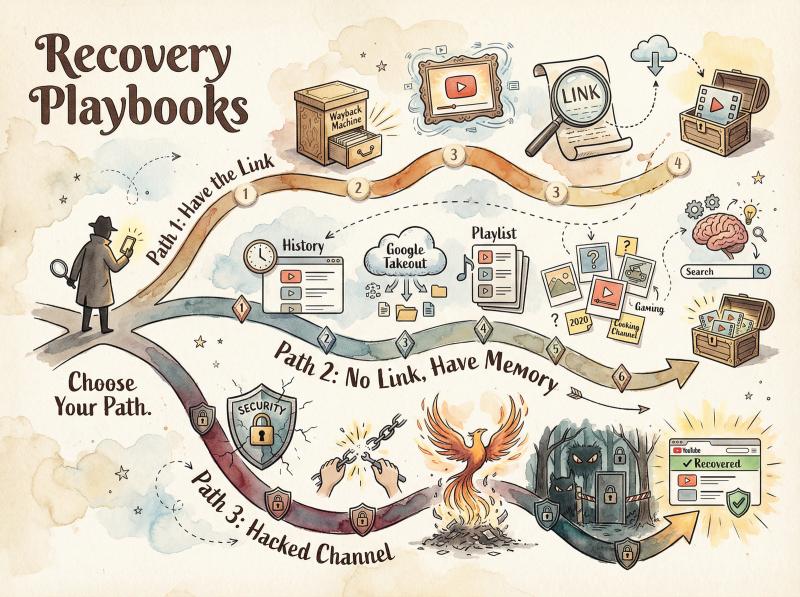
Playbook 1: I Have the YouTube Link, I Want the Title/Description/Thumbnail
Goal: Recover metadata about a deleted video when you have its URL.
- Paste the watch URL into Wayback Machine and check multiple archived dates for the richest snapshot
- Try
https://i.ytimg.com/vi/VIDEOID/hqdefault.jpgor/maxresdefault.jpgto grab the last-known thumbnail - Copy the title and description from the archived page; save as a text snippet for republishing or citation
- If the thumbnail loads, reverse image search it on Google Images or TinEye to find reuploads
Playbook 2: I Don't Have the Link, But I Remember Watching It
Goal: Find the Video ID when you've lost the URL.
- Export your YouTube history via Google Takeout → "YouTube and YouTube Music" → "History (JSON)"
- Open
watch-history.jsonand search for keywords related to the video - The
titleUrlfield reveals the Video ID - Check your browser history and any playlists you created (use "Show unavailable videos")
- Search the web and social media with quoted title fragments + creator name
- Once you have the Video ID, proceed with Playbook 1
Playbook 3: My Channel Was Hacked and Videos Disappeared
Goal: Recover from a channel compromise and restore missing videos.
- Begin with YouTube's hacked-channel recovery process to secure your Google Account
- Use the YouTube support assistant (rolled out in 2024) for guided restoration
- After recovery, remove all unauthorized channel managers in YouTube Studio → Settings → Permissions
- Review visibility settings for every upload and re-publish anything wrongly hidden or privatized
- Enable two-factor authentication and change all passwords immediately
- Check your Trash folder for any videos that were deleted during the compromise
Playbook 4: I'm a Creator Needing to Re-Publish After Recovery
Goal: Restore and distribute content after regaining control of your channel.
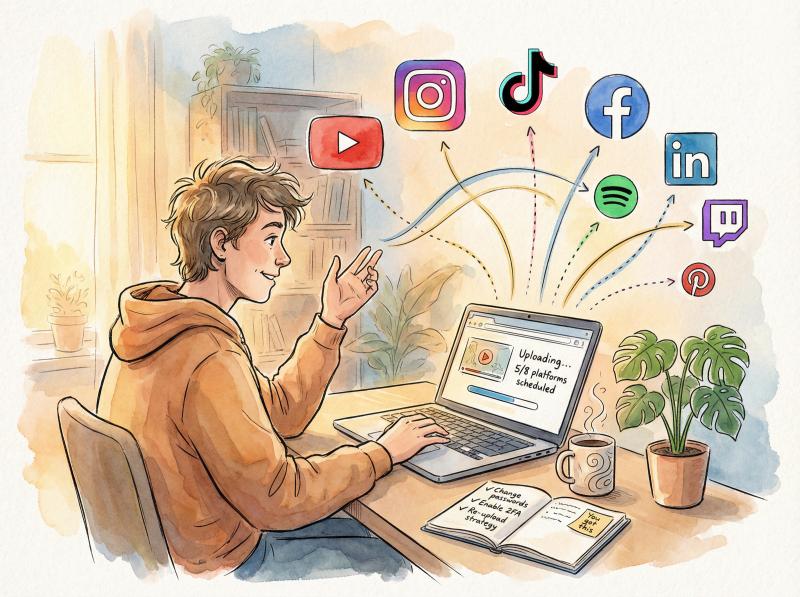
- If you have the original master file, re-upload to YouTube with corrected metadata
- For videos that fit the format (9:16 vertical, under 3 minutes), publish as YouTube Shorts to maximize reach. Learn more about clipping YouTube videos for optimal format.
- Cross-post to other platforms like Instagram Reels, TikTok, Facebook, and LinkedIn using Post bridge to regain visibility and create backups
- Update any external links (website embeds, social media posts) to point to the new video URL
- Pin a comment on the re-uploaded video explaining what happened (builds trust with your audience)
Frequently Asked Questions
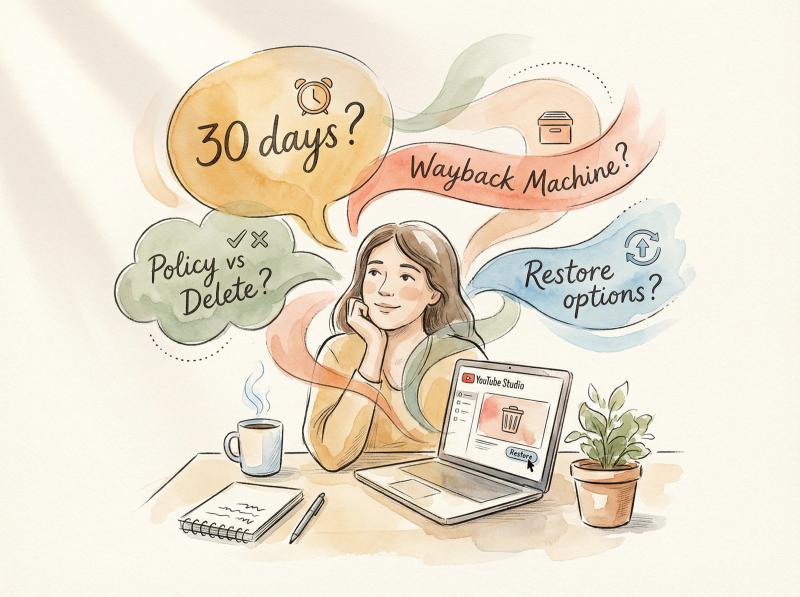
Can YouTube restore a video I deleted myself?
Yes, if it's been less than 30 days. YouTube now has a Trash folder in YouTube Studio where deleted videos are kept for 30 days. You can restore them with a few clicks during that window. After 30 days, deletion is permanent and YouTube cannot recover the video. Always keep your own backups and download your uploads from Studio before removing anything.
Can I get the actual video file from Wayback Machine?
Rarely. The Wayback Machine typically archives page metadata (title, description, channel info, comments) but not the video stream itself. YouTube videos are hosted separately from the page HTML, and archives usually don't capture the media file. You'll recover information about the video, not the video itself. For playback, you'll need to find reuploads or specialized archives like Hobune.stream.
What about videos removed for copyright or policy violations?
If YouTube removed a video for violating Community Guidelines or responding to a copyright claim, there's no 30-day grace period. These removals are immediate and permanent. Your options are:
- Appeal the decision through YouTube Studio if you believe it was a mistake
- Consider filing a DMCA counter-notice if a copyright takedown was mistaken (understand the legal requirements first)
- Find the video archived elsewhere (Wayback Machine, specialized archives, reuploads)
Support won't restore policy-removed videos unless your appeal succeeds.
Is there any "Trash" or grace period for deleted videos?
Yes. In 2025, YouTube introduced a Trash feature that holds deleted videos for 30 days, giving creators a restoration window. This only applies to videos you deleted yourself through YouTube Studio. After 30 days, or for videos removed by YouTube for policy reasons, there's no grace period and no recovery from YouTube's side.
Final Thoughts
Finding a deleted YouTube video often feels like detective work. And honestly? Sometimes, despite doing everything right, the video is truly gone forever. Not every piece of content gets archived or saved.
Your success usually depends on how popular the video was, how quickly you act, and a bit of luck. You might recover just the title and not the video itself. You might find a low-quality reupload instead of the HD original. Set your expectations realistically.
Always remember to respect copyright and privacy when you do find lost content. If a creator removed their video because they no longer want it public, re-uploading it yourself or widely sharing it could violate their wishes (and possibly copyright law). Use recovered content responsibly for personal viewing or archival purposes only.
The best strategy, as we've discussed, is prevention:
- If you're a creator: Keep backups, cross-post your work, and harden your security
- If you're a viewer: Save what you love, follow creators on multiple platforms, and act quickly when content disappears
In the end, the internet does have a long memory. With the methods in this guide, you have a solid chance of digging up information (if not the video itself) about that "deleted" YouTube video you're looking for.
Good luck with your search, and may your beloved content never truly vanish.
This guide reflects YouTube policies and tools as of October 2025. Platforms change frequently, so always check the live YouTube Help Center for the most current information.