
Want more people to see your tweets? Making your Twitter account public opens up your content to everyone, not just your approved followers. This can be huge for building your audience, growing your brand, or just connecting with more people who share your interests.
By default, Twitter accounts start out public. But if you've turned on privacy settings, or if you're between 13-17 (since Twitter defaults minors to protected accounts), your tweets are only visible to followers you've approved. This guide will walk you through exactly how to change that.
Quick note: Twitter rebranded to "X" in 2023, but we'll use "Twitter" throughout this guide since most people still call it that. The instructions work the same either way. Also, "protecting your posts" is just Twitter's way of saying your account is private, and "unprotecting" makes it public.
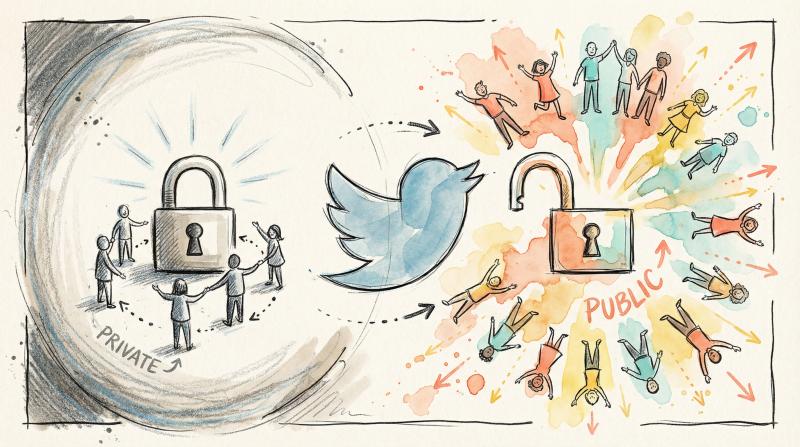
How to Make Your Twitter Account Public (Quick Answer)
The fastest way: Go to Settings and privacy → Privacy and safety → Audience and tagging and turn OFF "Protect your posts."
That's it. Your account is now public.
Here's the quick version for each platform:
On Mobile (iOS or Android):
- Tap your profile icon → Settings and Support → Settings and privacy
- Go to Privacy and safety → Audience and tagging
- Toggle "Protect your posts" off
On Desktop:
- Click More (the … button) → Settings and privacy
- Navigate to Privacy and safety → Audience and tagging
- Uncheck "Protect your posts" and save if prompted
The change happens immediately. Your tweets become visible to everyone, followers can join without approval, and your content can start appearing in search results right away.
Public vs. Private Twitter Accounts: What's the Difference?
Before you flip the switch, it helps to understand exactly what changes.
Feature - Public Accounts - Private Accounts
- Visibility - Anyone can view and interact with tweets, even without following - Only approved followers can see tweets
- Search Results - Tweets appear in Twitter search and Google - Content won't appear in public searches
- Retweets - Anyone can retweet or quote-tweet content - Retweet button is disabled on protected tweets
- Follower Approval - People can follow instantly without approval - Every follow request requires manual approval
- Profile Indicator - No special indicator - Padlock icon next to username
- Replies - Anyone can see your replies - Non-followers won't see your replies to others
The numbers tell an interesting story: only about 4% of Twitter accounts are protected (though it's around 13% among U.S. adults). Most people choose to stay public because they want their content to reach as many people as possible.
Why might your account be private right now?
If you manually turned on "Protect your Tweets" at some point, your account switched to private mode. Also, if you're a minor between 13-17, Twitter now defaults your account to protected as a safety feature. You can still make it public using the steps below (just be aware of the privacy trade-offs).
How to Check if Your Twitter Account Is Public or Private
Not sure which mode you're currently in? Here's how to tell:
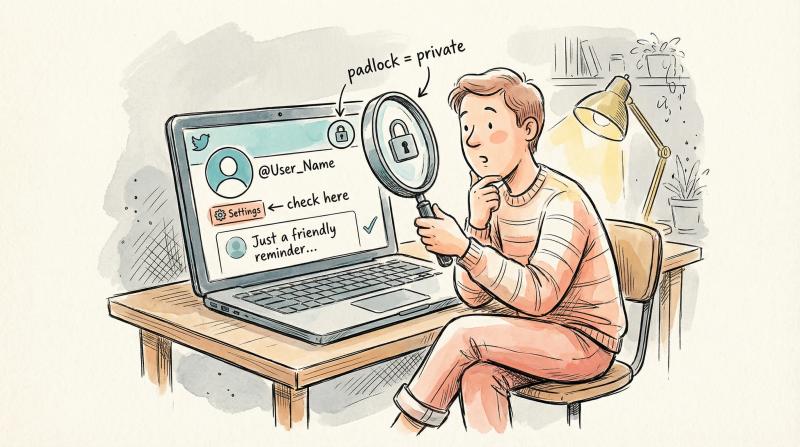
① Look for the padlock icon
Go to your Twitter profile and check next to your username. If you see a little lock symbol, your tweets are protected (private). No lock? You're public.
② Test tweet visibility
Log out of Twitter (or ask a friend who doesn't follow you) to view your profile. If your tweets show a message like "These Tweets are protected," you're private. If they're visible normally, you're public.
③ Check your settings
Navigate to Settings and privacy → Privacy and safety → Audience and tagging. Look for the "Protect your posts" toggle. If it's on, you're private. If it's off, you're public.
How to Make Your Twitter Account Public on Mobile (Step-by-Step)
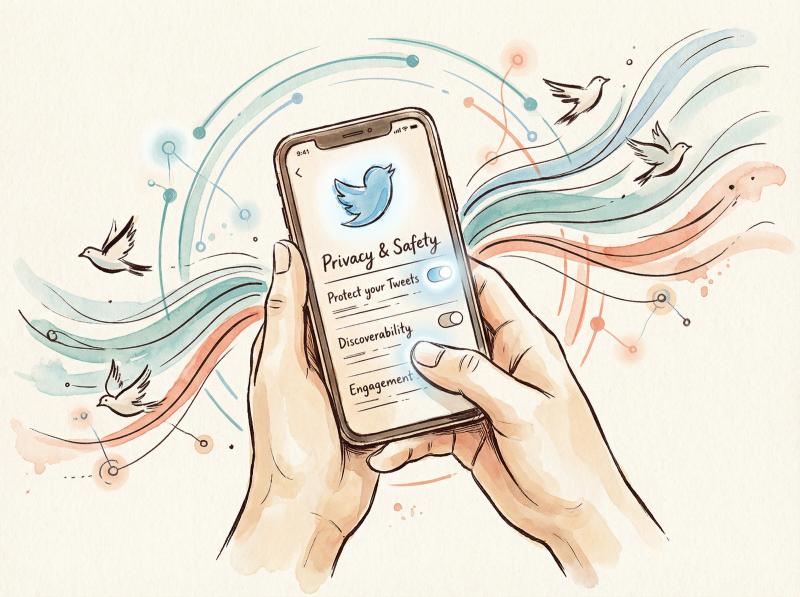
Twitter's mobile interface works the same way on iPhone and Android. Here's exactly what to do:
1. Open the Twitter app and make sure you're logged in. Tap your profile picture in the top-left corner to open the menu.
2. Navigate to Settings. Scroll down to the bottom of the menu and tap "Settings and Support," then tap "Settings and privacy."
3. Go to Privacy settings. In the Settings menu, select "Privacy and safety." This is where all your account privacy options live.
4. Find Audience controls. Within Privacy and safety, tap "Audience and tagging." This section controls who can see your posts and tag you.
5. Turn off tweet protection. You'll see "Protect your posts" with a toggle switch. Tap it to turn it off. When it's off, it should appear grayed out or unchecked.
6. Confirm if needed. Some versions might show a confirmation dialog. Just agree to save the change. Most of the time on mobile, it updates immediately without asking.
The change happens instantly. You can verify by checking your profile (the padlock should be gone), and new followers can now follow you without waiting for approval.
How to Make Your Twitter Account Public on Desktop (Step-by-Step)
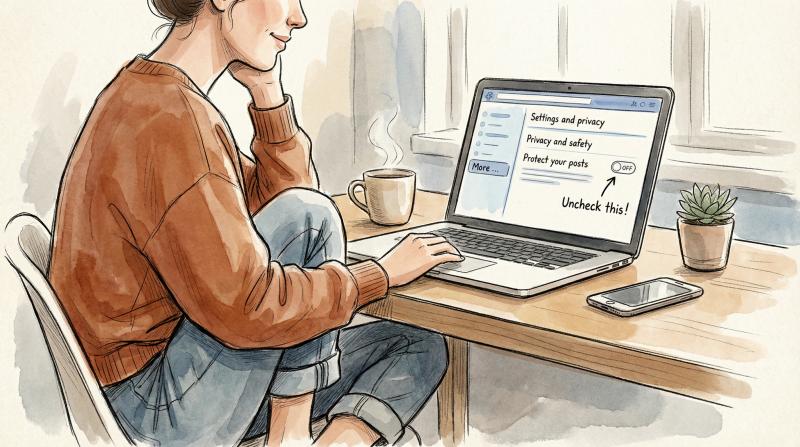
Using Twitter on a web browser? The process is similar with slightly different navigation:
1. Log in at Twitter.com (or X.com). On the left sidebar, click the "More" option (it's the button with three dots: …).
2. Open Settings. In the menu that pops up, click "Settings and privacy."
3. Navigate to Privacy. On the Settings page, click "Privacy and safety" in the left sidebar or main area.
4. Find Audience settings. Within Privacy and safety, click "Audience and tagging."
5. Disable protected tweets. Look for the "Protect your posts" checkbox. Uncheck it.
6. Save your changes. Depending on your version of Twitter, you might see a confirmation button or be asked to enter your password. Confirm the change if prompted. In newer versions, unchecking the box might save automatically.
Once you've unchecked and saved, your tweets are public. Anyone can view your profile and tweets without needing approval.
Quick tip: Twitter's interface changes occasionally. If you don't see "Protect your posts" exactly, look for similar wording like "Protect your Tweets" or anything about tweet visibility. It'll always be in the Privacy settings somewhere. You can also use the search bar within Settings (type "protect") to find it quickly.
What Happens When You Make Your Twitter Account Public
Flipping that switch has immediate effects. Here's what you gain and what you give up.
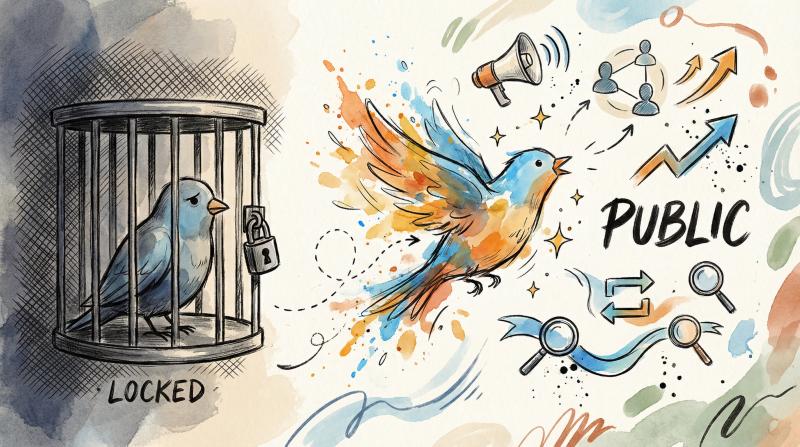
What You Gain with a Public Twitter Account
- Maximum visibility
All your tweets including past ones become visible to everyone. Anyone can see and engage with them, even people who don't follow you or don't even have a Twitter account. Your tweets can appear in Twitter's search results and on Google, dramatically increasing your reach.
- Way more engagement
Other users can now retweet and quote-tweet your content. When your account was private, nobody could retweet your posts. Now your tweets can spread across the platform, potentially getting you more likes, retweets, and replies. This is essential if you want to grow your audience or have something go viral.
- Instant follows
People can follow you without sending a request. This removes the friction for new followers, and you'll probably see your follower count increase faster since there's no manual approval step.
- Better discoverability
Your profile and tweets can show up in Twitter's "Who to Follow" suggestions, trending sections, and recommendation algorithms. Protected accounts are hidden from these features. Going public puts you on the wider map.
- Professional opportunities
If you're using Twitter to build a brand, network, or find work, a public account is pretty much required. Potential employers, clients, or collaborators can discover and view your content. (Just make sure you're tweeting things you'd want them to see.)
Privacy Trade-offs of Making Your Account Public
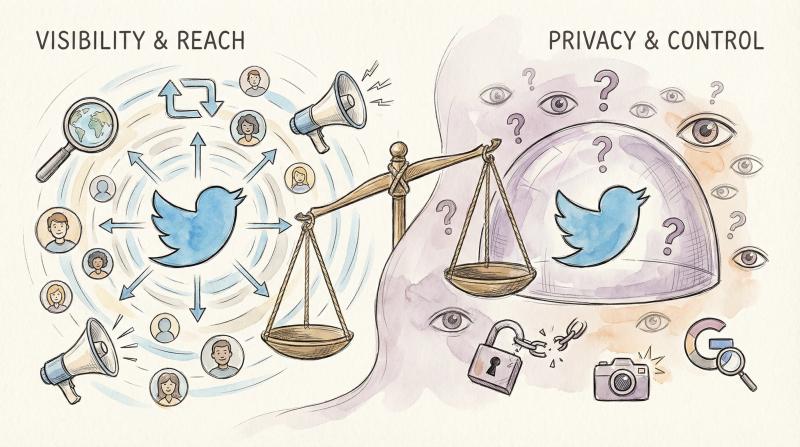
- Loss of follower control
You can't individually approve who follows you anymore. Anyone can hit Follow and see your tweets. If there are specific people you want to keep out, you'll have to block them one by one since the door is now open to everyone.
- Everything is publicly accessible
Every tweet you post can be screenshot, shared, or archived by others without restriction. Even if you delete a tweet later, you should assume someone might have saved it while it was public.
- You don't always know who's watching
With a private account, you knew exactly who could see your tweets (only your approved followers). Going public means strangers, trolls, or automated bots might see and reply to your content. You might need to adjust settings like reply controls or notification filters to manage unwanted interactions.
- Search engine exposure
Your tweets can appear in Google and other search engines. For people who value privacy, this is a downside. Tweets you made in the past that were protected could now surface publicly. If any old posts contain sensitive info, consider removing them before going public.
- Existing followers stay put
Making your account public doesn't remove anyone who's already following you. If there were people you approved in the past but aren't comfortable with anymore, you'll need to manually remove or block them (more on this below).
Going public is great for visibility and growth, but you're trading some privacy and control for that reach. Make sure that trade-off works for you. Lots of creators, businesses, and people building a following choose to stay public to maximize impact. Others who use Twitter mainly for personal connections might prefer to keep it private. Your call.
What to Know Before Making Your Twitter Account Public
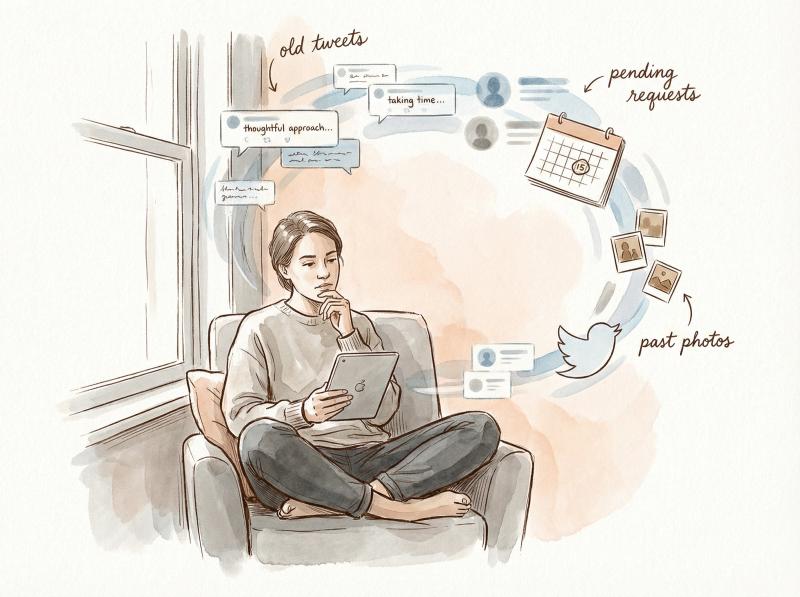
Making your account public is simple, but a few things are worth checking first:
① Review pending follower requests
If your account has been private, you might have people waiting for approval to follow you. Those pending requests won't automatically be approved when you go public. They'll essentially disappear, and those users will have to follow you again once you're public. So before switching, check your pending requests and manually approve anyone you definitely want as a follower. Otherwise, you might lose track of someone important.
② Past tweets go public immediately
Tweets that were previously protected will become public once you unprotect your account. That includes all your old content. If there are any past tweets you wouldn't want visible to the world (personal photos, location check-ins, strong opinions meant for friends only), consider deleting them before flipping the switch. Once you're public, anyone could find those old tweets.
③ Do a content audit
Since you're opening up to a broader audience, take a quick look at your profile: your bio, profile picture, header image, and recent tweets. Do they represent you the way you want? You might want to remove personal contact info from your bio or anything you wouldn't want a stranger to know. Remember, public means public.
④ Remove unwanted followers (optional)
When your account was private, you could deny follow requests from people you weren't sure about. Now that you're going public, people can follow without asking. If there are users you previously approved but no longer want seeing your tweets, you have options:
- Use the "Remove follower" feature (sometimes called a soft block). On your Followers list, click the … next to their name and choose Remove follower. This quietly kicks them off without notifying them. They could follow again since you're public, but it at least prunes your current list.
- Block accounts you absolutely don't want engaging with you. Blocking makes your tweets invisible to them when they're logged in. (Note: they could still see your public tweets if they log out or use a third-party app, since your content is public. But blocking stops them from following or interacting.)
You don't need to remove anyone if you're comfortable with your current followers. This is just an option if you want to curate.
⑤ Consider informing people
If you went private specifically to share things with friends and family, you might want to let them know you're going public. Especially if you plan to tweet differently (more frequently, on broader topics), it's nice to give close connections a heads-up.
⑥ The change happens immediately
There's no waiting or approval from Twitter. The moment you toggle it off and save, you're public. If you don't see it take effect right away, try refreshing or logging out and back in, but it's usually instant.
⑦ Your followers keep following
Switching to public doesn't remove or change your existing followers. People who already follow you still will. The only difference is now new people can follow freely.
⑧ Expect more notifications
Don't be surprised if your notifications pick up once you're public. You might get random likes from non-followers, new follow notifications, or even some spammy replies (unfortunately, public accounts attract a bit more spam). Consider turning on quality filters in your Notifications settings to hide low-quality or bot replies.
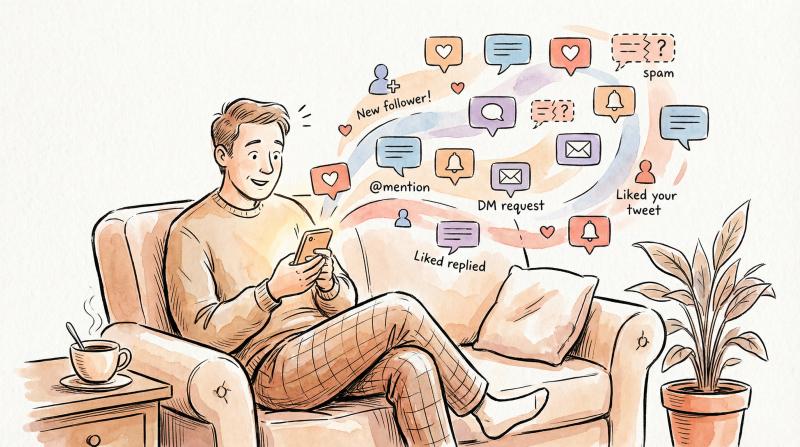
Also, anyone can DM you if you have that setting enabled. Check your Direct Message settings. If you only want messages from people you follow, you can adjust that. When you were private, non-followers couldn't DM you at all. Now they can if the setting allows.
⑨ You can be added to Twitter Lists
With a public account, others can add you to public Twitter Lists (which are just ways to categorize users). It's generally harmless, but if someone adds you to a list you don't like, you can block that user to be removed from their list.
Think of going public like opening the door to a much bigger room. Lots of opportunity for new connections and interactions, but also a need to be mindful about what you share and who's watching.
Privacy Settings to Adjust After Going Public
Making your account public is the big move, but Twitter has other settings that let you fine-tune your experience. Now that you're public, here's what else to consider:
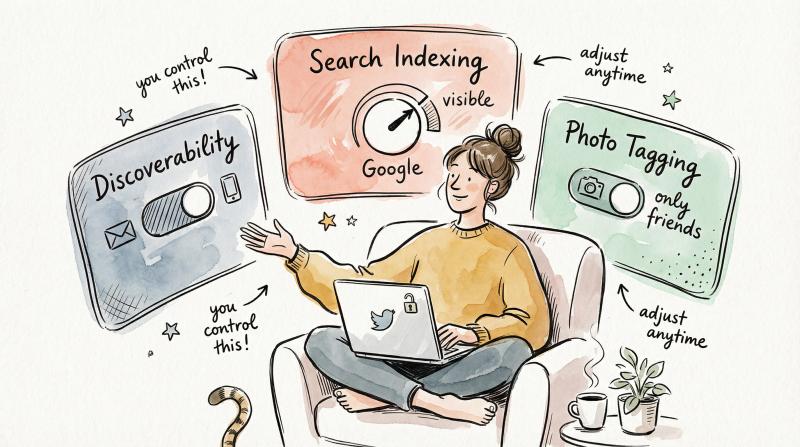
- Discoverability by email/phone
Under Privacy and safety → Discoverability and contacts, you can choose whether people can find your account using your email or phone number. If you want friends and colleagues to find you easily, leave these on. If you're concerned about privacy, turn them off. Just know that with a public account, someone who has your email or phone might be able to locate you if these settings are enabled.
- Search engine indexing
In Privacy and safety → Content you see (or similar section), look for "Allow search engines to index your profile." If this is on, Google and other search engines can index your tweets and profile. This is usually on by default for public accounts and helps your content be found on the web. If you don't want your tweets showing up in Google searches, you can turn this off (though people can still share your tweets elsewhere since your account is public).
- Photo tagging
Now that your profile is visible to everyone, random people might try tagging you in photos or memes. Under Privacy and safety → Audience and tagging, there's a "Photo tagging" setting. You can set it to "Only people you follow can tag you" or "No one can tag you" if you want to avoid stranger tags. If you're okay with being tagged, leave it as-is.
- Direct Messages
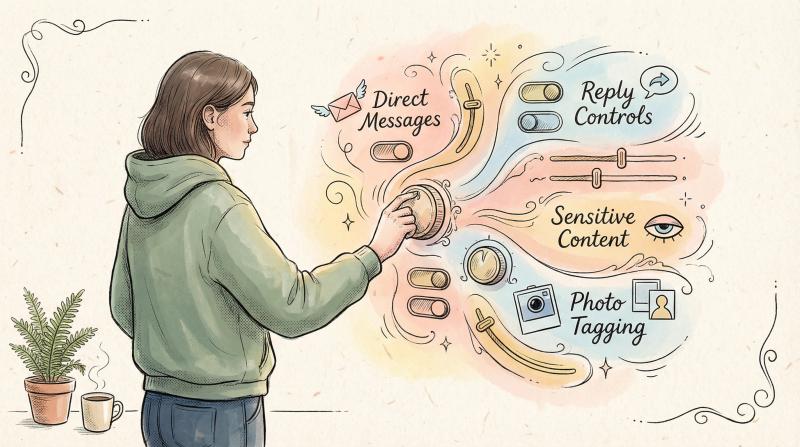
By default, when you're public, people you don't follow can send you message requests if you've allowed it. Check Settings → Privacy and safety → Direct Messages. If you want to be reachable (for networking or business), leave it on. If you're getting spammy DMs, turn it off so only people you follow can message you. You can also enable quality filters to route likely spam into a separate requests folder.
- Reply controls
Even with a public account, you control who can reply to each individual tweet. When composing a tweet, you can choose "Everyone can reply," "People you follow," or "Only people you mention." If you think a tweet might attract unwanted attention, limit the replies. This is handy for managing conversations case by case.
- Sensitive content
Public accounts should double-check their sensitive content settings. Under Privacy and safety → Content you see, there are filters for sensitive content. Also, under Privacy and safety → Your Tweets, there's an option to "Mark media you Tweet as containing material that may be sensitive." If you post edgy or adult content, mark it appropriately. If you want to see sensitive content from others (and you're over 18), you might disable the "hide sensitive content" filter. (If you're under 18, Twitter won't show you adult content by policy.)
- Muted words and quality filters
With a wider audience comes more noise. Use mute filters for words or phrases you don't want to see in your notifications or timeline. If you tweet about controversial topics, you might get nasty replies. Muting certain keywords can keep things manageable. Also, check Notifications → Filters and turn on "Quality filter" and maybe "Mute notifications from people who haven't confirmed their email/phone." These settings cut out a lot of bot spam.
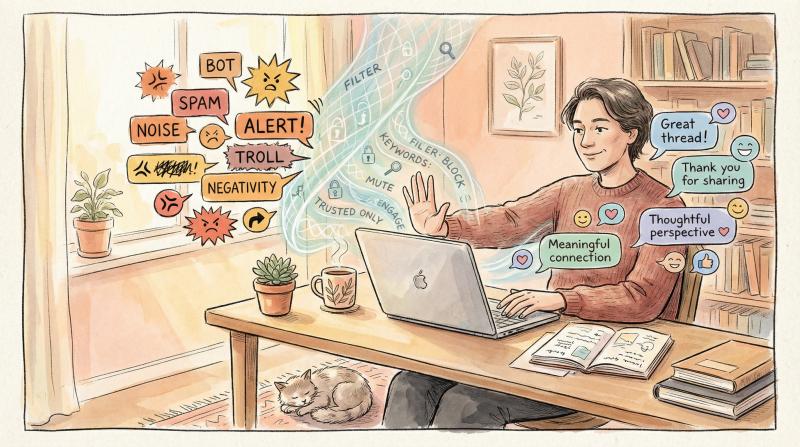
All these tools are in your Privacy and safety menu. Think of them as ways to shape how open you want to be. You're public, but you can still control specific aspects of interaction to suit your comfort level.
How to Manage Your Public Twitter Account with Scheduling Tools
Once your account is public, you'll want to post consistently to actually grow that audience. But let's be real: manually posting every day on Twitter (and probably Instagram, TikTok, YouTube, and wherever else you're active) gets exhausting fast.
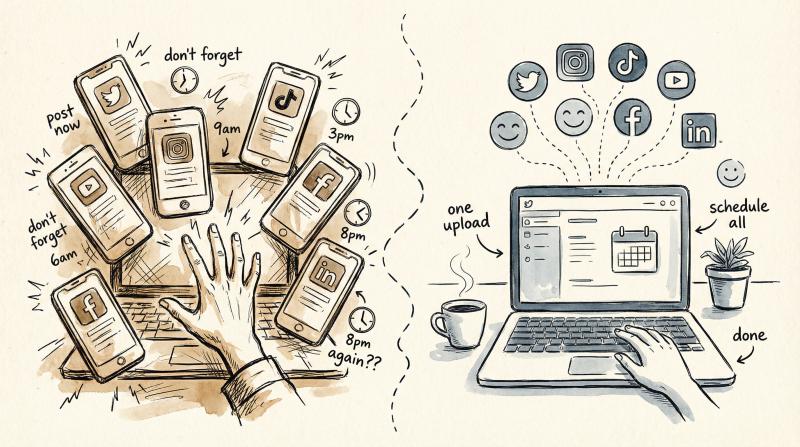
This is where scheduling tools come in. Instead of logging into each platform multiple times a day, you can plan your content in advance, schedule it, and let automation handle the rest. For a public Twitter account, consistency is everything. If you go weeks without posting, your followers forget about you. But if you're posting regularly, you stay top of mind and the algorithm rewards you with better reach.
Post bridge is built exactly for this. Post bridge is a social media scheduler designed for creators and small teams who want a simple, affordable way to manage multiple platforms without the bloat of enterprise tools.
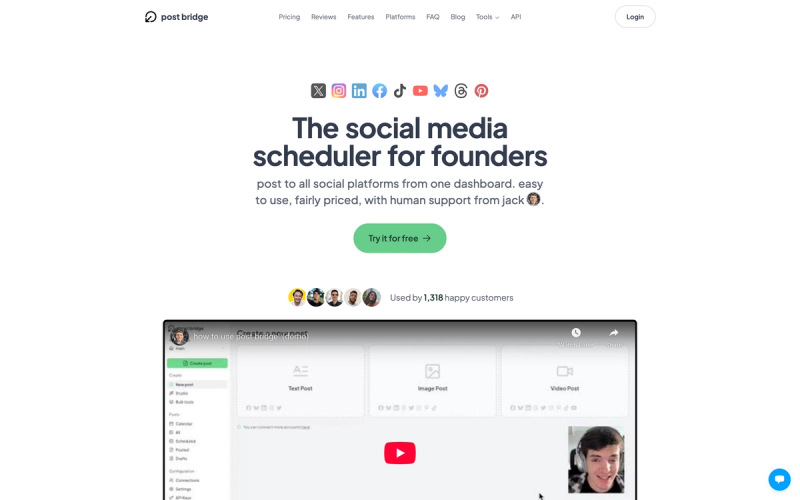
Here's how it works: You upload your content (video, images, text) once to Post bridge. Then you can schedule or publish it across Twitter, Instagram, TikTok, YouTube, Facebook, LinkedIn, and more from one place. No need to manually post to each platform. No need to remember login credentials for 10 different accounts.
Why this matters for your public Twitter account:
With your Twitter now public, your tweets can reach a massive audience. But only if you're actually posting. Post bridge helps you maintain a steady presence without spending hours every day on social media. You can batch-create your content once a week, schedule it all out, and let Post bridge handle publishing while you focus on other things.
Features that help:
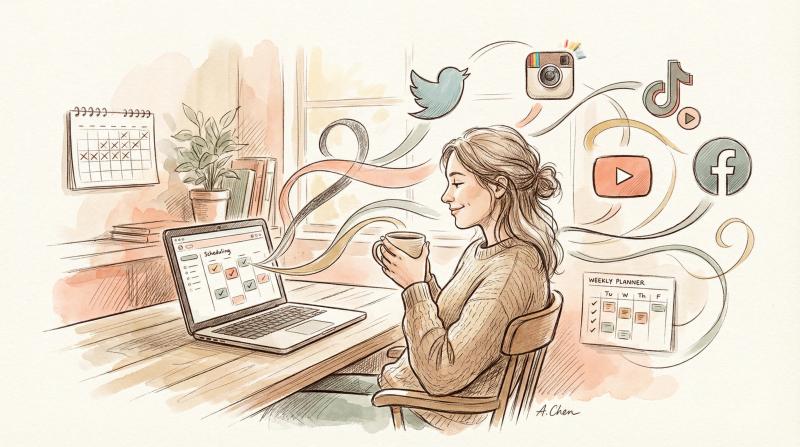
- Multi-platform posting → Upload once and publish to Twitter, Instagram, TikTok, YouTube Shorts, and more simultaneously
- Scheduling → Queue up tweets days or weeks in advance so you never miss a posting window
- TikTok draft posting → Save posts as drafts in the TikTok app to publish natively (helps avoid potential reach penalties from third-party posting)
- YouTube Shorts detection → Videos in 9:16 aspect ratio under 3 minutes automatically post as Shorts
- Affordable pricing → Starts at $9/month for 5 connected accounts. Way cheaper than most enterprise tools, perfect for solo creators or small teams
For someone who just made their Twitter account public and wants to grow, Post bridge is a no-brainer. You're no longer limited by how much time you can spend manually posting. You can plan a week's worth of tweets on Sunday, schedule them, and focus on creating great content or engaging with your audience.
Plus, public accounts get way more value from scheduling tools. When your account was private, only approved followers saw your tweets anyway. But now that you're public, scheduled tweets can reach anyone. Your content can trend, get retweeted, appear in searches. The broader distribution makes consistency even more important, and Post bridge makes consistency effortless.
Ready to maximize your public Twitter presence? Check out Post bridge and see how much easier multi-platform posting can be.
Should You Keep Your Twitter Account Public or Private?
If you're reading this guide, you probably already want to go public. But it's worth a final check to make sure it's the right move for your goals.
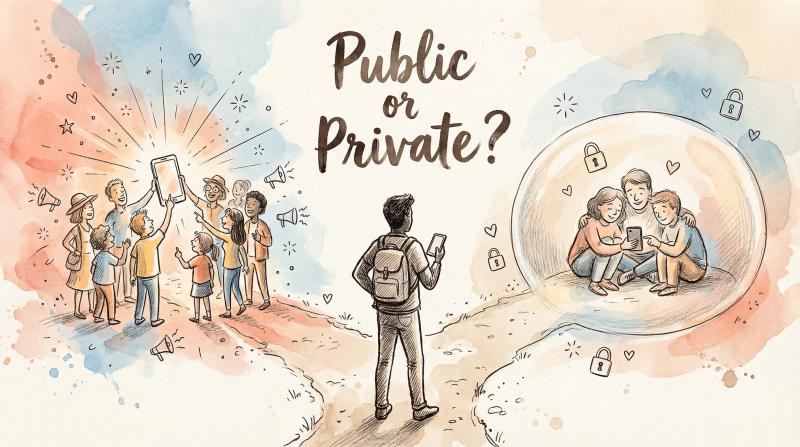
Choose public if you want to:
- Build a following or personal brand → You've got ideas, content, or a business you want the world to see. A public profile is essential for growth. Creators, entrepreneurs, thought leaders, and anyone trying to increase their influence should go public so content can spread freely.
- Engage with the broader community → Lots of conversations on Twitter happen publicly. If you want to reply to well-known accounts, participate in trending topics, or have your witty tweet go viral, you need to be public. Only public tweets show up in hashtag feeds or search results.
- Network professionally → A public Twitter can serve as a living resume or portfolio of your thoughts (just keep it professional). Journalists, developers, marketers, and other professionals often benefit from public profiles where colleagues and recruiters can discover them.
- Use third-party tools effectively → Some services like scheduling apps and cross-posting tools work better with public accounts. For example, if you're using Post bridge to schedule content across platforms, having a public Twitter ensures your tweets are visible to your target audience. (You can schedule to private accounts too, but you miss out on broader engagement.)
Choose private if you:
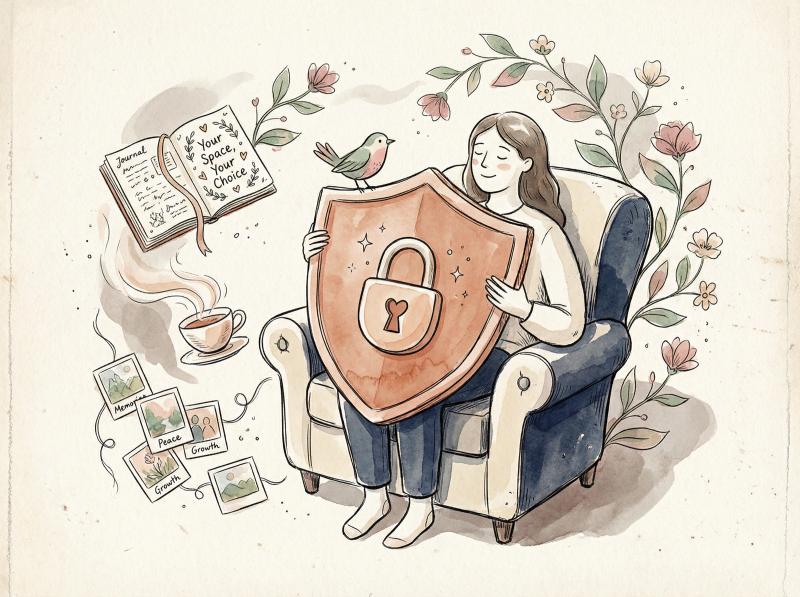
- Share primarily personal updates → If your Twitter is like a personal journal or a way to keep in touch with a small circle, and you value that privacy, staying private is totally valid. Not everyone needs or wants a big following.
- Want strict control over your audience → Maybe you discuss sensitive topics, or you're a teacher/doctor/etc. who wants to separate personal from professional life. A protected account lets you vet who sees your thoughts, preventing colleagues, students, or random strangers from lurking.
- Feel safer limiting exposure → Unfortunately, harassment and trolling happen on Twitter. A private account can act as a shield since random people can't easily target you if they can't see your tweets. If you've experienced abuse, staying private might feel safer.
- Prefer stealth browsing → Some people keep an account private just to use Twitter for reading and DMing friends, without broadcasting publicly. That's fine too. If you don't actively tweet for public consumption, there's no strong reason to be public.
One more thing: You can always switch back to private if public life gets overwhelming. The setting is reversible. Twitter doesn't limit how often you can toggle it. Just note that if you go back to private, any new followers you gained while public will remain followers (they won't be kicked out), and you'll start getting follow requests again for new ones. Also, tweets you made while public won't magically disappear from other people's timelines or Google's index (they'll stay visible to your followers or cached). Going private again only affects future visibility.
Troubleshooting: Common Issues Making Your Twitter Account Public
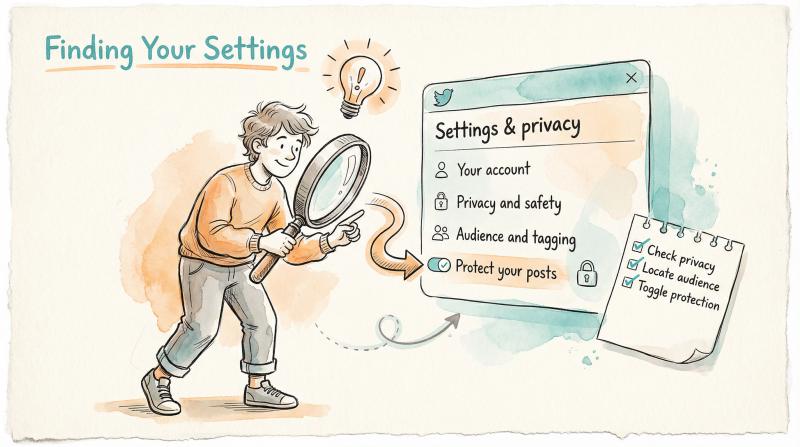
Q: I followed the steps but don't see "Protect your posts." Where is it?
Double-check you're in the right place: Settings and privacy → Privacy and safety → Audience and tagging. Some versions say "Protect your Tweets" instead of "posts." If you still don't see it, make sure your Twitter app is updated. Older versions might have the setting in a slightly different menu. On the web, Twitter occasionally redesigns the settings layout, so if Audience and tagging isn't obvious, scroll down or look under a section like "Your Tweets." You can also use the search bar in Settings (type "protect") to find it quickly. The feature definitely exists. It's core to Twitter. You just need to locate it.
Q: I turned off "Protect my posts." How do I know my account is public now?
A few ways to confirm:
- Check for the padlock icon on your profile. If it's gone, you're public.
- Have a friend who doesn't follow you search for your account or view your profile. Can they see your tweets? Then you're public.
- Log out and view your profile URL (twitter.com/YourUsername). If you can see your tweets while logged out, you're public. If you see "You need to be following to see these tweets," it's still private.
- Twitter might send an in-app notification or email confirming "Your tweets are now public." Check your email.
If none of these confirm success, repeat the steps and make sure you saved. It's rare for it not to work. Usually it's user error (missed a step or didn't save).
Q: Do my followers get notified when I make my account public?
No. Twitter doesn't send a notification to your followers saying "User X is now public." It's a silent change. However, people who previously requested to follow you might notice they can now follow you outright (since their pending request disappeared). They won't be explicitly notified, but they'd see the change if they revisit your profile. Generally, you don't need to announce it, but if you have close friends who only interacted because it was private, you might want to let them know you're opening up.
Q: What happens to my pending follower requests?
Pending follow requests are not auto-approved when you go public. They basically get reset. Those people will be able to follow you freely now, but they won't automatically become followers unless they take action again. If someone says "I tried following you, did you remove me?" explain that your account was private and is now public, so they should hit Follow again. It might be wise to reach out to important contacts who were waiting and let them know.
Q: Can I make my account public from Twitter Lite or mobile web?
Yes. If you're using the mobile website (mobile.twitter.com) or Twitter Lite app, the steps are the same: Settings and privacy > Privacy > Protect your tweets, then toggle it off. The Lite interface might look slightly different, but the option is still there. If you have trouble, it might be easier to use the full site on a desktop or the standard app, then switch back to Lite.
Q: If I make my account public, can I still block or remove followers later?
Absolutely. Going public doesn't remove your ability to control individual interactions. You can block any account, preventing them from following or seeing your tweets while logged in. You can also remove followers (on desktop, via your followers list). And you can mute accounts if you just don't want to see them. Public means by default anyone can follow and see you, but you still have tools to manage specific people.
Q: I made my account public, but I'm not getting new followers or engagement. Why?
Making your account public is step one. People still need to discover your content. Here's how to boost visibility:
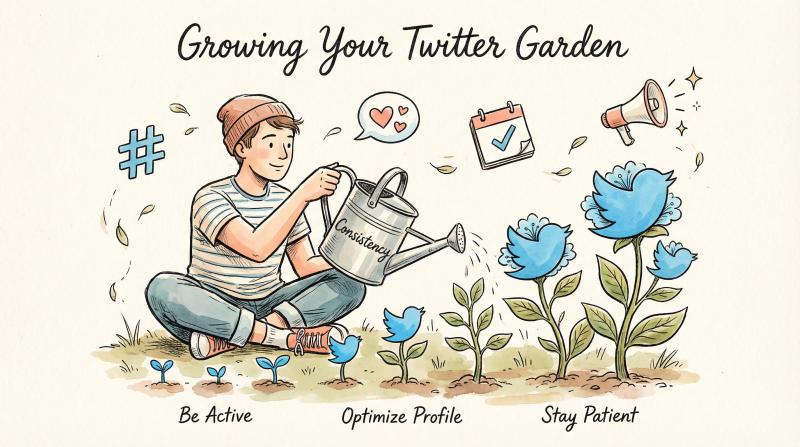
- Be active → Tweet regularly about topics of interest. Use relevant hashtags. Engage with other public accounts (reply to influencers, join conversations). This increases your discoverability.
- Optimize your profile → Make sure your bio clearly states who you are or what you tweet about. Pin a notable tweet to catch visitors' attention.
- Promote your Twitter → Share your handle on Instagram, LinkedIn, your website, wherever else you have an audience.
- Be patient → If you had a small private circle, growth takes time. Steady activity and interaction are key.
- Check settings → Make sure your content isn't marked as sensitive (that can hide it from some feeds).
- Stay consistent → Frequent switching between public and private confuses followers and kills momentum. Stick with public for a while.
- Use tools → Consistency matters. If you struggle to post regularly, tools like Post bridge can help you schedule tweets in advance and maintain a steady presence.
Also, quality matters. Interesting, funny, or valuable tweets get more attention. If growth is your goal, focus on creating content people want to engage with.
Q: Can I use Post bridge or other scheduling tools with a private Twitter account? Or do I need to be public?
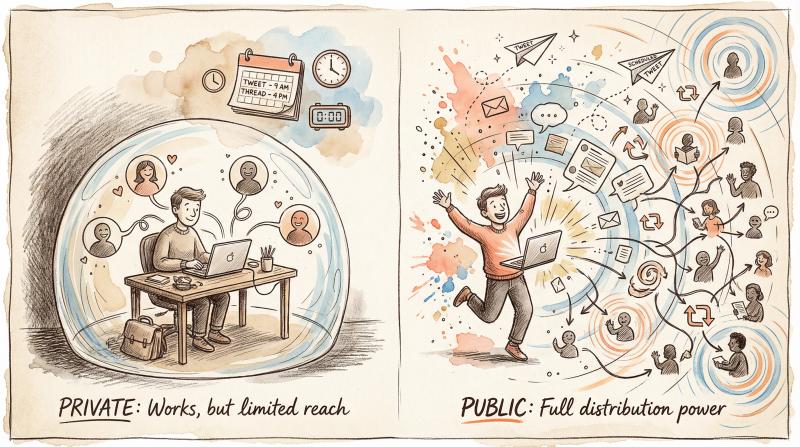
You can connect and use Post bridge with a private Twitter account. The tool will still publish tweets for you (since you authorize it). However, those tweets will only be visible to your approved followers, same as if you posted manually.
If your goal is to maximize reach across platforms, it's generally better to stay public on Twitter. Scheduling tools like Post bridge help you upload once and cross-post everywhere to grow your audience. With a public Twitter, scheduled tweets can reach anyone. They can trend, get retweeted, appear in searches. With a private account, you're limiting that potential (though you'd still benefit from consistency among your existing followers).
So you don't need to be public to use scheduling tools, but going public unlocks the real value of broader distribution.
Q: I made my tweets public, but can I keep some things private? Can I have some tweets only visible to certain people?
Twitter doesn't let you set individual tweets as private. It's all or nothing: either your entire account is protected or not. A workaround some people use is maintaining two accounts (one public and one private, often called an "alt"). The public one is for general or professional content. The private one (under a slightly different handle, shared only with friends) is for personal or sensitive stuff. Managing two accounts is extra work, but it's a solution if you want both worlds.
As for specific tweets, Twitter's only option is reply control (who can reply), which doesn't hide the tweet but can reduce engagement. There was a feature called "Circles" (like Instagram Close Friends) that let you post tweets just to a selected group, but as of 2025, Twitter has discontinued or reduced support for it. So generally, assume anything you tweet on a public account is visible to everyone.
Q: I'm under 18. Twitter made my account protected by default. Is it okay to turn it public?
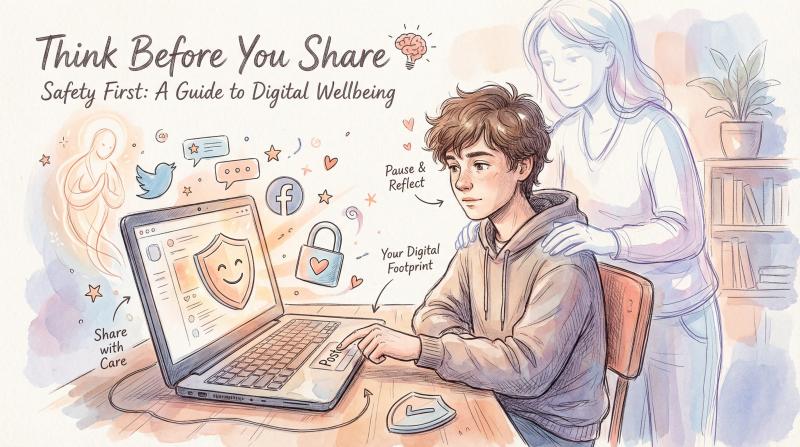
Twitter/X defaults accounts for known minors (13-17) to protected for safety. If you're a teenager considering going public, proceed with caution. Don't share personal data like your school, address, phone number, or anything that could put you at risk. Unfortunately, there can be bad actors online.
The fact that Twitter locks minors' accounts by default is a hint that staying private might be wise unless you have a specific reason to go public. If you do decide to go public, discuss it with a parent or guardian. Make sure you use the safety tools (limit DMs, don't allow location tagging, etc.), and be prepared to block or report any harassment. Legally, you're allowed to switch to public (the platform doesn't forbid it). But keep your safety a top priority.
Making the Most of Your Public Twitter Account
Making your Twitter account public can be a game-changer if you want to expand your social media presence. It literally opens the door to a much larger audience. By following the steps above, you've not only flipped that switch but also learned how to navigate the public Twitter world smartly and safely.
Remember: social media success comes down to consistency and quality. Now that you're public, try to post consistently and engage with your community. If you find it hard to keep up with regular posting, consider using tools to help maintain your presence.
For example, Post bridge is a social media scheduler that lets you queue up your Twitter posts (and posts for other platforms) so you can maintain a steady presence without manual work every day. You upload content once and schedule it across multiple networks, including Twitter/X, saving you time while maximizing your reach.
With your account public and the right strategy, you're ready to grow your reach on Twitter and beyond. Want to see how Post bridge can help you post to Twitter and all your other platforms effortlessly? Check out our free tools and growth guide to get started.
All information based on current Twitter (X) Help Center documentation and reputable guides as of 2025. For detailed citations, see inline links throughout this guide.