
Instagram used to be strict about video lengths, but things have changed dramatically. In 2025, you can share videos up to an hour long on the platform. Whether you're posting a tutorial, an interview, or behind-the-scenes content, Instagram now gives you the space to tell your story completely.
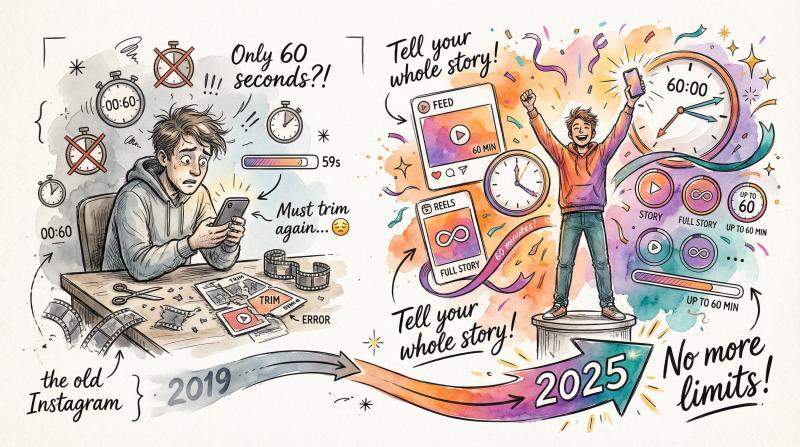
This guide walks through every method for posting long videos on Instagram, including feed posts, Reels, Stories, and more. By the end, you'll know exactly how to upload videos of any length and actually get people to watch them.
What Are Instagram's Video Length Limits in 2025?
Before diving into methods, you need to understand what Instagram actually allows right now. The platform has changed these limits several times, and outdated guides still float around giving wrong information.
Here are the actual limits:
Format - Maximum Length - Upload Method - Key Details
- Feed Videos - 60 minutes (desktop)<br>20 minutes (mobile) - Desktop browser or mobile app - Videos over 60 seconds show preview with "Continue Watching" button
- Instagram Reels - 20 minutes - Mobile app - Expanded from 90-second limit in 2024-2025 update
- Instagram Stories - 60 seconds per clip - Manual splitting required - No longer auto-splits beyond first 60 seconds
- Instagram Live - 4 hours - Live broadcast mode - Can save and share after broadcast ends
Key insight: Instagram's video limits have expanded dramatically since 2024, but the method you use (mobile vs. desktop) determines your actual maximum length.
Research confirms these limits through direct testing. Videos longer than 60 seconds show a preview in feeds, with a "Continue Watching" button for the full version.
What Happened to IGTV?
IGTV as a standalone feature is gone. Instagram merged it with regular feed videos.
Now any video you post to your feed that's longer than 60 seconds is treated as long-form content automatically.
You don't need a separate app or section anymore.
How to Post Videos Up to 60 Minutes on Instagram Feed
The Instagram feed is where most of your followers will see your content. You can post videos up to 60 minutes here, but the method depends on whether you're using mobile or desktop.
How to Upload Videos Up to 20 Minutes From Mobile
For videos under 20 minutes, the mobile app is the quickest option.
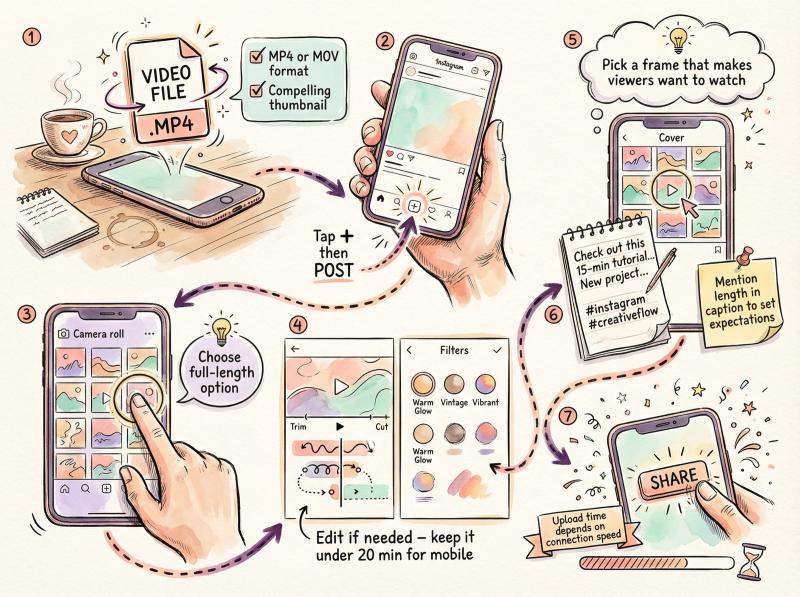
① Prepare Your Video
Make sure your video is in .MP4 or .MOV format. Choose a compelling cover image (thumbnail) because that's what people see first. A boring thumbnail means fewer people will tap play on a 15-minute video.
② Create a New Post
Tap the + icon at the bottom of Instagram and select Post (not Reel or Story).
③ Select Your Video
Browse your camera roll and tap the video. Instagram will detect it's a longer video and give you options. Choose the full-length option, not the short clip preview.
④ Edit if Needed
You can trim the video using the sliders if you only want to share a portion. For videos under 20 minutes, you shouldn't need to trim for length. Add filters or minor edits here, though heavy editing is easier in a dedicated app beforehand.
⑤ Choose Your Cover
Tap "Cover" to select which frame appears on your profile grid. This matters more for long videos because you need something that tells viewers what to expect and makes them want to watch.
⑥ Write Your Caption
Add your caption, tags, location, and hashtags. For long videos, mention the length or highlight the key takeaway in the first line to hook people.
⑦ Post
Tap "Share" and wait for the upload to complete. Longer videos take more time, especially on slower connections.
Important note: Videos over 20 minutes uploaded via mobile will be automatically trimmed to 20 minutes and converted to Reels. If you need the full length, use the desktop method.
How to Upload 60-Minute Videos From Desktop
For videos between 20 and 60 minutes, or if you have the file on your computer already, use Instagram's desktop website.
Why Desktop Allows Longer Videos
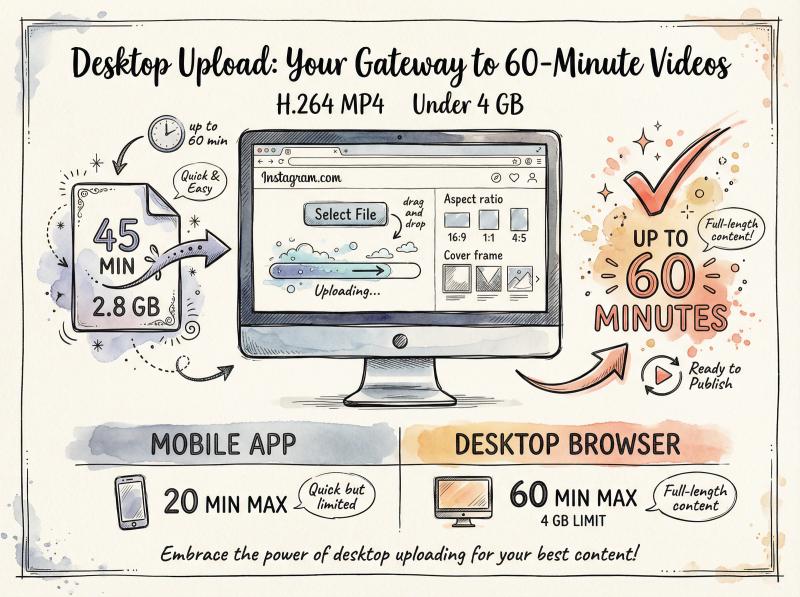
Instagram's web interface supports videos up to 60 minutes long. Testing proved that a 22-minute video uploaded via desktop posted successfully, while the mobile app refused anything over 20 minutes.
Upload Method - Max Video Length - File Size Limit - Best For
- Mobile App - 20 minutes - Platform-dependent - Quick uploads, videos under 20 min
- Desktop Browser - 60 minutes - Under 4 GB - Long tutorials, interviews, full-length content
- Creator Studio/Meta Business Suite - 60 minutes - Under 4 GB - Scheduled posts, batch uploads
Desktop Upload Steps:
- Transfer your video to your computer if it's on your phone (cloud drive, AirDrop, USB, whatever works). Keep the file under 4 GB and use H.264 MP4 format for best results.
- Go to Instagram.com and log in.
- Click the + button at the top right (New Post).
- Select your video file from your computer. Instagram won't accept videos over 60 minutes.
- Crop or trim if needed. Choose your aspect ratio (16:9, 9:16, 1:1, or 4:5 work best).
- Pick a cover frame or upload a custom thumbnail.
- Add your caption, location, and alt text for accessibility.
- Click "Share" and be patient. A 30-60 minute video file can take significant time to upload and process. Make sure you have a stable internet connection.
Once posted, viewers see the first minute as a preview in feeds and can tap to watch the full video.
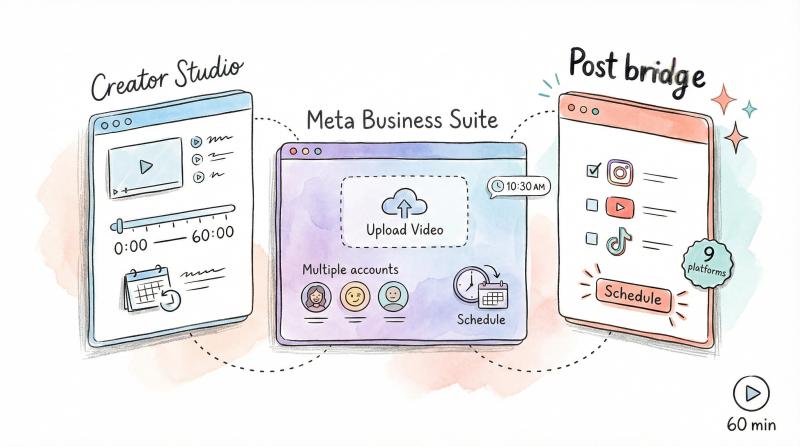
Bonus: You can also use Facebook's Creator Studio or Meta Business Suite to schedule Instagram videos up to 60 minutes in advance. For even more control, tools like Post bridge let you schedule and cross-post videos to multiple platforms from one dashboard.
How to Post Long Videos to Instagram Stories (Over 60 Seconds)
Stories are designed for quick moments, with each clip limited to 60 seconds. But you can share longer videos by splitting them into multiple Story segments.
Critical change: Instagram no longer auto-splits videos beyond the first 60 seconds. You now have to manually split longer videos into Story segments yourself.
How to Split Long Videos for Stories:
- Open the Story Camera: Tap "Your Story" (the camera icon or + on your profile picture)
- Select Your Video: Swipe up or tap the gallery icon to choose your video. If it's over 60 seconds, Instagram won't post it as one Story
- Trim the First 60 Seconds: Use the trimming slider to select the first minute of your video. Try to end at a natural break, not mid-sentence
- Add Enhancements: Add text, stickers, or music to keep viewers engaged
- Post the First Clip: Share it to Your Story
- Repeat for Remaining Segments: Go back and select the same video. Trim it to show the next 60 seconds (from 1:00 to 2:00, for example). Post that segment. Continue until you've posted the entire video
Some people pre-cut their videos into 60-second clips using an editing app to make the process smoother.
Pro tip: Number your Story segments ("Part 1 of 3", "Part 2 of 3", etc.) so viewers know to keep tapping through. You can also save these Stories to a Highlight on your profile so they remain viewable beyond the 24-hour window. Learn more about maximizing Instagram content strategies across different formats.
How to Post 20-Minute Reels on Instagram
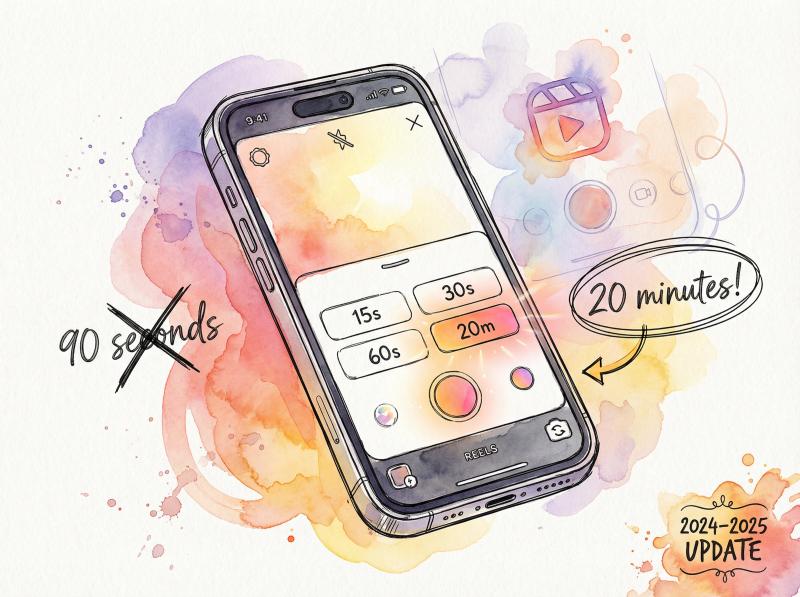
Reels used to cap at 90 seconds, but Instagram expanded the limit to 20 minutes in a major 2024-2025 update. This changed everything for creators who need more time.
Creating a Long Reel:
① Go to Reels
Tap the + button and select Reel (or go to the Reels tab and tap the camera icon).
② Set the Length
If you're recording fresh, tap the length setting on the left side. You'll see options for 15, 30, 60, or 20m. Select "20m" for the maximum length.
③ Upload Existing Video
If you have a pre-recorded video, tap the gallery icon and select your video. If it's longer than 20 minutes, you'll need to trim it or Instagram won't load it.
④ Edit Your Reel
Add music, effects, text, captions, or cuts to keep people engaged. A 10-minute video straight from camera might lose viewers quickly.
⑤ Add Details
Pick a cover image, write a caption, tag people, add location. Choose whether to also "Share to Feed" (recommended so your followers actually see it).
⑥ Share
Tap "Share" and wait for the upload. Multi-minute HD videos take time.
Do Long Reels Get Less Reach on Instagram?
Instagram has stated that Reels longer than 3 minutes are less likely to be shown to new audiences in Explore. Shorter Reels get better reach and discovery.
So while you can post 20-minute Reels, they work better for your existing audience than for going viral.
If you want maximum reach, keep Reels under 3 minutes. If you want depth and complete storytelling for people who already follow you, longer Reels are now an option. For more insights on creating engaging Instagram content, check out proven strategies.
Make sure your app is updated to see the 20-minute option. Instagram rolled this out gradually, and not all accounts got it immediately.
How to Use Carousel Posts for Long Videos (Up to 10 Minutes)
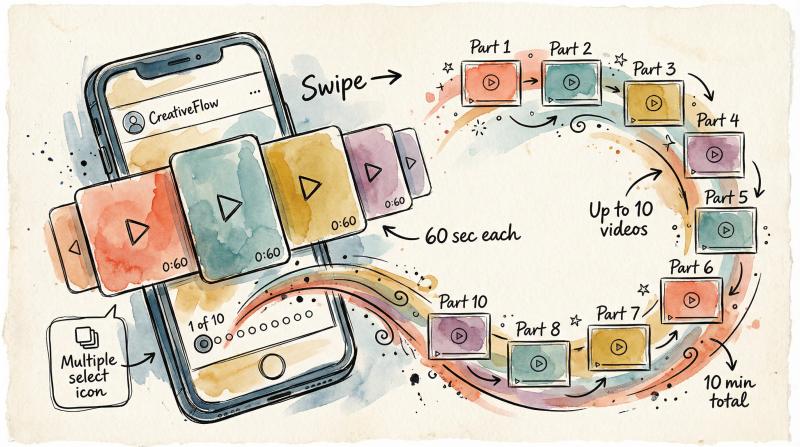
Here's a creative workaround: carousel posts. A carousel lets you share up to 10 slides in one post, and each slide can be a 60-second video.
Split a 5-minute video into five 1-minute clips, upload them as a carousel, and viewers swipe through to watch the full thing. It appears as one post with "1/5, 2/5, 3/5..." indicators.
How to Create a Video Carousel:
- Split your video into 60-second (or shorter) clips using a video editor. Label them Part 1, Part 2, etc. Save them in order to your camera roll
- Start a carousel post by tapping the + button and selecting Post. Tap the multiple select icon (stacked squares)
- Select your clips in order. Instagram allows up to 10 items. Make sure they're in the correct sequence
- Preview and edit each clip. Keep filters consistent across all parts for a seamless look
- Write a caption for the overall post. Mention it's multi-part (like "Swipe ← to watch the full video (5 parts)")
- Share the carousel
On your profile, it shows as one post with a carousel indicator. Viewers swipe to see each video segment.
Method - Max Total Length - Best For
- Carousel - 10 minutes (10 × 60s) - Segmented content, Q&As, episodes
- Feed Post - 60 minutes - Full tutorials, interviews, long-form
- Reels - 20 minutes - Discoverable content with depth
Carousels work well when your content naturally breaks into chapters or when you want viewers actively engaged by swiping. The downside is they don't appear in the Reels feed and might get less reach than a true long video post.
How to Stream 4-Hour Videos on Instagram Live
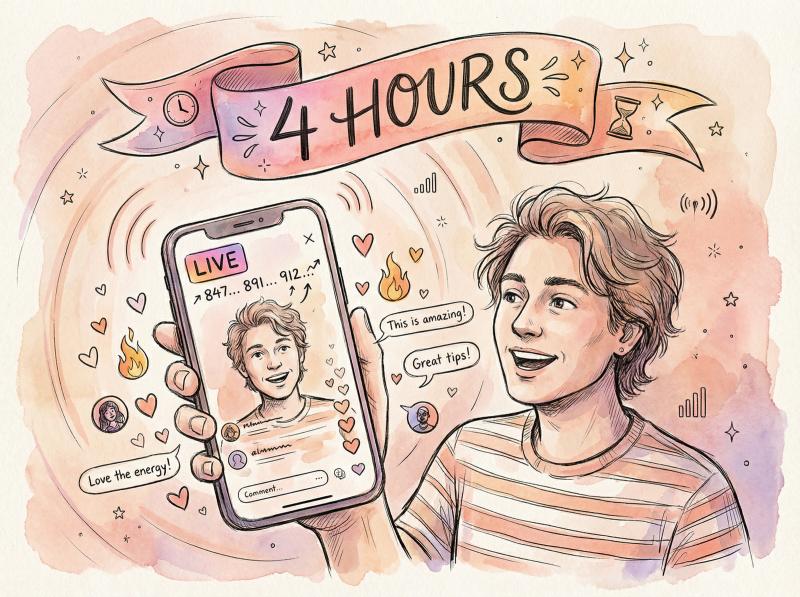
If you need to go beyond 60 minutes (think workshops, webinars, in-depth discussions), use Instagram Live. You can broadcast for up to 4 hours straight.
Live advantage: Instagram Live is the only way to share video content exceeding 60 minutes on the platform without manual splitting.
Using Instagram Live:
- Open Live mode by swiping right from the home feed and selecting Live
- Start broadcasting and present your content for up to 4 hours
- Save the recording when you end the stream (you can download it or share it for replay)
Followers can join in real time, comment, and engage. After the broadcast, you can save the video and even post highlights from it as Reels or feed posts.
Some creators use this strategy: go Live for the full session (since it allows 4 hours), then extract the best segments to post as shorter clips later. You can also direct people to YouTube or another platform for the permanent recording.
How to Get People to Actually Watch Long Instagram Videos
Posting is one thing. Getting people to watch 10+ minutes is another.
Here's how to maximize engagement.
Hook Viewers in the First 10 Seconds
Viewers decide fast whether to keep watching. For long videos, the first 10 seconds are critical. Lead with:
① A compelling question
② An interesting visual
③ A teaser of what's coming
④ Text overlay explaining the value
If the first minute of your 15-minute video is boring, most people scroll past and never see the rest.
Why You Need Captions and Subtitles
A huge percentage of Instagram users watch videos with sound off. Include burned-in subtitles or use Instagram's caption sticker for Reels and Stories.
This keeps viewers engaged even when they can't turn sound on (on the train, in bed, at work, wherever). It also dramatically improves completion rates.
How to Keep Viewers Engaged Throughout
Research shows that well-crafted longer videos can generate double the engagement and more meaningful comments than typical short clips.
Long-form videos can actually drive higher engagement if the content is valuable throughout.
The key is rewarding viewers for watching longer. Ask questions during the video, prompt feedback, or build to a payoff at the end.
What Instagram's Algorithm Prefers for Long Videos
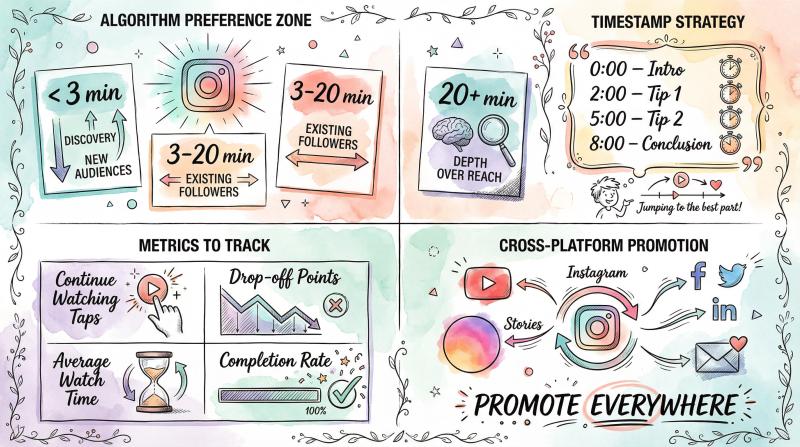
Instagram suggests that videos under 3 minutes reach more new viewers (better discovery), while longer videos serve your existing audience better.
Use long videos when you genuinely need the time. Don't make everything 20 minutes just because you can. Mix it up: teaser clips or short Reels to draw people in, full-length versions for those who want depth. Learn about optimizing your content strategy across platforms.
How to Use Timestamps in Long Video Captions
For videos over 5 minutes, include timestamps in your caption:
"0:00 – Intro
2:00 – Tip 1
5:00 – Tip 2
8:00 – Conclusion"
This helps impatient viewers jump to parts they care about and signals that the video is well-structured.
Which Metrics to Track for Long Videos
After posting a long video, check Instagram Insights (for Creator/Business accounts) to see:
Metric - What It Tells You
- "Continue Watching" taps - How many people committed beyond the 1-minute preview
- Drop-off points - Exact timestamps where viewers lose interest
- Average watch time - Whether your length is appropriate for your audience
- Completion rate - Percentage who watched to the end
This data tells you if the length was appropriate or if you should edit tighter next time. If everyone bails at the 3-minute mark, you know to hook them better before that point.
How to Promote Long Videos Across Platforms
Long videos often represent significant effort. Don't just post and hope. Mention it on your other social channels or email list. Use Instagram Stories to tease the content and drive people to the feed post.
"New 10-minute tutorial up on my feed now – go check it out!"
This ensures your long-form content gets the attention it deserves.
How to Schedule Long Instagram Videos With Post bridge
Manually uploading and tweaking long videos on Instagram, especially from a phone, gets tedious fast. If you're posting videos regularly, Post bridge can streamline the entire process.
What Post bridge Does
Post bridge is a social media scheduler that lets you upload content once and schedule it across Instagram, TikTok, YouTube, Facebook, and more from one dashboard.
Here's how it helps with long videos:
→ Desktop Uploading and Scheduling
Upload videos from your computer (great for large files), then schedule them to post on Instagram at your chosen time. You can also schedule the same video to YouTube or a snippet to Twitter simultaneously.
This means you don't have to be on your phone at the exact moment you want to post that 15-minute video. Handle the upload in advance and let Post bridge handle the rest.
→ Cross-Post Shorter Clips
Maybe you have a 5-minute Instagram video. Use the Instagram scheduler to also share a teaser to TikTok and a snippet to Twitter in one action. Schedule the full video to Instagram and YouTube, a 60-second highlight as a Reel, and a 30-second teaser to X, all timed perfectly.
This one-click cross-posting saves hours compared to uploading and editing separately on each platform. Creators who produce videos regularly find this workflow invaluable for growing everywhere without extra effort.
→ Current Limitations
Post bridge currently supports videos up to 5 minutes on standard plans, which covers most Instagram content (Reels and short feed videos). For extremely long videos approaching 20 or 60 minutes, you might still need the manual desktop method described earlier.
But for the vast majority of creator workflows (especially cross-posting short-form content), Post bridge eliminates the busywork and ensures you get maximum reach from every video you create. Check pricing options to find the plan that fits your needs.
Learn more about scheduling Instagram content in the Instagram scheduler mentioned above.
Final Thoughts
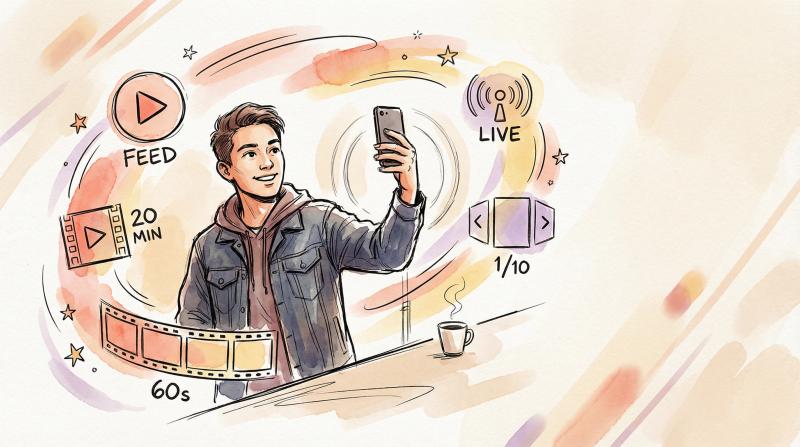
Instagram has evolved from strict one-minute limits to supporting videos up to an hour long. You can post extended feed videos, multi-part Stories, or Reels that rival YouTube shorts in length.
The key is understanding format limitations, preparing your video accordingly (trimming or splitting when needed), and using the right tools to get your content out there.
Quick Recap:
Format - Max Length - Upload Method - Best Use Case
- Feed Video (Mobile) - 20 minutes - Instagram app - Standard long-form content
- Feed Video (Desktop) - 60 minutes - Instagram.com - Very long tutorials, interviews
- Reels - 20 minutes - Instagram app - Discoverable long-form
- Stories - 60s per clip - Manual splitting - Quick multi-part updates
- Live - 4 hours - Live broadcast - Workshops, Q&As, events
- Carousel - 10 minutes (10 clips) - Instagram app - Episodic or chapter-based content
Just because you can post a 60-minute video doesn't always mean you should. Consider what length best serves your content and keeps your audience engaged.
But when you have a story that needs more than a minute to tell, when you have value to provide that requires depth, when you want to teach something completely, Instagram now gives you the space to do it right.
So post that long video. Share that detailed tutorial. Record that full interview. Upload that behind-the-scenes documentary.
You've got the tools, you know the methods, and you understand the best practices.
Now go create something people can't stop watching.