

Losing access to your YouTube account can feel like a nightmare, especially if you're a creator or business. One day you're logged in, the next day your password doesn't work. Or worse, you discover someone else has taken control.
Whether you forgot your password, lost your two-factor device, got hacked, or found your channel unexpectedly terminated, getting your account back is absolutely critical.
This guide walks you through every possible way to recover a YouTube account in 2025. We'll use the latest official methods and tools from Google. You'll see the most common scenarios (lost passwords, forgotten emails, hacked accounts, deleted accounts, and suspensions) with step-by-step solutions for each one.
By the end, you'll know exactly what to do to regain control of your YouTube account. Plus, you'll learn how to secure it so this doesn't happen again.
Critical to understand: Your YouTube account is your Google account. You sign into YouTube with a Google (Gmail) login, so recovering a YouTube account actually means recovering the associated Google account. All the recovery processes are handled through Google's systems.
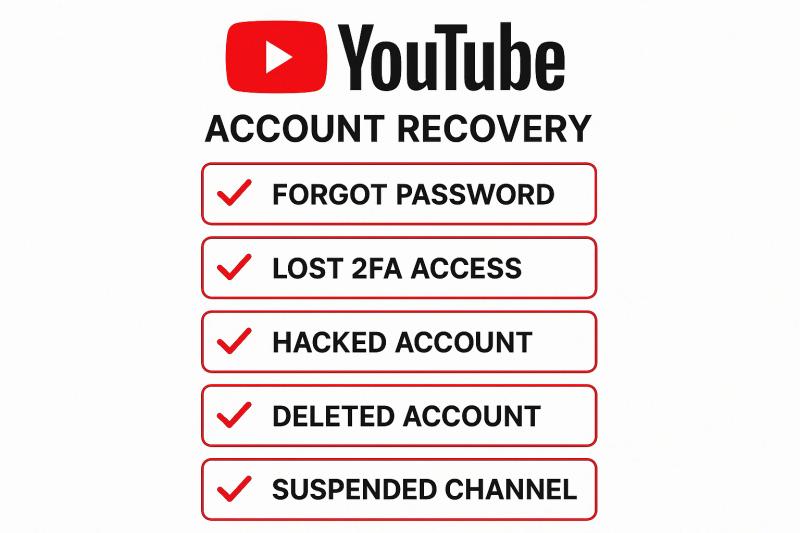
Why Can't I Access My YouTube Account?
Before we get into recovery steps, it helps to understand what might have caused the lockout. Here are the most common reasons users can't sign in:
- Forgotten Password – You don't remember your account password and can't log in.
- Forgotten Email/Username – You can't recall which Google account (email address) is linked to your YouTube channel.
- Lost 2FA or Verification – You enabled two-factor authentication but lost the phone or codes needed to verify your login.
- Hacked Account – Someone else gained access, changed your password or recovery info, and locked you out.
- Recently Deleted Account – You (or an attacker) deleted the Google account that your YouTube channel was on.
- Suspended/Terminated Account – Google or YouTube disabled your account due to policy violations or other issues.
Each scenario requires a different approach. We'll tackle them one by one.
How to Recover YouTube Account When You Forgot Your Password
This is the most common situation. You know your email but the password isn't working. Here's how to reset it and get back in:
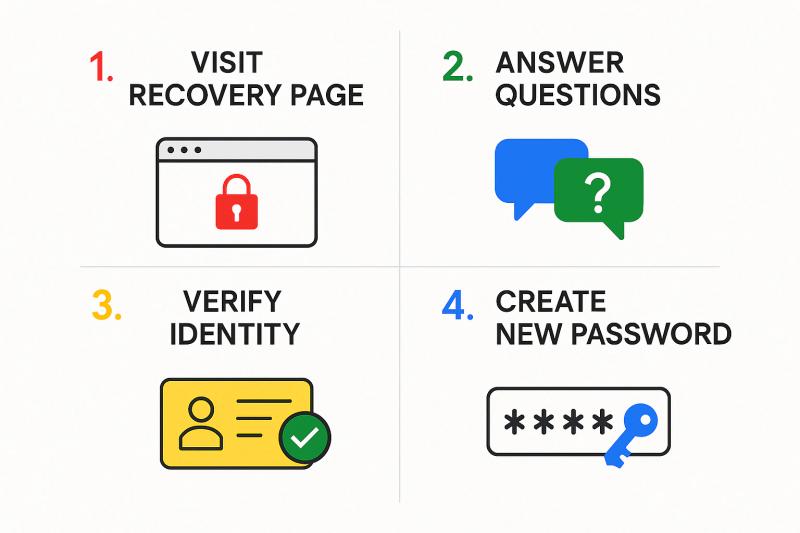
Start the recovery process: Go to Google's recovery page and enter your YouTube account's email address or phone number when prompted.
Answer verification questions: Google will ask a series of questions to confirm you're the owner. This might include entering the last password you remember, confirming a code sent to your recovery email or phone, or other info. Google's help guide recommends answering as many questions as you can, even if you're not 100% sure. Don't skip any if possible.
There's no limit to how many times you can try the recovery process. If you don't get it on the first attempt, you can keep trying with different information.
Use a familiar device and location: If you can, perform recovery on a device and browser you've used to sign in before, from a location you often use (like your home network). Google is more likely to recognize you under familiar conditions. It's a signal that helps verify you're the real owner.
Reset your password: If you successfully verify your identity, Google will prompt you to create a new password. Choose a strong, unique password you haven't used before (this is important for security). Once reset, you can log in to YouTube with your new Google account password.
Pro Tips for Password Recovery
Recovery Tip - Why It Matters - How to Apply
- Take your time - Rushing leads to mistakes - Carefully think through each verification question
- Try recent passwords first - Google prioritizes recent info - Use the most recent password you remember, even if partial
- Check all inboxes - Codes expire quickly - Check spam, promotions tabs immediately
- Don't panic after failure - You get unlimited attempts - Review what might be wrong and try again
Small details matter. Exact spelling of your name on the account, or the month you created the account, can make a difference. If Google asks for a recovery code sent to your phone or email, check those inboxes (including spam) right away. These codes or links may expire quickly.
If you don't get into your account on the first try, don't panic. Double-check any information you might have gotten wrong and try again. Wrong guesses won't lock you out of the process. Persistence really does pay off in account recovery.
How to Find Which Email Is Linked to Your YouTube Channel
What if the issue isn't your password, but that you can't even remember which Google account is tied to your YouTube channel? This happens more often than you'd think, especially if you have multiple Google accounts or haven't logged in for a while.
Google provides a way to retrieve your forgotten email or username:
Use Google's "Forgot Email" lookup: On the recovery page, click "Forgot email?" and you'll be guided to enter a phone number or recovery email associated with the account, plus the full name on the account. For example, input your phone number and then enter your first and last name exactly as they were on your Google account.
If the information matches, Google will show you one or more usernames or email addresses that are linked to that recovery contact. Identify the one that is your YouTube account, then proceed to recover the password as described in the previous section.
Tips for Finding Your Account
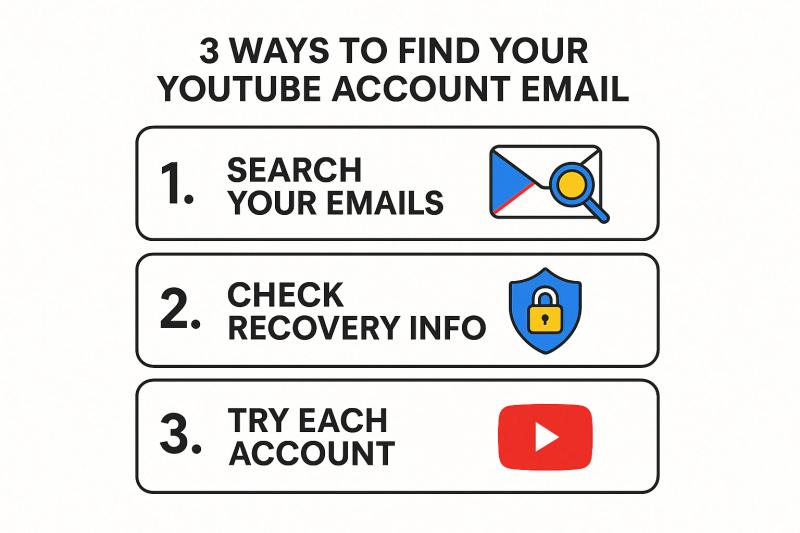
- Scan your memory and records for any alternate email you might have added to that Google account. Maybe a secondary email or work email.
- Search existing email accounts for keywords like "YouTube account" or "Google verification" to uncover clues about which address you used.
- Try each Google account you own by logging into YouTube or the Google Account dashboard to see if your channel is listed. Sign in to your Google Account for each email you own and look under the YouTube section or Brand Accounts.
If you provided a recovery email when you created your YouTube account, search that inbox for any old YouTube or Google notifications. Those messages often mention your account email.
If you're completely unsure which email was used, the trial-and-error method can be tedious, but it's effective.
How to Recover YouTube Account Without Phone Number or 2FA Access
The 2FA Challenge
Two-factor authentication (2FA) greatly improves security, but it can lock you out if you lose access to the second step (like losing your phone or authenticator app). Similarly, you might not be receiving verification codes on your phone or email for other reasons.
Here's how to handle this:
Use backup options: First, check if you have any backup codes saved for your Google account. These are the 8-digit codes Google prompted you to save when enabling 2FA. Each backup code can be used once to log in.
Also, if you still have access to a logged-in device (perhaps you're still signed in on your YouTube mobile app or another browser), use that device to disable 2FA or add a new phone number in your Google Account settings.
Try account recovery anyway: Even without your 2FA device, go to the Google recovery page and proceed with "Try another way" when prompted for the verification code. Google may offer alternatives, like sending a code to your recovery email or asking security questions. Provide any information asked (previous passwords, etc.) to prove ownership.
Wait for Google's review: If all else fails, Google might not immediately let you bypass the 2FA. You may get a message that Google couldn't verify you at this time. But if you provided some correct info, Google's automated systems might take 3-5 days to review your case and send you an email with the outcome.
Keep an eye on your inbox (and spam folder) for a message titled "Your Google support inquiry". This email, if it comes, will have a link to reset your password. This delay is essentially Google taking extra steps to confirm it's really you.
Important Reality Check
Critical fact: Google does not offer phone or live support for account recovery. Any service or person claiming to recover accounts for money is not legitimate. For your security, you can't call Google for help to sign into your account. They don't work with any service that claims to provide account or password support.
So stick to the official recovery process and be patient.
While waiting, avoid repeated recovery attempts for a day or two. In some situations, Google imposes a 72-hour or longer delay if it detects suspicious activity or many failed attempts (this is for your protection). You might simply need to try again after a few days have passed.
Time to talk about the most stressful scenario:
How to Recover a Hacked YouTube Account (Step-by-Step)
If you suspect your YouTube or Google account was hacked or hijacked, time is of the essence. Signs of a compromised account include: password changed without your knowledge, recovery info (phone/email) changed, unfamiliar videos uploaded to your channel, or Google sending you login alerts you don't recognize.
Here's your recovery playbook:
Step 1: Attempt Google Account Recovery Immediately
If you can't log in because the hacker changed the password, use the same recovery flow described above for a forgotten password. Act fast. The longer a hacker has access, the more damage they can do (like deleting your videos or even your account).
When prompted, try to use info that the hacker might not have changed yet, such as your last known password or your recovery phone/email (unless those were changed too). Google's recovery form will ask questions to verify it's you. Answer them as best as possible.
If successful, you'll be able to reset the password and regain the account. Make sure to choose a brand new password that the hacker can't guess. Something completely different from what you used before.
Step 2: Use YouTube's Hacked Account Assistant (New in 2024)
YouTube now offers an AI-powered chatbot to help guide creators through hacked account recovery. On the YouTube Help Center, there's an option to "Chat with our hacked channel assistant" if you believe your channel was hacked.
This chatbot (available in English, Spanish, and Portuguese) will ask you a series of questions and walk you through securing your Google account and reversing changes to your YouTube channel. It launched in late 2024 and was initially limited to certain users, but Google plans to make it available to all creators. As of 2025, check the YouTube Help page for the hacked channel assistant link. If it's there, definitely take advantage of it.
Step 3: Secure Your Google Account (Kick the Hacker Out)
After regaining access, assume the attacker might still have some foothold. Do this immediately:
Security Action - What to Do - Why It's Critical
- Change password - Create a completely new, strong password - Locks hacker out permanently
- Check recovery info - Remove any unfamiliar emails/phones - Prevents hacker from regaining access
- Enable 2-Step Verification - Turn on 2FA now - Makes future hacking nearly impossible
- Review recent activity - Check "Recent security events" - Identifies unauthorized access patterns
- Remove unknown devices - Sign out all unrecognized sessions - Terminates active hacker sessions
- Scan for malware - Run trusted antivirus - Eliminates keyloggers or spyware
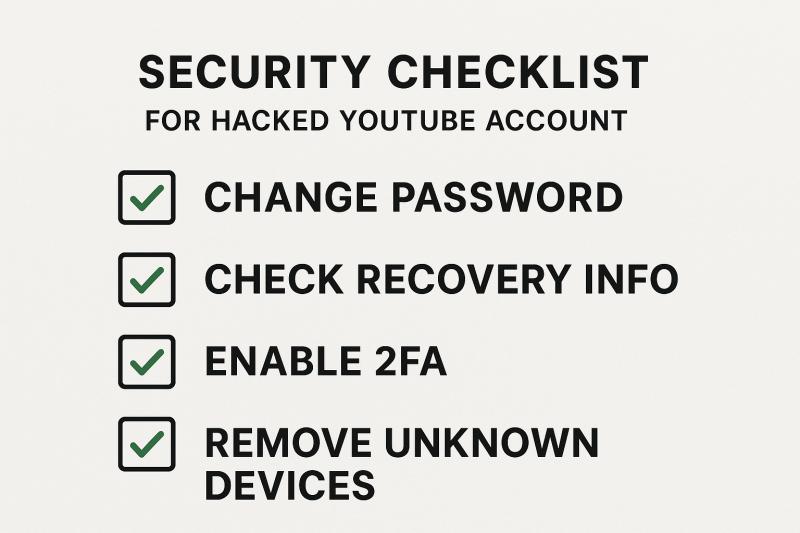
See if the hacker added their own email or phone as a recovery option. Remove any that you don't recognize, and make sure your recovery email and phone are correct and accessible by you.
Also check your YouTube channel settings for any changes (like deleted videos, changed channel name, etc.) and revert them if possible.
If the hack might have been due to malware on your computer (for example, a keylogger stealing your password), only log back in from a secure, clean device.
Step 4: Get YouTube Support Involved (If Needed)
If your channel was heavily impacted (the hacker live-streamed policy-violating content and got your channel terminated, or you're unable to revert certain changes), you may need direct support from YouTube.
Creators in the YouTube Partner Program (monetized channels) can contact the YouTube Creator Support team once they have control of their Google account again. If you're not in the Partner Program, you can reach out to @TeamYouTube on Twitter (X) and explain your situation. The YouTube community and Twitter support can sometimes expedite recovery of videos or channel settings that were affected by the hack.
Similar recovery challenges exist on other platforms. If you're managing multiple social accounts, you might find these guides helpful: How to Appeal an Instagram Disabled Account and How to Recover a Suspended Instagram Account. The recovery principles are similar across platforms, though each has its own specific processes.
Harden Your Security for the Future
High-profile YouTubers have been targeted by sophisticated phishing schemes and malware, so this can happen to anyone. Educate yourself on phishing red flags, avoid clicking suspicious links or downloading unknown software.
Consider using a hardware security key for 2FA if you want the highest level of protection. And remember: Google regularly emphasizes that you should never share your login credentials or verification codes with anyone, even if they claim to be "YouTube support." Real Google staff will never ask for your password or 2FA code.
How to Recover a Deleted YouTube Account (Time-Sensitive)
Perhaps you (or someone with access) actually deleted the Google account that your YouTube channel was under. This could happen accidentally or as part of a hack (some attackers delete channels or accounts out of malice).
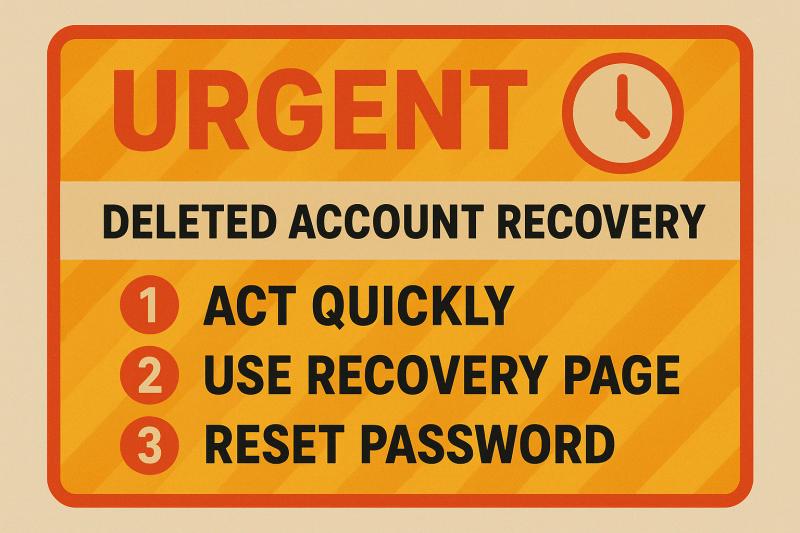
Good news: Google might allow you to restore a recently deleted account, but you have to act quickly.
Use Google's Account Recovery for deleted accounts: Visit Google's account recovery page and sign in with your deleted account credentials (if the password was remembered) or go through the "recover your account" flow. Google will recognize if the account was deleted and may present an option to attempt restoration.
Time is critical: Google doesn't specify an exact time limit publicly, but generally the sooner, the better. If it's only been a few days or weeks since deletion, your chances are good. If it's been several months, recovery might not be possible. After a certain point, Google permanently erases the account data.
Also, note that Google's new Inactive Account Policy allows them to delete accounts that have been completely inactive for 2+ years. Another reason to act quickly.
Reset the password (if prompted): If the recovery succeeds, Google will ask you to set a new password for the restored account. Do that, and you should regain access to Google services including YouTube.
If Recovery Isn't Possible
Once your account is recovered, verify that your YouTube channel is intact. In most cases it should be, but if it was deleted separately (if someone deleted the YouTube channel from within YouTube Studio or Google Account settings), full channel restoration might be more complicated or impossible.
If you are unable to recover the deleted account, you may have to create a new Google account and new YouTube channel. Sadly, any content or subscribers from the old channel would be lost in that case.
As a precaution, always keep backups of your original videos. If you find yourself in the unfortunate position of the account being gone for good, you might still retrieve some of your video content via other means (for example, checking if the Internet Archive saved copies of your videos).
Now for the toughest scenario:
How to Appeal a Disabled or Terminated YouTube Account
In some cases, you haven't lost your password or been hacked. Instead, YouTube or Google themselves disabled or terminated your account. This is a different challenge. It means Google believes you violated some policy (or it flagged your account by mistake) and has locked or removed your account.
First, figure out what type of suspension it is:
Suspension Type - What It Means - Where You'll See It
- Google Account Disabled - Can't log into any Google services (YouTube included) - Login page shows "account was disabled" message
- YouTube Channel Terminated - Google account still works, but your YouTube channel was taken down - YouTube Studio shows termination notice; Gmail still accessible
If Your Google Account is Disabled by Google
For a full Google account disable, you must go through Google's appeal process:
Check for an email from Google: Often, Google sends an email to your recovery email explaining that the account was disabled and possibly why. It may contain a link to appeal.
Submit an appeal to restore the account: Try to log into the disabled account via a web browser. You should see a message like "Your account has been disabled" with a link to "Try to restore" or "Start Appeal". Click that and you'll get a form to explain why you think the disablement is a mistake. Fill this out with as much detail and honesty as possible.
What to expect: Account disability appeals are reviewed by Google staff. It may take a few days to get a response. If your account was disabled for something like a terms of service violation, restoration is rare unless you can prove it was an error.
Most account disables are permanent, and the "disabled status of an account does not expire, meaning the only way to restore it is through appealing." In other words, there's no automatic reinstatement after time. You have to convince them.
If your appeal is denied, that Google account (and thus the YouTube channel tied to it) is effectively gone forever. You could create a new Google account, but you cannot re-use the old Gmail username or channel URL, and you'd be starting from scratch.
One exception: If the disable was due to age (Google thought you were under 13), there is a process to verify your age with documentation to reinstate the account. Follow the specific instructions Google provides in that scenario.
If Your YouTube Channel Was Terminated by YouTube
If it's specifically a YouTube termination (for content or conduct reasons on YouTube), the recovery path is via a YouTube appeal:
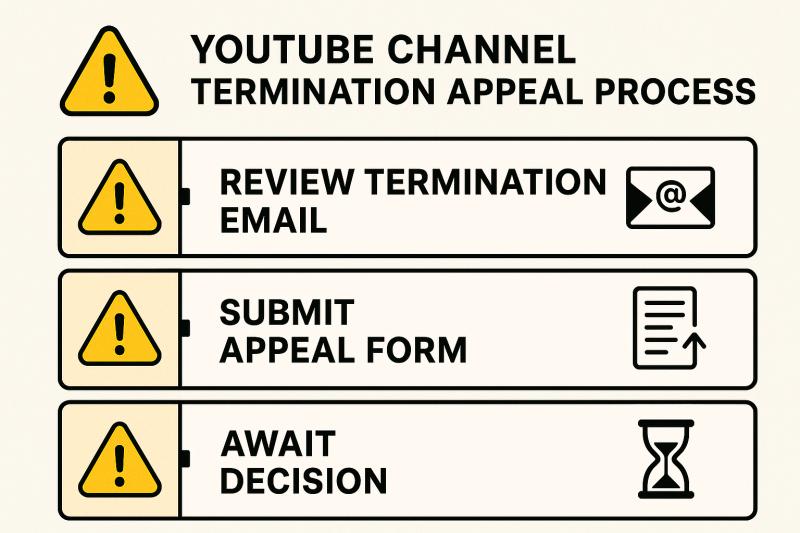
Look for the termination email: YouTube will send an email to the account's email address explaining the reason (Community Guidelines strikes, copyright claims, etc.) for termination. That email also contains a link to an appeal form.
Use the YouTube appeal form (within 30 days ideally): Click the appeal link provided, or use the official YouTube appeal form. You'll need to log in to a Google account (it can be the terminated account or another account) to submit the appeal. In the form, you'll enter the terminated channel's ID or username and explain why you believe the termination was a mistake. Be concise, factual, and polite in your explanation.
YouTube appeal timeline and limits: YouTube allows you up to 1 year from the termination date to file an appeal, but it's best to do it as soon as possible. Fresh terminations might get more attention.
You typically get only one appeal per termination, so make it count. After submitting, YouTube will review and email you the decision. If they overturn the termination, your channel will be reinstated. If they uphold it, that's the end of the line. You're not allowed to create a new channel to get around it (doing so could get those new channels removed too).
If copyright was the issue: Terminations from multiple copyright strikes have a different process. You might need to submit counter-notifications for the strikes if you believe they were false, which can involve legal paperwork or even snail mail to YouTube. This is a complex, legal process (and filing false counter-notices can have legal consequences), so only pursue this if you are absolutely sure the claims were in error. For most users, if you know you breached copyright or guidelines, appeals are unlikely to succeed.
The Hard Truth About Terminations
Reality check: Recovering a terminated YouTube account is tough. YouTube's policies exist to protect the community, so terminations (especially for severe violations) are often permanent. But if you truly believe it was a mistake (it does happen), the appeal is always worth a shot.
Some creators have had success getting channels back after demonstrating that a hacking incident caused the bad behavior, or that automated systems misflagged their content. Provide any evidence you have in your appeal (links, context, etc.).
If the appeal is denied, respect YouTube's decision and do not attempt to create new channels to evade the ban. That could lead to a blanket ban on your Google account usage on YouTube.
Related: If your channel is gone and you care more about retrieving your video content for archival purposes, you could use Google Takeout before the account is completely gone to download your data.
What Increases Your YouTube Account Recovery Success Rate?
Recovering an account isn't always straightforward. Here are some extra pointers to tilt the odds in your favor:
Recovery Best Practices
① Be Persistent and Patient
Don't give up if the first recovery attempt fails. You are allowed to try multiple times. In fact, you may need to try different pieces of information. For example, if you remembered a new detail (like an older password or exact account creation date) after your first try, attempt the process again with that. Sometimes waiting 24-48 hours before the next attempt can help, especially if you suspect Google's system might be cooling off due to too many tries.
② Use the "Tips for account recovery" guide
Google offers an official checklist of recovery tips (like using familiar devices, not skipping questions, etc.). Following them can really help. For instance, using the same browser you usually use and being at a location where you often logged in (home/office) sends Google's system the right signals.
③ Check All Email Folders
If you're waiting on a response or code from Google, monitor your inbox closely. Look in Spam/Junk, and any "Promotions" or other tabs if you're using Gmail. Google emails might be filtered, and you don't want to miss a time-sensitive link.
Critical Warning About Scams
Beware of recovery scams: Unfortunately, there are people who prey on users desperate to recover accounts. They might promise a "hack" or "service" to get your account back for a fee. Don't fall for it. As Google explicitly states, they do not work with any third-party service for account recovery. Never give your Google password to anyone claiming to help. The only reliable methods are the official ones we've discussed.
How to Prevent Losing Access to Your YouTube Account Again
Once you've recovered your YouTube account (or if you're proactively reading this to avoid losing access in the first place), take some time to bolster your account's security and recovery options. Prevention is far less stressful than recovery.
Essential Security Measures
Prevention Strategy - Implementation - Impact
- Keep Recovery Info Updated - Visit Google Account settings and update recovery email/phone - Enables account recovery and security alerts
- Enable Two-Factor Authentication - Turn on 2-Step Verification and save backup codes - Dramatically reduces hack risk
- Use Strong, Unique Passwords - 12+ characters mixing letters, numbers, symbols; use password manager - Prevents credential reuse attacks
- Be Vigilant with Links - Scrutinize all emails claiming to be from Google - Stops phishing attempts
- Download Backups - Export YouTube data via Google Takeout - Preserves content if worst happens
Keep Recovery Info Updated
Visit your Google Account settings and ensure a current recovery email and phone number are on file. If your phone number changed or that old Yahoo email is long gone, update them. This info is crucial for Google to confirm it's you when you need to recover or get alerts of suspicious activity.
Enable Two-Factor Authentication
Yes, it can be a pain if you lose your phone, but 2FA (Google calls it 2-Step Verification) dramatically reduces the chance of getting hacked. Just be sure to safely store the backup codes Google provides and/or set up an additional backup method (like an authenticator app, or add a backup phone). That way, if your primary phone is gone, you have alternatives to get in.
Use Strong, Unique Passwords
By now this is obvious, but don't reuse your Google account password anywhere else. Make it complex (at least 12+ characters mixing numbers, letters, symbols). A password manager can help you generate and store strong passwords so you don't have to remember them all. Changing your password periodically isn't a bad idea either, especially if you suspect it might have leaked.
Be Vigilant with Links and Apps
Most account hijacks happen because someone was tricked into entering their Google credentials on a fake page (phishing) or running malware. Scrutinize emails that claim to be from Google or YouTube. Google will never send you a link directly asking for your password or personal info.
Similarly, be careful when authorizing third-party apps with your Google account. Only grant access to apps you fully trust. Learn more about social media best practices to protect your accounts across platforms.
Secure Your YouTube Across Multiple Platforms
If you're managing YouTube alongside other social platforms (Instagram, TikTok, LinkedIn, etc.), you want tools that handle security properly. When you use scheduling or management tools, you're granting access to your accounts. That multiplies your risk if those tools aren't secure.
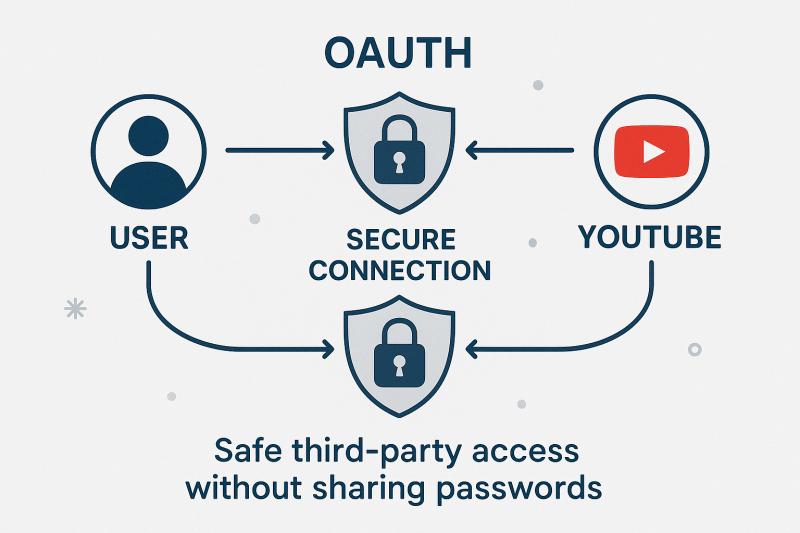
Tools should use official secure methods (OAuth) to connect to your account. This means you're not handing over your actual password. The app gets temporary, limited access that you can revoke anytime, and your password stays private.
For example, Post bridge uses YouTube's official OAuth login flow for secure connections. When you connect your YouTube account, Post bridge never sees or stores your Google password. You authenticate directly with Google, and Google gives Post bridge permission to post on your behalf. This is the right way to handle third-party access.
Why this matters: If a tool asks for your actual YouTube/Google password instead of using OAuth, that's a red flag. They could be storing your credentials insecurely, or worse, maliciously. Always verify that tools use official platform APIs and OAuth before connecting your accounts.
If you're posting to YouTube and other platforms regularly, Post bridge's YouTube scheduler lets you manage everything securely from one place. Upload your video once, schedule it to YouTube (as either a regular video or Short), Instagram, TikTok, and other platforms, all without exposing your passwords. It's designed for creators and small teams who need simple, secure multi-platform posting.
Plus, by centralizing your posting through a secure scheduler, you reduce the number of devices and locations where you're actively logged into your YouTube account. That also reduces your attack surface.
Keep Devices Secure
Protect your phones and computers since they often have active logins to your accounts. Use PINs or biometrics on your devices so if they're lost or stolen, your accounts aren't easily accessible. Keep your operating system and antivirus up to date to defend against malware.
Remember that a hack can occur through your device (keyloggers, token theft) just as much as through stolen credentials.
Download Backups of Important Data
Consider periodically exporting your YouTube data (videos, playlists) via Google Takeout. While we hope you'll never need it, having a backup of your content can be a lifesaver if something goes wrong. This doesn't protect the account per se, but it means even in worst-case scenarios you haven't lost your creative work.
Conclusion
Recovering a YouTube account can range from a simple password reset to a complex battle against hackers or policies. The key steps involve using Google's account recovery tools, providing accurate information to prove you're the owner, and leveraging new support options (like YouTube's hacked account assistant chatbot) to streamline the process.
In 2025, the processes are more robust than ever. Google has security measures to protect accounts, but also official channels to help genuine users regain access.
If you follow the guidance in this article, you'll greatly increase your chances of getting your account back. We covered the full spectrum: forgotten passwords, lost emails, 2FA issues, hacking incidents, deleted accounts, and suspensions. For each, the roadmap is a bit different, but now you have those roadmaps in hand.
Remember to stay patient and persistent. Many users have reported that their second or third attempt with slightly different info succeeded after an initial failure. And if recovery isn't possible (in the case of permanent suspensions or very old deletions), at least you'll know you tried every avenue.
Finally, once you're safely back into your account, take a deep breath and then take action to fortify your account's security. The goal is to never have to go through this ordeal again. Enable extra protections, keep your recovery options current, and be cautious with your account details.
As content creators and small businesses (the kind of folks we serve at Post bridge), your online accounts are valuable assets. Treat them with care and they'll serve you well. Whether you're managing just YouTube or posting across multiple platforms, having secure, reliable tools makes all the difference. Check out Post bridge's pricing plans to see how we can help you manage your content securely and efficiently.
Data current as of 2025: The information and tools described here (recovery pages, appeal forms, AI assistants, etc.) are up to date for late 2024 and 2025. Tech companies do evolve their policies, so if you're reading this much later, double-check Google's Help Center for any interface changes. But the core principles of account recovery tend to remain steady.
Good luck with your account recovery, and we hope to see you back creating great YouTube content very soon!