
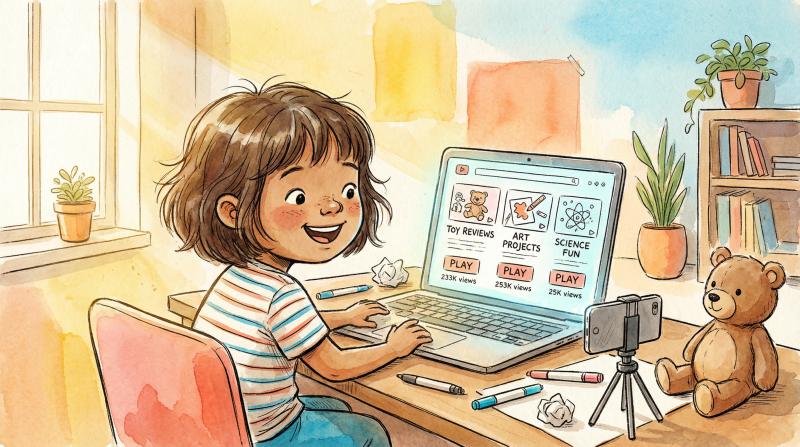
starting a YouTube channel for kids is genuinely exciting.
your child could build the next Ryan's World. or create educational content young viewers actually watch. there's real potential here.
but (and this is important) you can't just jump in blind.
kids' content dominates YouTube. Baby Shark Dance hit over 11 billion views. that's billion with a B. young creators like Ryan Kaji pull in an estimated $30 million yearly from their channels plus merchandise. the numbers are real.
this guide walks you through everything. setting up safely. creating content kids watch. complying with child protection laws. growing your audience.
we're not promising overnight success. we're giving you the roadmap to do this right from day one.
Why Do Kids Love YouTube So Much?
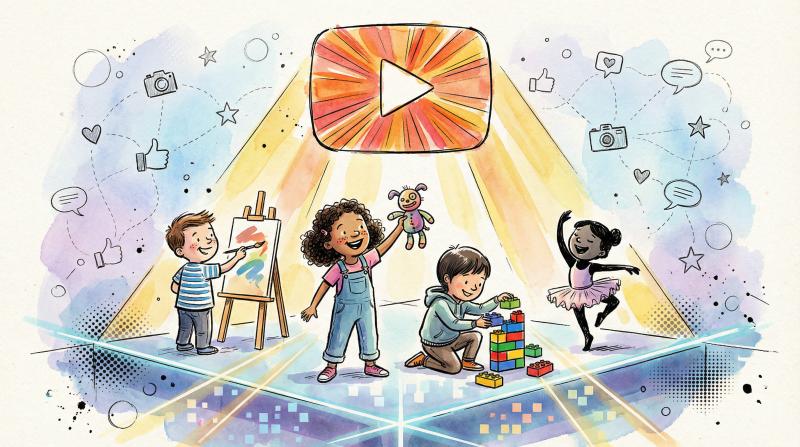
for children, running a YouTube channel feels like staging a digital talent show for the world.
it's about self-expression. sharing passions (toys, art, gaming, comedy). experiencing the thrill of having an audience. research shows kids view making videos as a creative outlet that teaches them valuable digital skills.
The Upside - The Reality Check
- Your child learns filming, editing, speaking on camera, basic marketing - You're exposing your child's life to the internet
- They build confidence and turn screen time into productive creativity - Privacy and safety risks are real if not managed properly
- If the channel gains traction, it might become a business opportunity (like toy lines or book deals) - Kids can become obsessed with view counts and fame
- - You'll need to stay deeply involved and set firm boundaries
ask yourself honestly: are we doing this for fun and learning, or chasing fame?
the answer matters.
your motivation shapes everything that follows.
if you're in it for the right reasons and willing to put in the work, this can be a genuinely enriching family project.
What Are YouTube's Rules for Kids' Channels?
before you film a single second, you need to understand YouTube's policies.
violating these can result in fines up to $42,000 per video.
Can Kids Under 13 Have Their Own YouTube Channel?
Age Group - What's Allowed
- Under 13 - Cannot create their own account (parent must manage it)
- 13-17 - Can have an account with parental permission
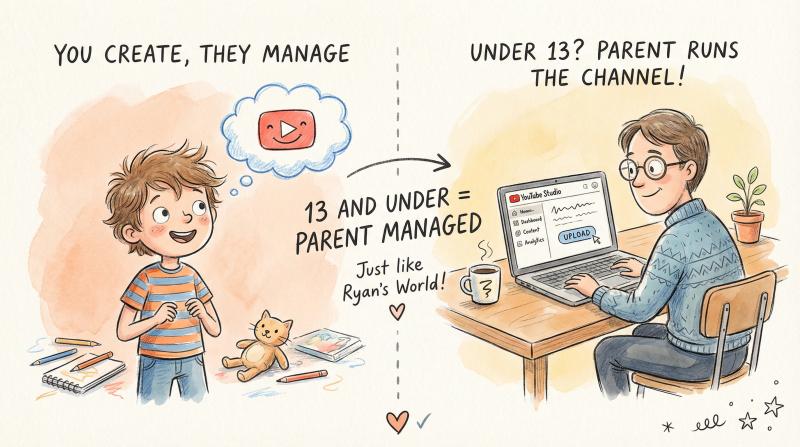
children under 13 cannot legally have their own YouTube account. this means you (the parent) will create and manage the channel on their behalf.
channels like Ryan's World? all parent-managed.
What Is the "Made for Kids" Label and COPPA Compliance?
after YouTube was fined $170 million by the FTC in 2019, they implemented strict COPPA rules.
any video directed at children must be labeled as "made for kids" in YouTube Studio.
period.
what this label triggers:
- no targeted ads (only generic contextual ads, which pay far less)
- comments disabled (protecting children from inappropriate interactions)
- no notification bell (subscribers won't get alerts for new videos)
- no community features (live chat, community posts, Stories, end screens, channel memberships all disabled)
translation: it's significantly harder to build a community and earn money with kids' content compared to regular YouTube channels. these features are permanently disabled for child-directed content.
PLACEHOLDER: YouTube Studio "Made for Kids" Settings Screenshot
This section would benefit from a real screenshot showing where parents set the "Made for Kids" toggle in YouTube Studio. Due to authentication requirements, this screenshot requires manual capture.
Manual Capture Instructions: See web-screenshots/captures/SC-02.md for detailed steps to capture YouTube Studio settings showing the "Made for Kids" toggle.
Expected Screenshot: YouTube Studio Settings interface with "Made for Kids" audience selection clearly visible.
How to Get Featured on YouTube Kids App
the YouTube Kids app is a curated platform just for children.
you cannot directly upload to it. instead, YouTube's team selects qualifying channels after an approval process. getting featured there can dramatically boost your reach. many parents only allow their kids to watch via the Kids app.
critical insight: read YouTube's official "made for kids" policy before filming anything. the rules are strict. ignorance isn't a defense.
quick recap:
- under-13s can't have their own accounts (you run it)
- mark all kid-directed videos as "Made for Kids" (always, no exceptions)
- expect limited features and lower ad revenue
- keep content squeaky clean and avoid overly commercial approaches
How to Set Up a YouTube Channel for Your Child
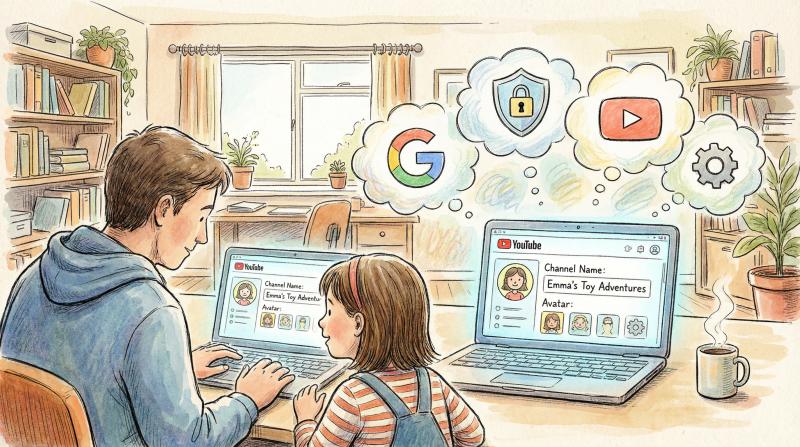
creating the channel is straightforward.
the tricky part is doing it safely.
① Create a Google Account
you have two options:
Option A: use your existing Google/Gmail account to create a new YouTube channel for your kid (easiest and most common)
Option B: set up a supervised Google Account for your child using Google's Family Link tool
② Create the YouTube Channel
sign in to YouTube. click the profile icon (top-right corner). select "Create a Channel." follow the prompts to name your channel and upload a profile picture.
③ Pick a Privacy-First Channel Name
do not use your child's full real name.
seriously.
never reveal personally identifying information in the channel name.
instead of "Emma Johnson's Fun Toys Review," go with "Emma's Toy Adventures" or a creative brand name like "ToyExplorersTV."
use a cartoon avatar or logo instead of your child's photo if you want extra privacy.
④ Set Audience and Privacy Settings
in YouTube Studio settings, declare your channel as "made for kids". you can apply this to the entire channel by default. you don't have to set it for each individual video.
consider setting default privacy for new uploads. many parents start with unlisted or private videos (only viewable via direct link) until they're comfortable going fully public.
How to Keep Your Child Safe on YouTube
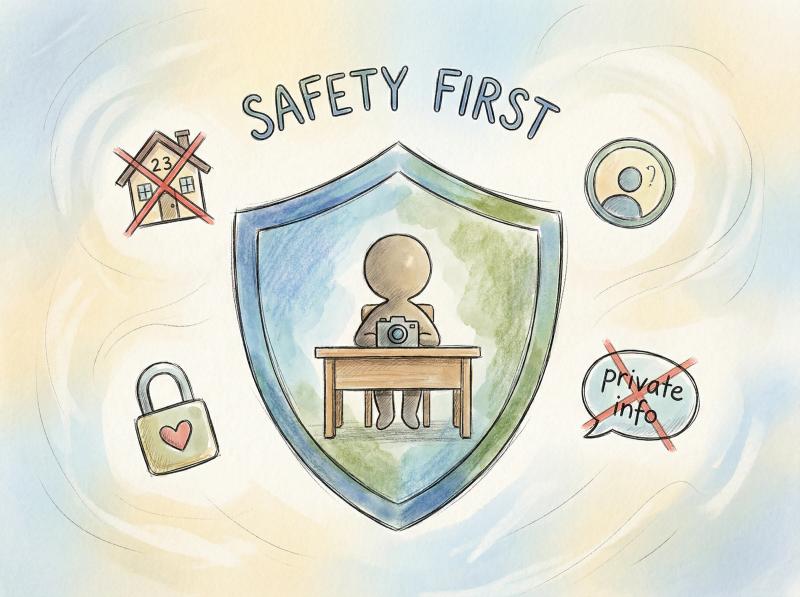
this isn't optional.
every parent running a kids' YouTube channel needs to treat online safety as priority number one.
What Personal Information Should You Never Share?
never share in videos:
- school name or location
- home address or phone numbers
- daily schedules or routines
- identifiable backgrounds (house numbers, street signs, school uniforms)
even seemingly innocent details can reveal location info. teach your child from day one that certain information never appears on camera.
Should You Keep Videos Public or Private?
you can keep videos unlisted or private so only people with a direct link can view them. this works great for sharing with friends and family while limiting stranger access.
the trade-off?
private/unlisted videos won't grow an audience beyond your circle. many parents start private. then switch to public once they're confident in their safety protocols.
How to Review Every Video Before Publishing
this is non-negotiable.
kids don't realize they just said their friend's full name or accidentally filmed your street sign. you need to catch and edit out those things before the video goes live.
one parent's rule: "they can't upload videos without showing me first."
adopt it.
What Ground Rules Should You Set?
outline clear boundaries:
- no filming in bedrooms/bathrooms
- no featuring friends or siblings without explicit permission
- no dangerous stunts or age-inappropriate challenges
- no mean content or pranks that could hurt someone
have this conversation early. for older kids, consider a written agreement about channel rules.
Should Your Child Show Their Face on Camera?
some parents keep their kids off camera entirely.
children might do screen-recorded gaming videos with voiceover. or appear only as a character or puppet. experts recommend younger kids not show their faces. instead focus on off-screen narration.
this is a personal choice. but it's worth considering (especially when starting out).
What Equipment Do You Need to Start?
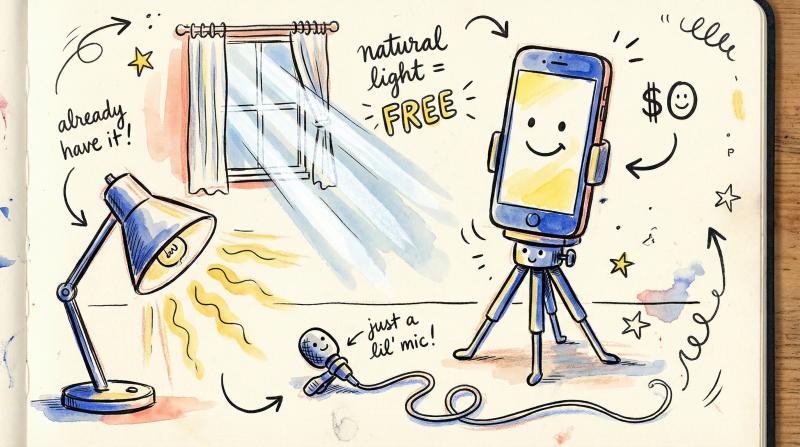
good news: you probably already have everything you need to start.
What Camera Should You Use?
your smartphone is perfectly fine for YouTube videos.
today's phones record in HD or 4K. that's more than enough quality. professional vloggers spend $500-$1,000 on cameras. you can absolutely start with a $0 investment using a phone you already own.
if you plan hands-free filming (craft tutorials, cooking), grab a basic tripod or phone stand. you can find decent ones for $10-$20 online.
Do You Need a Microphone?
clear audio matters.
phone mics work. but they're inconsistent. a simple clip-on lavalier mic (plugs into your phone or camera) costs under $30. dramatically improves audio clarity.
for gaming commentary or voiceovers, USB desktop microphones like the Blue Snowball work great. but don't buy anything until you're sure your child will stick with this.
How to Get Good Lighting
natural light is your best friend.
film near a window during daytime. (but avoid backlighting where the window is behind your child, making them a silhouette)
a cheap ring light or LED video light ($20-$40) helps for indoor setups. but honestly? many successful toy unboxing channels just use table lamps and daylight creatively.
What Free Editing Software Works Best?
you'll want to edit videos to cut mistakes, add music, and polish the final product.
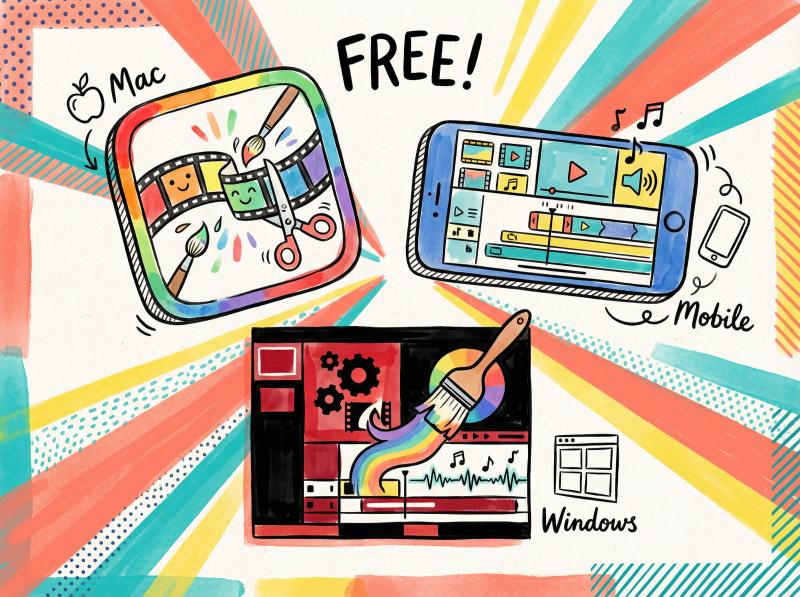
free editing programs that work great:
- For Windows: HitFilm Express or DaVinci Resolve
- For Mac: iMovie (free on all Macs/iPhones)
- For mobile: Adobe Premiere Rush or the YouTube mobile app's built-in editor
these tools let you trim clips. join scenes. insert titles. add music. as your needs grow, you could invest in pro software (Adobe Premiere Pro, Final Cut Pro). but start free.
How to Record Gaming Videos
if your child wants to record gameplay (Minecraft, Roblox), you'll need screen recording software.
OBS Studio is free and widely used for PC. mobile devices and tablets now have built-in screen recorders.
How to Create Eye-Catching Thumbnails
use free design tools like Canva or Pixlr to create eye-catching thumbnails.
YouTube thumbnails should be bright. bold. kid-friendly. (big smiling faces, colorful text, playful designs)
How to Promote Your Channel Across Platforms
if you plan to promote your channel across multiple platforms (Facebook, Instagram, TikTok), manually posting everywhere gets tedious fast.
post bridge is a social media scheduling tool that lets you schedule a post to all your social networks in one go.
you can share your new YouTube video link to 9+ different platforms from one dashboard. saves hours of repetitive work.
this becomes especially valuable once you're posting consistently. instead of logging into Facebook, then Instagram, then TikTok, you upload once. post bridge handles the rest.
it's optional when starting. but something to know about as your channel marketing expands.
cost-saving tip: use what you have. smartphone + free software + household lamps will take you far. focus on content quality first. you can always upgrade gear once the channel gains momentum.
How to Choose the Right Content Niche
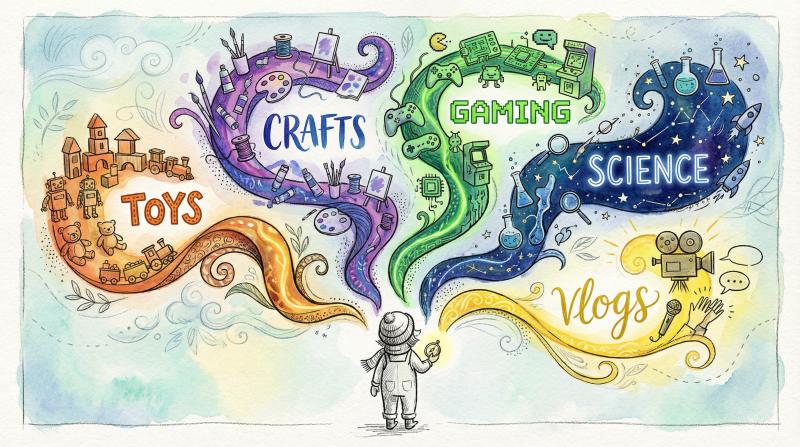
every successful channel has a clear theme.
random, unfocused content won't attract a loyal audience. you need to pick a niche that fits your child's interests. stick with it (at least initially).
How to Match Content to Your Child's Interests
start by listing what your child genuinely loves.
what makes them light up? if they're going to appear on camera doing something for hours on end, it should be something they actually enjoy. (Lego building, storytelling, science experiments, drawing, dancing, gaming, being silly)
don't force a shy book-lover to do wild comedy skits just because you think it'll get views.
authenticity matters.
kids can tell when someone's faking enthusiasm.
What Are the Most Popular Kids' Content Niches?
Niche - Description - Examples
- Toy Unboxing & Reviews - Kids opening new toys and reacting to them - Ryan's World, EvanTubeHD
- Arts & Crafts - Creative hands-on projects kids can try at home - Art for Kids Hub
- Educational Content - Fun science experiments, facts, language learning - Little Playful Engineers, Peekaboo Kidz
- Gaming - Kid gamers playing age-appropriate games - EthanGamer (Minecraft, Roblox, Mario)
- Skits & Pretend Play - Original mini-shows, role-playing scenarios - Ninja Kidz TV, T-Rex Ranch
- Family Vlogs - Day-in-the-life videos, family outings, challenges - The Ohana Adventure
- Music & Dance - Nursery rhymes, kids' songs, dance routines - Cocomelon
you don't have to stick rigidly to one category. maybe your child sometimes does crafts. sometimes toy reviews. if you can brand it under a cohesive theme ("fun with [name]"), that works.
having a central theme ties your content together.
How to Plan Your Content Calendar
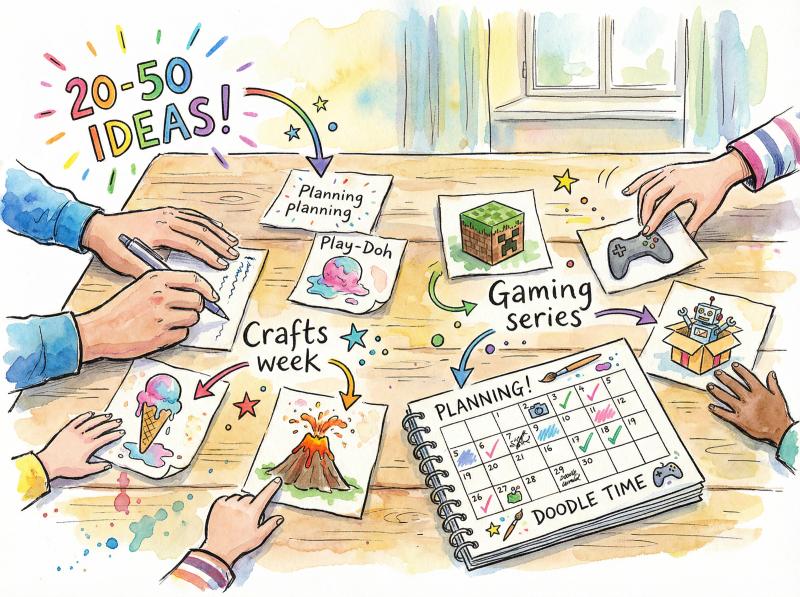
brainstorm a list of 20-50 video ideas upfront.
having this backlog helps later when you hit creative blocks.
if you choose "crafts," list specific projects. Play-Doh animals. holiday decorations. origami tutorials. if it's gaming, pick which games and what style. (tutorials, let's plays, challenges)
watch successful channels in your niche for inspiration. (not copying) see which videos got the most views. what appealed to kids? was it presentation, a funny element, a popular toy?
use those insights to inform your own approach.
How to Create Videos That Kids Actually Watch
having a good concept is one thing.
executing it in a way that holds kids' attention is another.
How Long Should Your Videos Be?
children (especially younger ones) have short attention spans.
get to the point fast.
if the video is about unboxing a toy, jump into the unboxing within the first 20 seconds. cut out dead air and pauses in editing. add variety. (different camera angles, graphics, sound effects) maintain energy.
What's the Optimal Video Length?
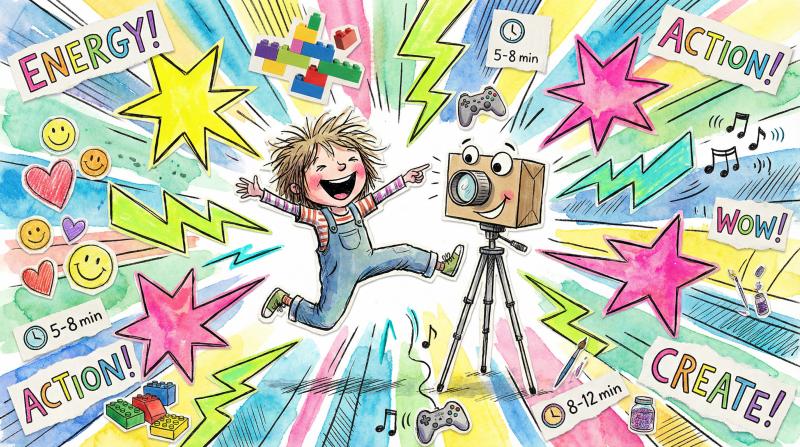
- for preschool/early elementary: 5-8 minutes
- for older kids: 8-12 minutes
toddlers will watch the same 2-minute video repeatedly. older kids can follow longer narratives. the key is: don't pad for length. but also don't cut something fun short if kids would enjoy more.
How to Maintain High Energy on Camera
enthusiasm is critical.
kids respond to big smiles. upbeat voices. expressive reactions. encourage your child to be themselves. maybe a slightly energized version. imagine speaking to a group of kids in person. (you'd probably be more animated and silly)
if your child is younger or shy, you (the parent) might join on camera to help maintain that energy. many successful channels feature parent-child duos.
How to Make Videos Visually Interesting
make your videos visually interesting:
- use bright colors in your setting (colorful toys, fun backdrops)
- add text and stickers in editing
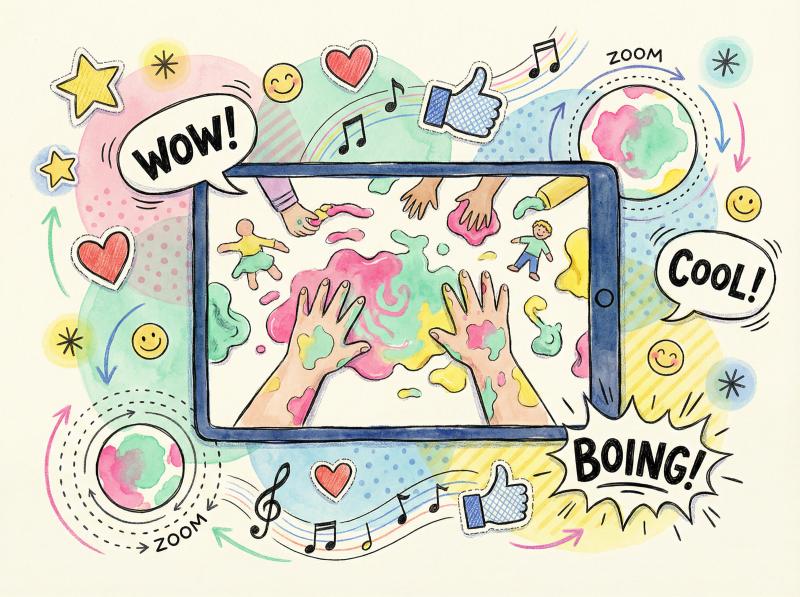
- zoom in so kids can see details clearly (close-ups during crafts, screen capture for games)
- incorporate music or sound effects (libraries of free sound effects exist online)
a well-timed "boing!" or sparkle sound can reset a child's attention. cartoony edits (emojis popping up, jump cuts to something silly) keep things lively.
How to Make Videos Feel Interactive
even with comments disabled, you can make videos feel interactive.
ask questions during the video: "what's your favorite color? shout it out!" young kids might actually respond aloud at home.
or if doing an educational bit, say "try guessing what will happen next!" before revealing the result. this makes kids feel involved without requiring them to contact you.
How to Create Signature Branding Elements
create consistent branding:
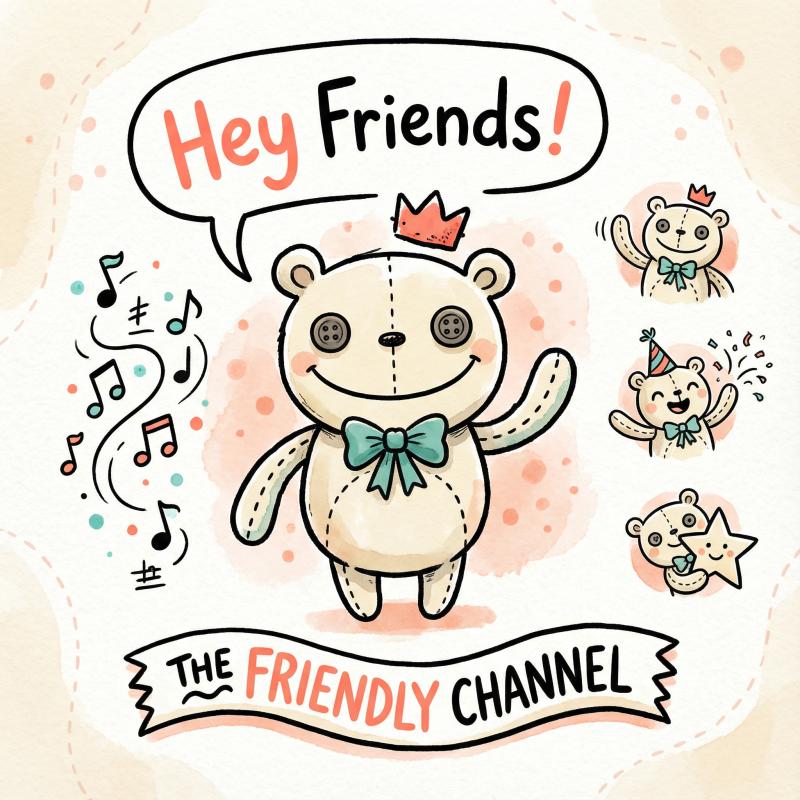
- a unique greeting or sign-off phrase
- a theme song or jingle
- a mascot or character that appears each time
- a particular stuffed animal "co-host"
kids love repetition and familiar faces. these elements make your channel more memorable.
for example, starting every video with "hey friends, welcome back to [ and a big wave creates instant recognition.
How to Let Your Child Be Creative
if the channel features your child, let them contribute ideas or improvise in videos.
authentic kid moments (silly remarks, genuine excitement, even mistakes) can be very charming to viewers.
a child's imagination is powerful. maybe they invent a funny character or recurring joke for the channel. embrace that creativity.
How to Keep Content Safe and Age-Appropriate
while being fun, ensure everything is safe and appropriate.
if you're doing DIY experiments or physical challenges, double-check they're safe for the age group. (mention safety steps, like wearing goggles)
if other kids appear in videos, get their parents' permission. ensure they follow the same guidelines. YouTube's algorithms watch for anything that might violate community guidelines. (dangerous acts, inappropriate content)
keep it wholesome and positive.
How to Upload and Optimize Videos for Search
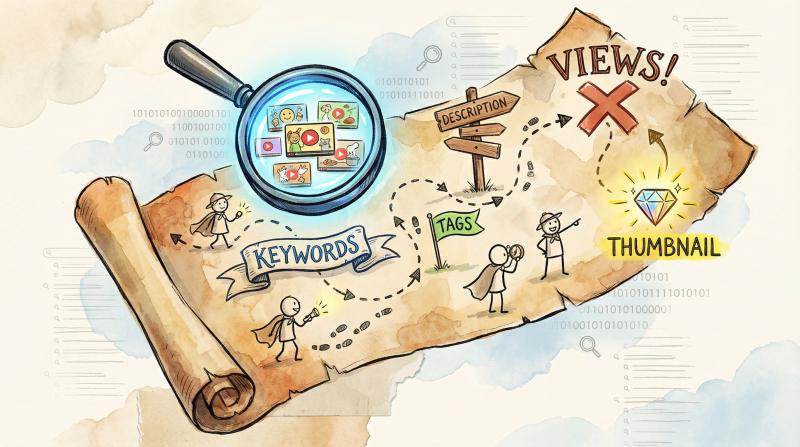
creating fantastic videos is half the battle.
making sure people can find them is the other half.
How to Write Titles That Get Clicks
use clear, descriptive titles that catch attention and contain relevant keywords.
good: "Fun Science Experiment for Kids (Rainbow Volcano!)"
bad: "Volcano Experiment"
put the most important words up front. YouTube scans titles left to right. instead of "Our Day at the Zoo (Family Vlog)," try "Family Fun at the Zoo (Lions, Tigers & More!)".
How to Write Video Descriptions
fill in the description with 1-2 paragraphs about the video.
the first sentence should include important keywords. only the first ~200 characters are prominently indexed in search.
example: "in this video, 6-year-old Amy does a fun Play-Doh ice cream tutorial. this easy DIY craft for kids shows how to make pretend ice cream cones with Play-Doh."
this helps your video appear in search results for "DIY craft for kids" or "Play-Doh ice cream tutorial."
also add tags in the tag field. include tags like "kids, children, [topic], [video type]." tags reinforce keywords. though they're not as critical as they once were.
post bridge's free YouTube tag generator can help you identify the best tags for your content.
How to Create Custom Thumbnails
thumbnails are super important.
they're the first thing a child (or parent) sees. a great thumbnail should be:
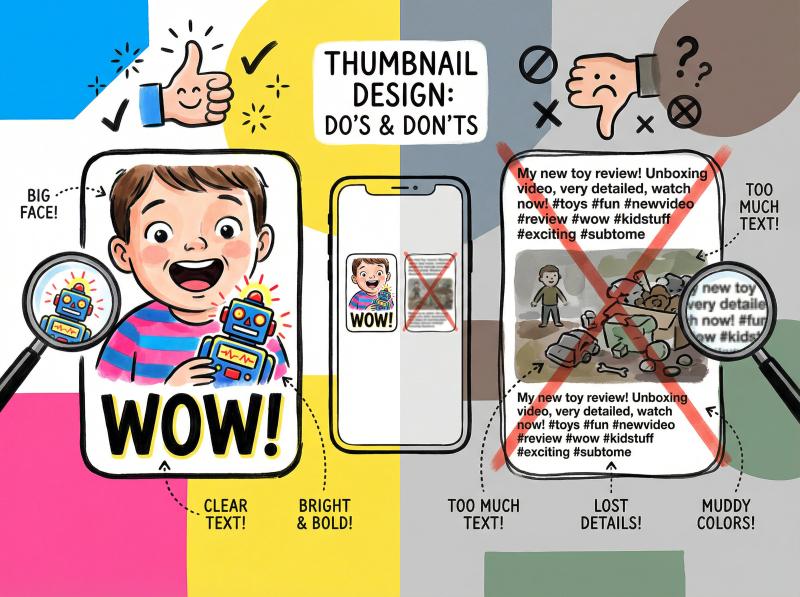
- bright and clear
- related to the content
- uses large images (faces or toys)
- minimal text (small text is hard to read on phones)
according to YouTube's Creator Academy, 90% of top-performing videos have custom thumbnails rather than auto-generated frames.
for a science experiment, the thumbnail could show the colorful "explosion" moment with the child's amazed expression. tools like Canva have thumbnail templates to make this easier.
How to Organize Videos with Playlists
as you produce more videos, organize them into playlists on your channel.
("Science with Sam (Full Series)" or "Our Family Vlogs")
this increases watch time. YouTube might autoplay the next video in the playlist.
playlists also work well for the YouTube Kids app. they often display playlists for continuous watching.
How to Brand Your Channel Page
customize your channel homepage with a nice banner that reflects your theme.
write an About section that clearly states this is a kids' channel. what content you offer. consistent branding makes your channel look professional and trustworthy to parents.
What Made for Kids Settings Should You Use?
while uploading each video, YouTube will ask if it's made for kids.
always mark correctly.
note that end screens and info cards (which creators often use to promote other videos) are disabled for kids' content.
you can't rely on those tools to suggest your other videos. instead, use verbal cues in your video. ("check out our other video about XYZ – it might autoplay next!") or put links in the description for parents to find more.
Why You Should Never Use Clickbait
it's tempting to use exaggerated thumbnails or titles to get clicks.
don't do it.
if your thumbnail/title doesn't match the actual content, viewers will leave quickly. YouTube will stop suggesting your video.
misleading practices can get your channel penalized. especially on a kids' channel. keep things honest. deliver what you promise. (just do so in an appealing way)
How to Use YouTube Analytics to Improve
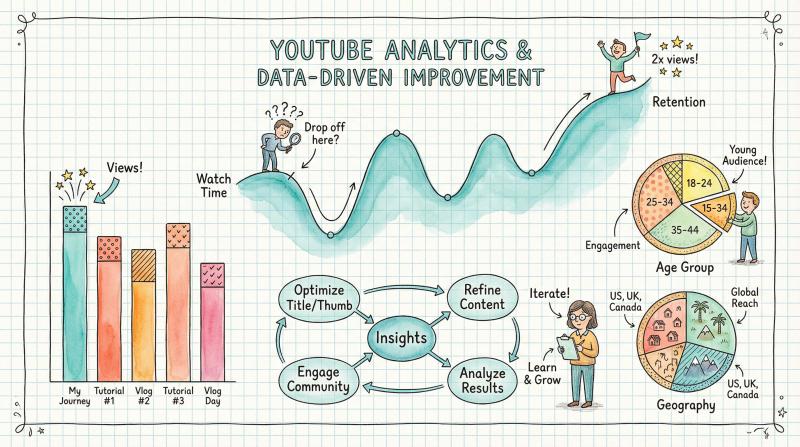
once you have a few videos up, dive into YouTube Studio's Analytics section.
you'll see which videos are getting views. how long people watch. where they drop off.
PLACEHOLDER: YouTube Studio Analytics Dashboard Screenshot
This section would benefit from a real screenshot of YouTube Studio's analytics interface showing retention graphs, view counts, and traffic sources. Due to authentication requirements, this screenshot requires manual capture.
Manual Capture Instructions: See web-screenshots/captures/SC-05.md for detailed steps to capture YouTube Studio analytics dashboard with retention data.
Expected Screenshot: YouTube Studio Analytics showing watch time metrics, audience retention graphs, and key performance indicators.
look at audience retention graphs to see if there's a specific drop-off point in your videos. maybe your intro was too long? maybe you lost them halfway through?
adjust future content accordingly.
pay attention to which topics or styles perform best. if your craft videos get twice the views of your cooking videos, that's telling.
data helps you do more of what works.
How to Grow Your Kids' YouTube Channel
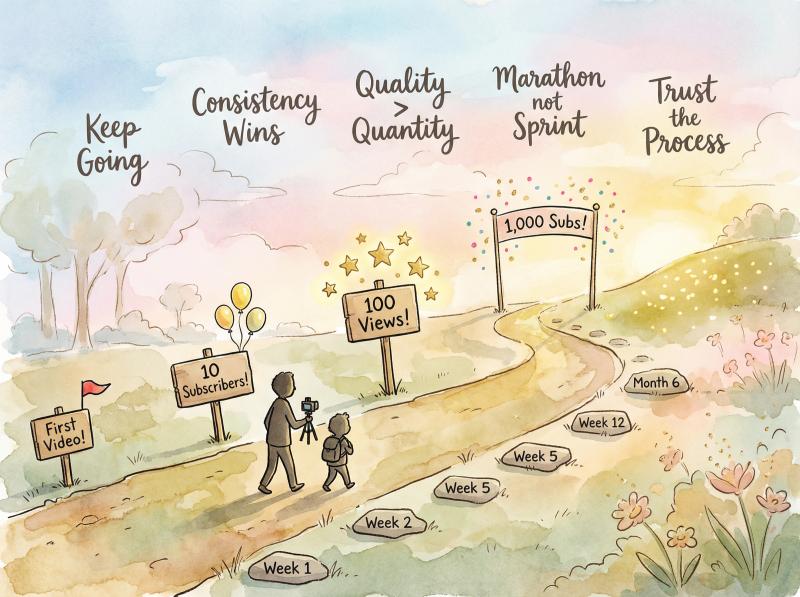
building a following on YouTube is a marathon, not a sprint.
kids' channels rely heavily on algorithm recommendations. (since you can't directly engage fans through comments or community posts)
How Often Should You Upload Videos?
pick an upload schedule you can maintain. stick to it.
whether it's one video a week or one every two weeks, consistency helps in two ways:
① the YouTube algorithm learns when to expect new content from you. promotes it accordingly.
② your audience knows when to come back for more.
for new kid channels, a good target is 1-2 videos per week if possible.
don't overwhelm yourselves, though. quality matters more than quantity. one great video a month beats four rushed ones.
pro tip: film and edit videos at least a few days ahead of when you plan to publish. this buffer helps avoid last-minute stress. gives time to fix issues.
How to Use YouTube Shorts to Grow
YouTube Shorts (vertical 60-second videos, similar to TikTok) have become a major growth hack.
many channels exploded by posting Shorts that rack up millions of quick views.
some kids' channels grew massively by posting 5 Shorts a day. consider taking highlight moments from your longer videos or simple bite-sized content. upload as Shorts.
Shorts appear in a different feed. they don't require subscribers to find them. YouTube pushes them to anyone who might be interested.
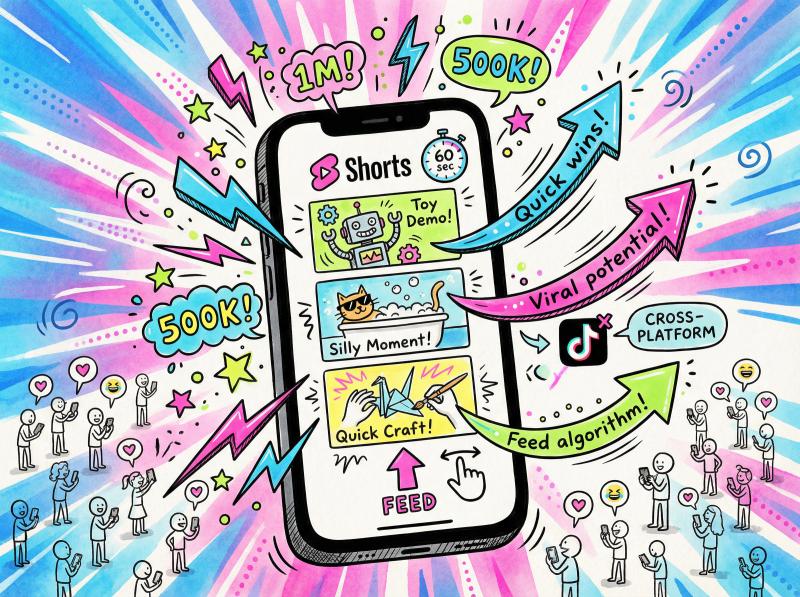
it's worth experimenting with a few fun Shorts. (a 30-second funny moment or quick toy demo)
you can use post bridge's TikTok downloader to repurpose successful TikTok content as YouTube Shorts. maximize your content's reach across platforms.
How to Promote Your Channel on Other Platforms
not having comments means you can't foster a community on YouTube easily.
but you can create a community off YouTube.
many successful kid channels maintain an Instagram, Facebook page, or TikTok (managed by the parent) where they post:
- behind-the-scenes photos
- teaser clips of upcoming videos
- announcements about new uploads
this lets you interact with fans (likely parents of child viewers) in those spaces.
for example, you might have an Instagram account where you share a fun still from each video. announce "our new video is live – link in bio!" this rallies your friends and followers to support the channel. spread the word.
if you're posting across multiple platforms, managing it all manually gets tedious.
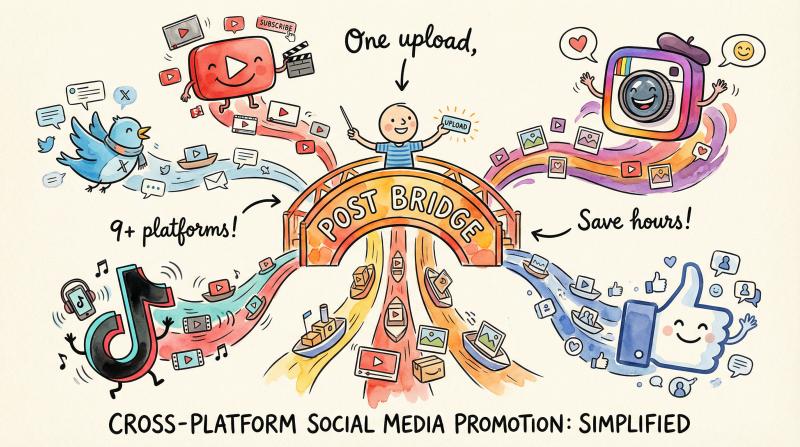
post bridge simplifies this by letting you schedule your YouTube video link to automatically post on Twitter, Facebook, Instagram, TikTok, LinkedIn, and more from one dashboard.
you upload once. post bridge handles distribution across all 9+ networks. saves hours of repetitive work. ensures you never forget to announce a new video on any platform.
How to Leverage Word of Mouth
don't underestimate the power of sharing your channel within your networks.
tell family and friends about it. they might share it with coworkers who have kids.
local parent communities. school newsletters (if appropriate). hobby clubs. these can be great places to mention your channel if it's relevant. (a channel about kids' science might interest the school science club)
your first 100 subscribers will likely come one by one via personal connections. their extended circles.
Should You Collaborate with Other Channels?
this is tricky in the kids' space due to privacy. but possible.
if you know another family with a kids' channel, consider a collab video where you appear on each other's channels.
for example, two kids might play a game online together. each post a video of it. cross-promoting the other's channel.
do get to know the other creator first. ensure they align with your content values. any collaboration should be supervised by parents on both sides.
How to Get Featured on YouTube Kids
getting your channel listed in the YouTube Kids app can be rocket fuel for growth.
the app is a closed ecosystem that many parents trust and prefer.
if your content consistently follows all kids' content guidelines (no edgy humor, no questionable language or imagery), over time you might get picked up.
one case study showed a channel's views jumped 396% in one month after being added to YouTube Kids. their revenue more than doubled.
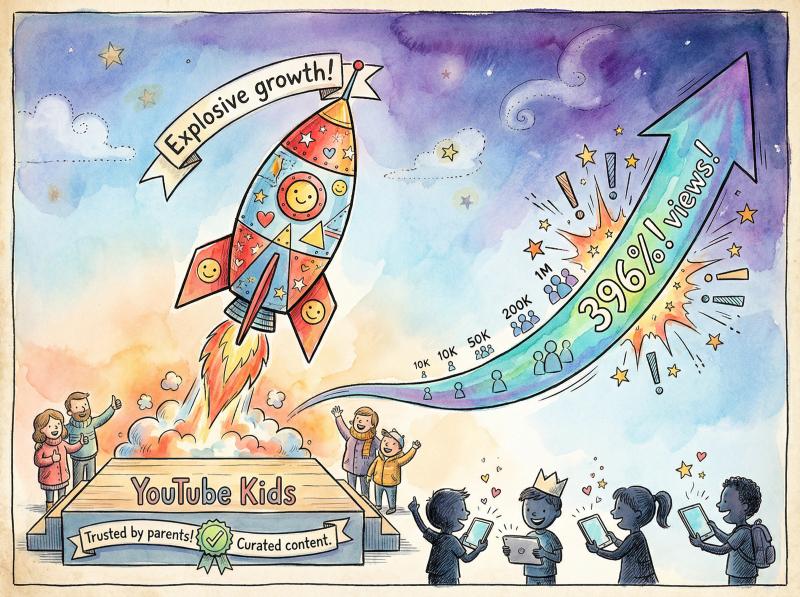
while you cannot directly apply, you can ensure your content is eligible. (follow all rules) focus on making the kind of content YouTube Kids wants: high-quality, enriching, and squeaky-clean fun.
How to Build Community Without Comments
even without comments, you can build a sense of community by creating running themes.
develop inside jokes or recurring characters that "fans" will recognize.
some channels give their audience a nickname. (calling viewers "Explorers" or "Junior Scientists" to fit the theme) you can incorporate viewer suggestions by asking on video. "what should we do next? one of our friends suggested we try X."
if you have an Instagram or email where you take art submissions or ideas, you can showcase those in videos. ("look at this drawing one of you sent us!")
these tactics show that you value your audience. even without direct chat.
How Long Does It Take to Grow?
emphasize to your child (and remind yourself) that growing on YouTube takes time.
it might be weeks or months before you see significant view numbers. that's completely normal.
celebrate small milestones. your first 50 subscribers. your first video to hit 1,000 views. keep the project fun and celebratory.
if something isn't working (videos not getting any views), treat it as a learning experience. try a different approach. don't stress too much over stats in the first year.
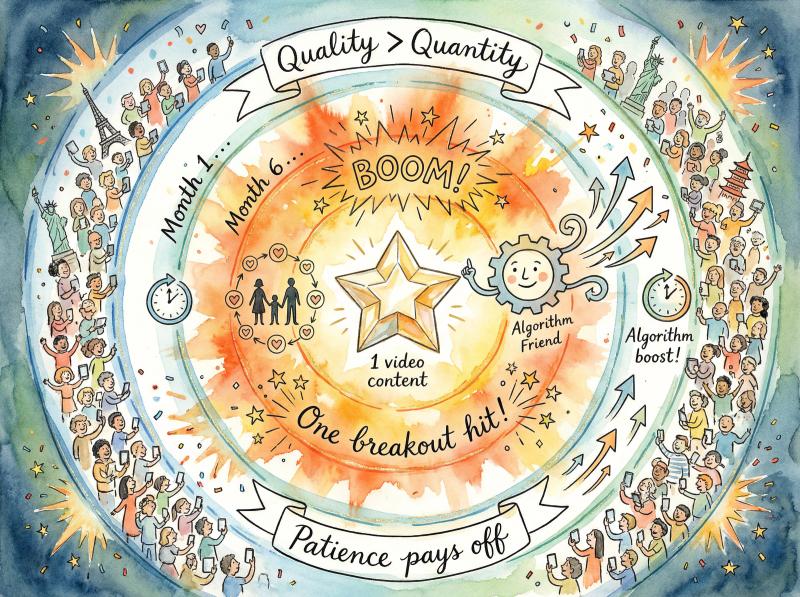
consistency and continual improvement usually pay off eventually.
remember: quality over quantity for growth. it's better to have 10 really excellent videos that people watch and share than 100 mediocre ones. each video can be an ambassador for your channel.
sometimes one breakout hit is all it takes for the algorithm to start favoring you. for kids' content, a video might suddenly go viral months after upload. it gets picked up by the recommendation engine or added to YouTube Kids.
How Much Money Can Kids' YouTube Channels Make?
your primary motivation might be giving your child a creative outlet.
but it's natural to wonder about the financial side.
yes, kids' channels can make money.
some of the most lucrative channels on YouTube are kids' content.
however, monetization on kids' content works differently. often yields much less revenue per view than general audience content.
What Are YouTube Partner Program Requirements?
to earn ad revenue directly from YouTube, your channel must join the YouTube Partner Program (YPP).
eligibility requirements as of 2025:
Option - Requirements
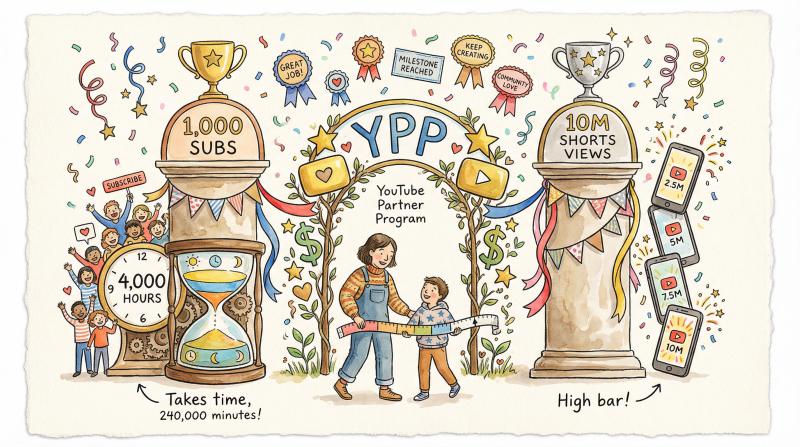
- Option 1 - at least 1,000 subscribers and 4,000 hours of watch time in the past 12 months
- Option 2 - at least 10 million Shorts views in 90 days
that's a high bar. (4,000 hours is 240,000 minutes of watch time) many channels take a year or more to reach this.
YouTube introduced an "earlier access" program where channels with 500 subs and 3,000 hours can unlock fan funding features. (channel memberships, Super Chat)
but note: for "made for kids" channels, those features are disabled by policy.
the main monetization path is ads and YouTube Premium revenue. you only get after hitting the full 1k/4k threshold.
don't expect to earn money right away.
How Much Do Kids' Videos Pay Per View?
when you do reach monetization, be prepared for much lower CPM/RPM (cost per thousand views) on kids' videos.
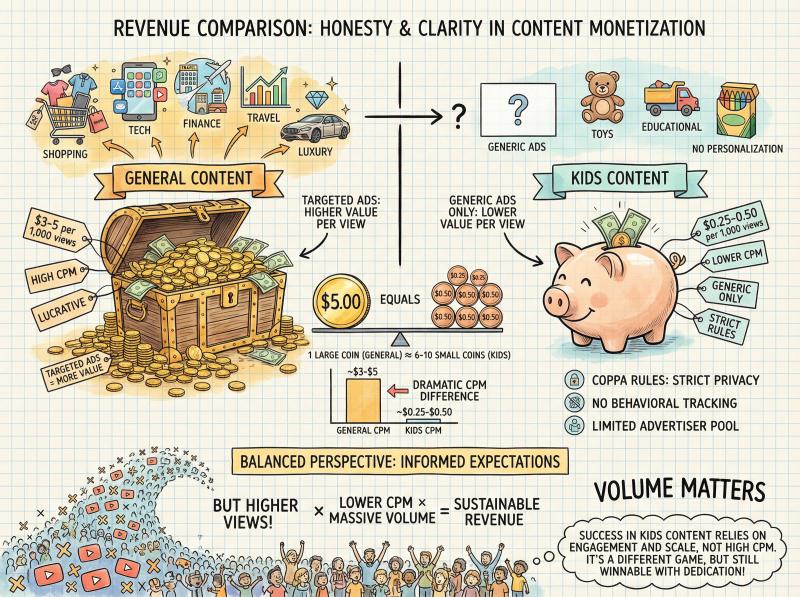
YouTube disables targeted ads on kids' content. the ads that run are generic. pay very little.
one experienced kids' creator reported:
- CPMs: $0.50–$1.20 (US/UK), $0.20–$0.40 (other regions)
- RPM (actual earnings): roughly half that
translation: per 1,000 views, you might earn only $0.25–$0.50.
compare that to a general vlogging channel that might earn $3–$5 per 1,000 views.
even 1 million views in a month might net only $100–$150 in ad revenue. some educational kids content might attract higher ads. (one creator mentioned $5 RPM) but overall, plan for lower numbers.
the flip side?
kids' videos often garner many more views. children rewatch favorites repeatedly. a high-view channel can still earn decent money through sheer volume. even with low RPM.
What Other Ways Can You Earn Money?
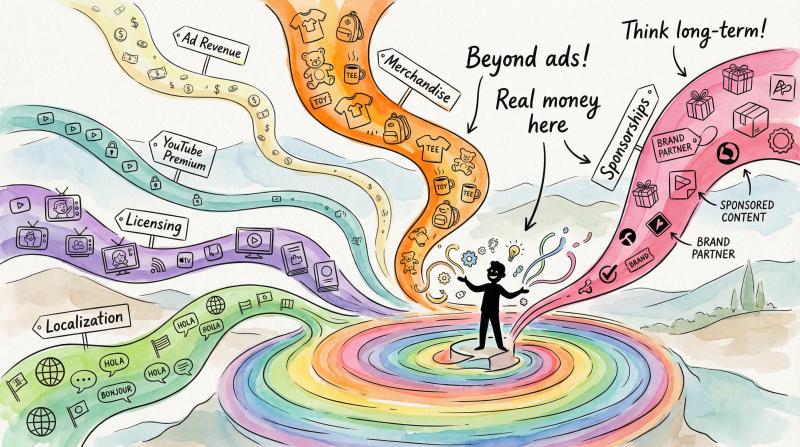
given the ad limitations, many kids' channels diversify their income:
YouTube Premium: if a viewer with YouTube Premium watches your video, you get a small cut of their subscription. (automatic once you're in YPP)
Merchandise: selling merch can be very lucrative once you have a loyal audience. for a kids' channel, this could mean T-shirts, toys, or books featuring your characters or brand. obviously down the road. but even a small merch store with stickers or hats can bring in a bit. delight fans.
Sponsorships and Brand Deals: many family and kids-oriented brands are eager to reach young audiences through YouTubers. if your channel gains a following, you could get offers to feature a toy or game in your video for a fee.
always vet these for appropriateness. also, fully disclose sponsorships. (per FTC rules) even to the kid audience. ("we want to thank XYZ Toys for sending us this product to review")
sponsored content is one way kid channels often make the real money. (sometimes far more than ads) toy review channels often get paid by toy companies for coverage.
Alternate Platforms and Licensing: some creators earn money by putting content on other paid platforms. (Amazon Prime, selling video compilations) or licensing their videos to streaming services or TV. the channel CoComelon eventually landed on Netflix. these are big-league moves that won't be in play until you have millions of views.
Expanding through Localization: a very interesting strategy used by top kids channels is to translate and dub content into other languages. kids all over the world love similar content. a U.S. channel that dubs its videos in Spanish or Hindi can tap huge new audiences.
channels saw hundreds of percent growth by adding new languages. this requires resources. (translators, voice actors) so it's not something to worry about at the start. but an interesting path if you become serious about scaling up.
What About Child Labor Laws and Ethics?
if your channel starts making money and your child is heavily involved (especially if they're the "star"), be mindful of the ethics.
essentially, your kid is a working performer at that point.
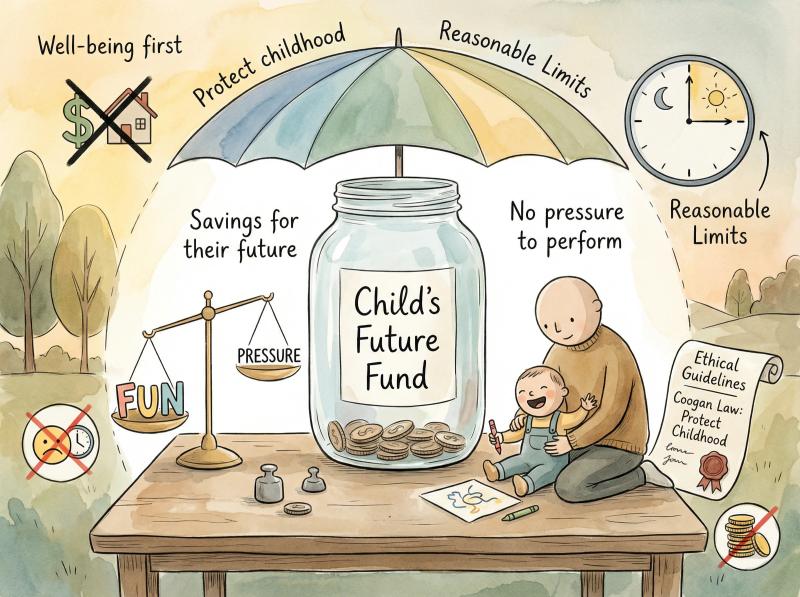
some regions (like California with the Coogan Law for child actors) are considering regulations for kid influencers. requiring a portion of earnings to be saved for the child. limits on work hours. etc.
even if it's not law where you live, it's wise to set aside earnings for your child's future. (bank account or college fund) don't rely on them as household income. also, ensure the child isn't feeling pressure to perform or continue if they lose interest.
protect their well-being over profits.
What's Realistic to Expect?
not every kids' channel will make big money.
in fact, most won't.
there are millions of channels out there. only the top fraction generate significant income.
it's absolutely fine to treat any money that comes as a bonus. not the goal. if you do want to aim for growth and revenue, follow the tips we've covered. (consistency, quality, multiple strategies) be patient.
on YouTube, you only get paid after you've earned at least $100. (the Adsense payout threshold) so even after monetization, it might be a few months before that accumulates if your channel is small.
in summary: monetization on kids' YouTube is possible but challenging. focus on creating great content and a strong brand. with enough eyeballs, the money can follow in various forms.
never lose sight of why you started. (hopefully for a positive, creative experience with your child)
How post bridge Helps You Promote Your Channel
managing a successful YouTube channel means promoting your content across multiple social platforms.
but manually logging into Facebook. then Instagram. then TikTok. then LinkedIn to share each new video?
that's exhausting.
post bridge solves this by letting you schedule posts to 9+ social networks from one dashboard.
here's how it helps kids' YouTube channels specifically:
save hours every week: instead of manually posting your new YouTube video link to each platform, create one post in post bridge. it automatically shares to Twitter, Instagram, Facebook, TikTok, LinkedIn, Pinterest, Threads, and Bluesky simultaneously.
maintain consistent promotion: when you're juggling filming, editing, and parenting, it's easy to forget to announce new videos on all your platforms. post bridge lets you schedule everything in advance. ensures you never miss promoting a video.
build cross-platform presence: growing a kids' channel requires reaching parents where they spend time. (Facebook groups, Instagram, parenting forums) post bridge makes it easy to maintain an active presence on all these platforms without the tedious manual work.
pricing that works for creators: plans start at just $9/month for 5 social accounts. unlimited posts. that's significantly cheaper than alternatives. for a parent managing a kids' channel on a budget, post bridge offers professional-level scheduling without the enterprise price tag.
simple enough for busy parents: the interface is straightforward. upload your post. select which networks to share it on. schedule the time (or post immediately). you're done. no complicated menus or confusing features.
as your channel grows, post bridge scales with you. need to manage multiple accounts for different projects? the Pro plan supports up to 30 social accounts for $27/month.
bottom line: if you're serious about growing your kids' YouTube channel, you need a cross-platform promotion strategy. post bridge makes that strategy actually sustainable for busy parents.
What to Remember About Starting a Kids' YouTube Channel
starting a YouTube channel for kids combines creativity, parenting, and a bit of entrepreneurship.
it can be incredibly rewarding to see your child (or your content) bring smiles to other kids around the world.
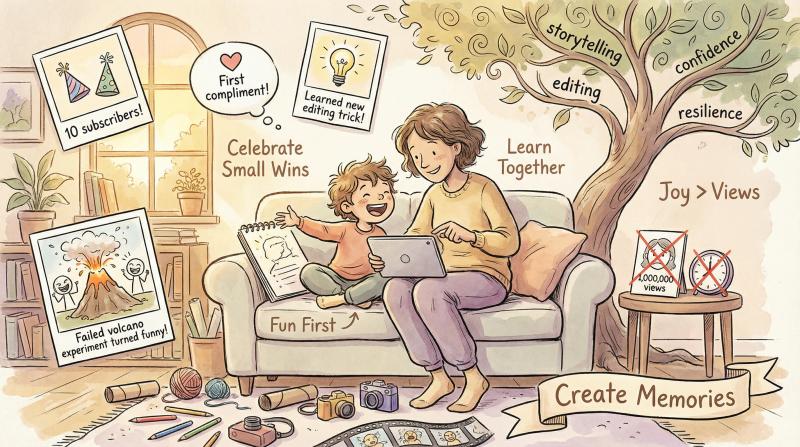
along the way, you and your kid might learn new skills. (storytelling, editing, handling feedback, persevering through challenges)
keep it fun: especially early on, success shouldn't be measured in views or dollars. measure it in the enjoyment and growth of your child. if the process becomes stressful or no longer fun, pause and recalibrate. maybe take a break. shift the content to something they do enjoy.
the audience can tell when a creator is genuinely having fun versus when they're forcing it.
celebrate the little wins: got 10 subscribers? that's 10 people who like your content! got your first compliment from a friend? awesome! as a parent, praise your child for their hard work and creativity. not just for numbers. this builds confidence and intrinsic motivation.
handle challenges together: there may be times when a video flops or a project fails. (the volcano didn't erupt, the cake got burnt) turn those into funny bloopers or learning moments.
if you encounter negativity on other social media (YouTube comments are off), use it to teach resilience and internet savvy. the fact that you're involved means your child isn't facing the online world alone.
that's huge.
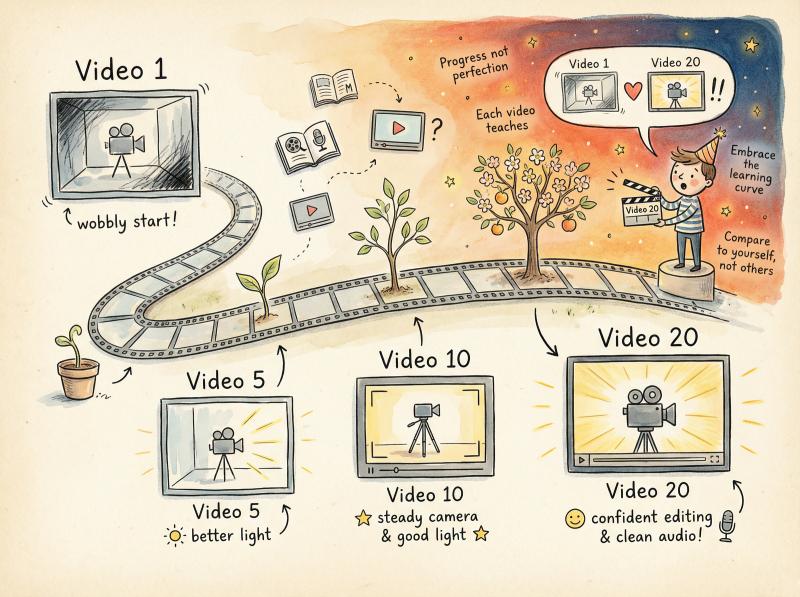
learn and improve continuously: you don't have to get everything perfect from the start. each video, try to improve one small thing. (better lighting, clearer audio, tighter editing) by the 20th video, you'll be amazed how far you've come.
there are tons of free tutorials on YouTube itself for filming tips and editing tricks. embrace the learning curve as part of the adventure.
network with other creators: even if your child can't join "YouTuber meetups" on their own, you can connect with other parents running kids' channels through online communities. sharing experiences and tips can be helpful. make you feel part of a community.
remember: at its core, a YouTube channel is about sharing joy. whether that's the joy of playing with a new toy. discovering something cool in nature. making someone laugh. keep that spirit at the heart of your channel.
the fact that you're willing to put in the effort to research and do this right (by reading this guide!) already shows you care about doing the best for your child and your viewers.
so go ahead.
launch that channel.
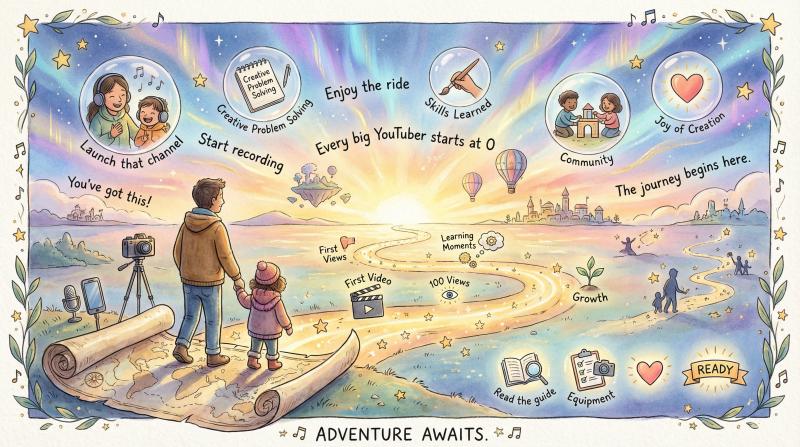
start recording. upload your first video. enjoy the ride.
who knows? a year from now, you and your child could be looking back on dozens of videos. thousands of happy viewers. saying, "remember when we started this crazy journey?"
every big YouTuber starts at 0. what matters is taking that first step and continuously learning.
good luck. have fun. stay safe on your YouTube adventure!
Frequently Asked Questions
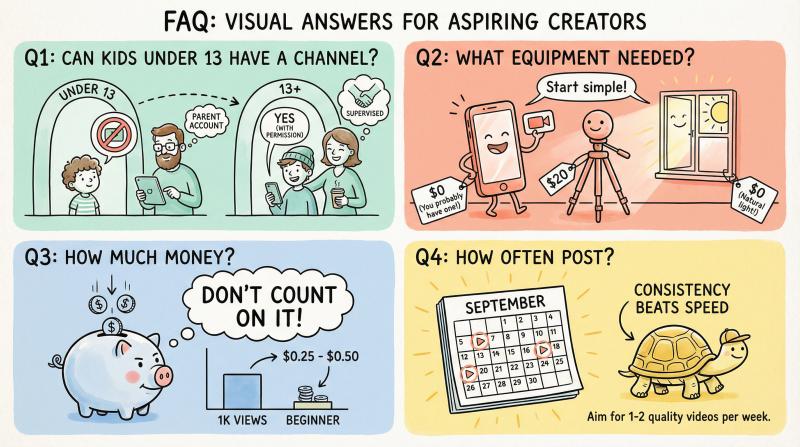
Can kids under 13 have their own YouTube channel?
no. YouTube's Terms of Service prohibit children under 13 from creating their own accounts. parents must create and manage the channel on behalf of their child. kids aged 13-17 can have accounts only with parental permission.
What equipment do I need to start a YouTube channel for kids?
you can start with just a smartphone for recording. free editing software (iMovie for Mac, DaVinci Resolve for Windows). good lighting (even just natural window light). as you grow, you might add a simple microphone ($20-30) and a tripod ($10-20). most successful kid YouTubers started with minimal equipment.
How much money can kids' YouTube channels make?
kids' channels earn significantly less per view than regular channels. (often $0.25-$0.50 per 1,000 views) targeted ads are disabled. however, kids' content often gets massive view counts. you need 1,000 subscribers and 4,000 watch hours to join YouTube's Partner Program and start earning ad revenue. many successful kids' channels make more money from sponsorships and merchandise than from ads.
How often should I post videos on a kids' YouTube channel?
consistency matters more than frequency. aim for 1-2 videos per week if possible. but quality beats quantity. it's better to post one great video every two weeks than four rushed videos weekly. pick a schedule you can maintain long-term. stick to it so your audience knows when to expect new content.
What's the difference between YouTube and YouTube Kids?
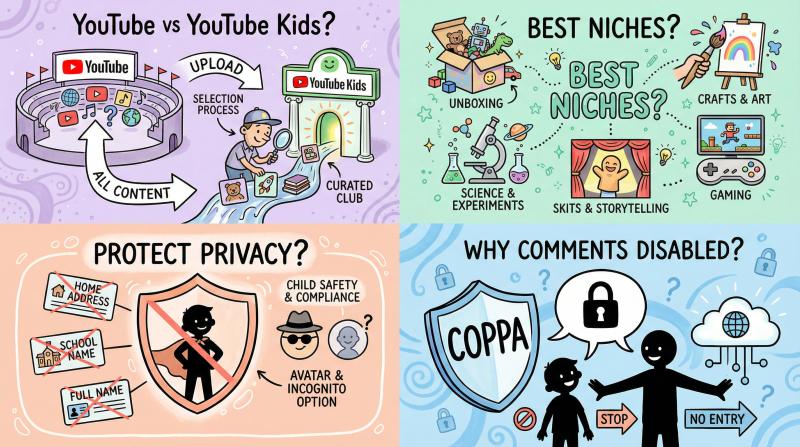
YouTube is the main platform where you upload your content. YouTube Kids is a separate curated app for children. you cannot directly upload to YouTube Kids. instead, YouTube's team selects qualifying "made for kids" channels to include in the Kids app after an approval process. getting featured there can dramatically boost your reach.
What are the best niches for kids' YouTube channels?
popular and successful niches include toy unboxing and reviews. arts and crafts tutorials. educational science experiments. gaming (Minecraft, Roblox). skits and pretend play. family vlogs. music and dance. comedy/challenges. the best niche is whatever genuinely interests your child and matches their talents.
How do I protect my child's privacy on YouTube?
never use your child's full real name in the channel name or videos. avoid sharing personal information like school names. home addresses. daily schedules. identifiable backgrounds. review every video before uploading to catch accidental personal details. consider starting with private/unlisted videos before going fully public. some parents keep their kids off camera entirely. using voiceovers or character avatars instead.
Why are comments disabled on my kids' videos?
YouTube automatically disables comments on all videos marked "made for kids" to comply with COPPA (Children's Online Privacy Protection Act). protect children from inappropriate interactions. this also applies to other features like notification bells. community posts. live chat. end screens.
How long should kids' YouTube videos be?
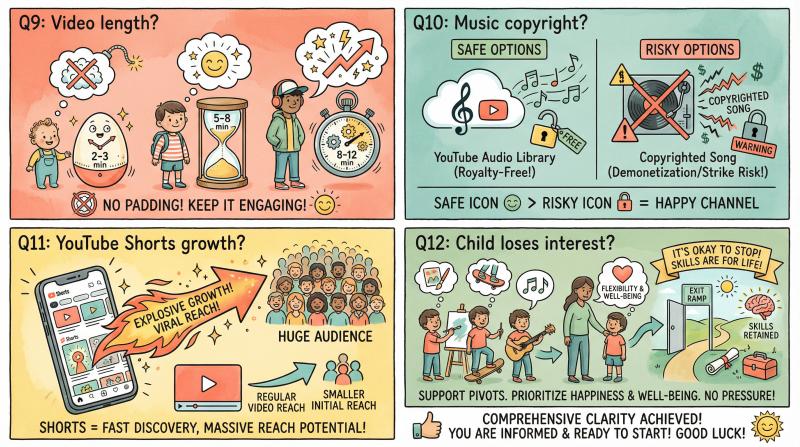
for preschool and early elementary content, aim for 5-8 minutes. for older kids, 8-12 minutes works well. toddlers will watch short 2-3 minute videos repeatedly. the key is maintaining engagement throughout. don't pad for length. but also don't cut something entertaining short if kids would enjoy watching more.
Can I use music in my kids' YouTube videos?
you can use YouTube's free Audio Library or royalty-free music from sites like Epidemic Sound or Artlist. using copyrighted music (popular songs) without permission can get your video demonetized or taken down. many kids' channels create simple original jingles or use free music to avoid copyright issues.
How do YouTube Shorts help grow a kids' channel?
YouTube Shorts (vertical 60-second videos) appear in a different feed. can get pushed to millions of viewers without requiring existing subscribers. many kids' channels have grown rapidly by posting Shorts. you can repurpose highlights from your longer videos. create bite-sized content specifically for Shorts to attract new viewers to your main channel.
What should I do if my child loses interest in YouTube?
this is completely normal. children's interests change constantly. if your child loses enthusiasm, take a break rather than forcing them to continue. you could also shift the channel's focus to something they are interested in. or simply wind down the channel. the skills they learned (creativity, editing, speaking on camera) remain valuable even if the channel ends.
How do I handle negative comments or online trolls?
since comments are disabled on kids' content, you won't face this on YouTube itself. however, you might encounter negativity on other social platforms where you promote the channel. teach your child that not everyone online is kind. negative comments say more about the commenter than about them. block or report inappropriate users. never engage with trolls. focus on the positive feedback from your real supporters.
Can I collaborate with other kids' YouTube channels?
yes. collaborations can help both channels grow. look for families with similar content and values. ensure both sets of parents are comfortable with the arrangement. supervise the collaboration closely. simple collaborations might include playing a game online together where each child posts their perspective. creating a joint challenge video.
What are the most common mistakes new kids' YouTube channels make?
common mistakes include: not understanding COPPA rules and getting fined. sharing too much personal information. inconsistent posting schedules. poor audio/video quality. clickbait titles that don't match content. giving up too early (most channels take 6-12 months to gain traction). focusing on view counts instead of having fun. not involving the child in creative decisions. avoid these and you'll be ahead of most beginners.