
you've spotted it.
that little green circle sitting next to someone's profile picture on LinkedIn. maybe it's solid, maybe it's hollow, maybe it's not there at all.
and you're wondering: what exactly does this mean, and why should i care?
the green dot is LinkedIn's active status indicator. it's telling you something important about when someone is online and how quickly they'll see your message.
For professionals trying to network, land clients, or close deals, this tiny icon can be the difference between a conversation that happens in real time and one that dies in an inbox.
Studies show that responding to a new lead within 5 minutes can boost conversion rates over 8× compared to waiting 30 minutes.
LinkedIn isn't just for sales leads, but the math is clear: timing matters.
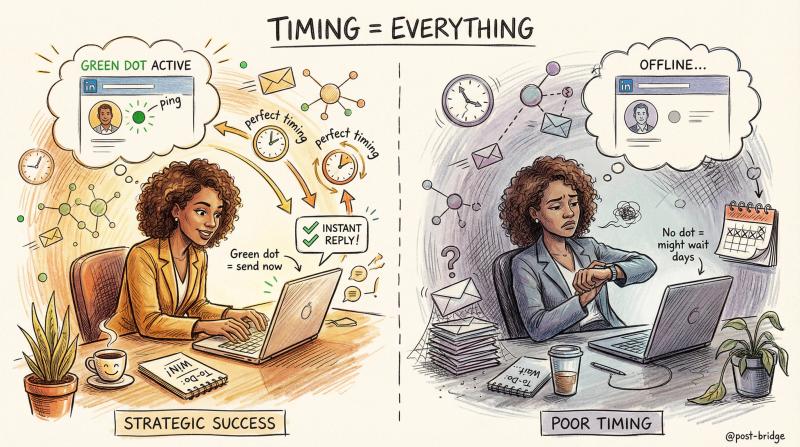
When you catch someone while they're active, your message gets noticed. When you don't, it might sit for days.
understanding optimal timing is part of what we cover in our social media best practices.
this guide breaks down everything about LinkedIn's active status system. you'll learn what the different indicators mean, who can see your status, how to control your visibility, and most importantly, how to use this knowledge strategically for better networking outcomes.
How LinkedIn Active Status Indicators Work
LinkedIn uses visual cues to show you when your connections are available for conversation.
the platform introduced this feature to help professionals time their outreach better, similar to how you'd see online indicators on Slack or Facebook Messenger.
here's what each indicator actually means:
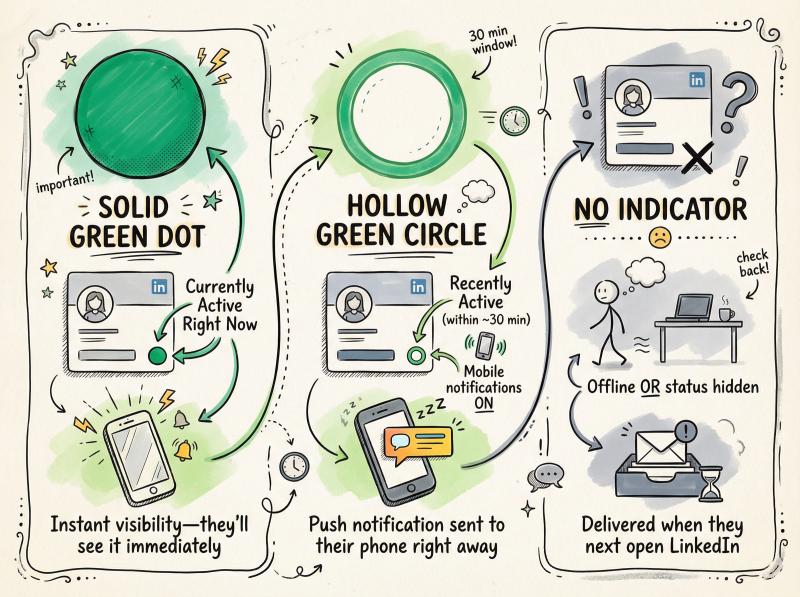
Indicator - What It Means - Your Message Timing
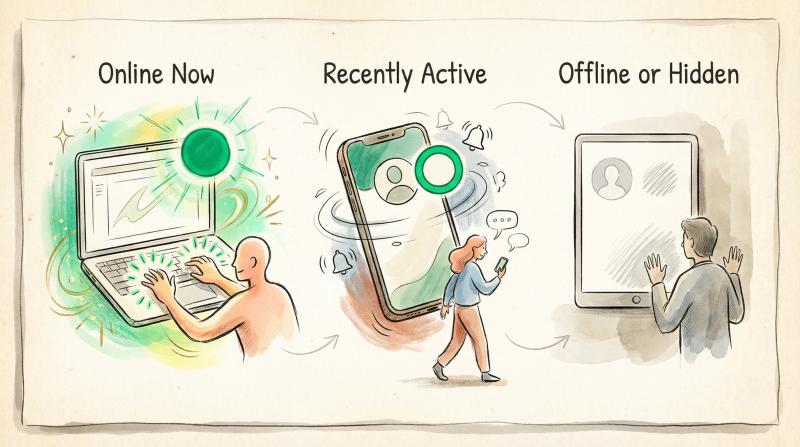
- Solid Green Dot - Currently active on LinkedIn right now - Instant visibility - they'll see it immediately
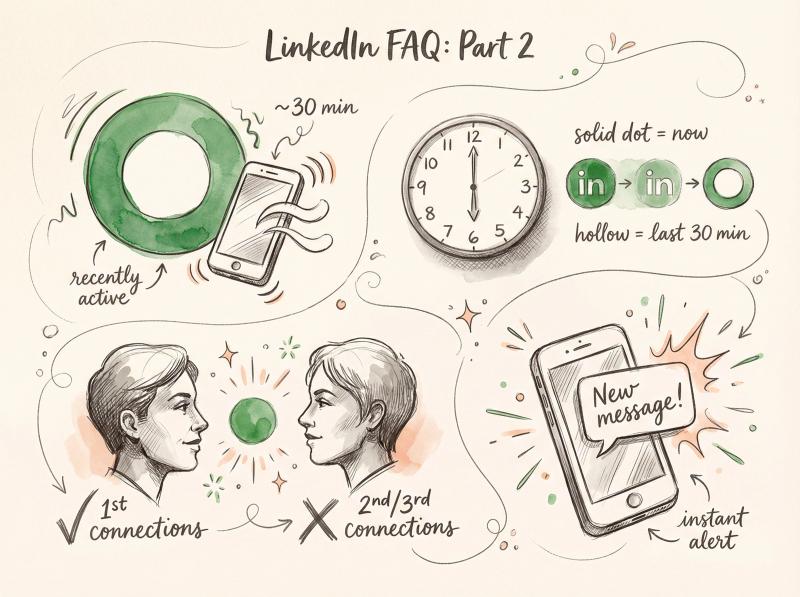
- Hollow Green Circle - Recently active (within ~30 min) + mobile notifications on - Push notification sent to their phone right away
- No Indicator - Offline OR status hidden - Delivered when they next open LinkedIn
What Does a Solid Green Dot Mean on LinkedIn?
when you see a solid green circle next to someone's profile photo, they're actively using LinkedIn right now.
according to LinkedIn's help documentation, this means they have LinkedIn open and active at this moment.
the platform is using real-time presence technology to confirm their session is live. if you send them a message, they'll get an instant notification within the app or website.
This is your best window for immediate engagement.
The person is logged in, likely checking their feed or messages, and positioned to respond quickly. It's the LinkedIn equivalent of seeing someone at their desk with their door open.
What Does a Hollow Green Circle Mean on LinkedIn?
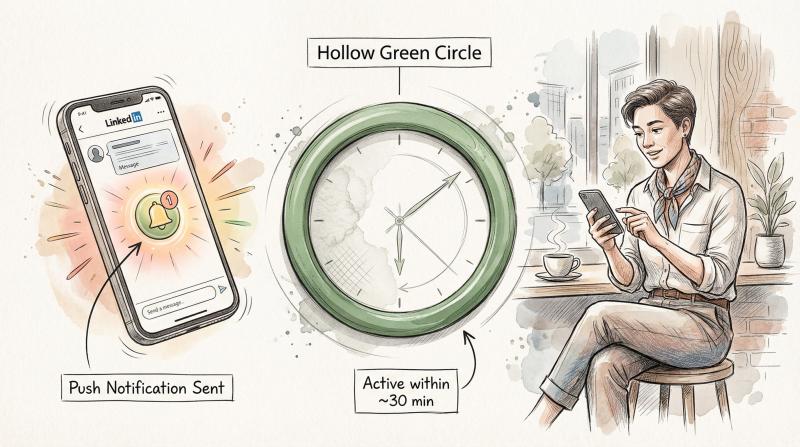
a hollow green circle (green outline with white center) tells a different story.
this person isn't actively browsing LinkedIn right this second, but they were online recently, typically within the last 30 minutes.
More importantly: LinkedIn's documentation indicates they have LinkedIn's mobile app installed with push notifications enabled.
why does that matter?
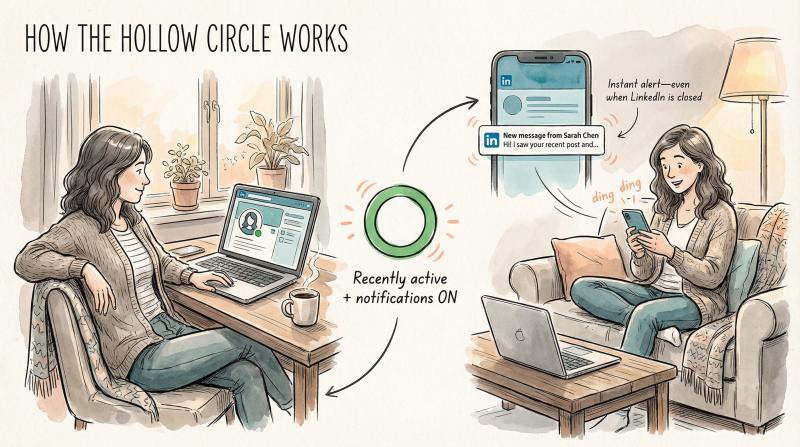
Because even though they're not currently on LinkedIn, they'll still receive an instant push notification if you message them. They might have closed the app or locked their phone, but your message will ping their device immediately.
on the LinkedIn mobile app, you might see a timestamp like "Active 1h ago" next to certain connections, giving you more precise information about when they were last online.
What Does No Green Dot Mean on LinkedIn?
when there's no green dot or circle at all, LinkedIn's help center explains it means one of two things:
① they're genuinely offline right now
② they've turned off their active status completely
LinkedIn doesn't distinguish visually between these scenarios. you just won't see any status indicator.
Any message you send will be delivered, but they won't see it until the next time they open LinkedIn and check their messages.
technical note: LinkedIn's presence platform uses periodic session pings to maintain the active status. the system confirms someone is still logged in and hasn't gone idle before showing that solid green dot.
Does LinkedIn Green Dot Mean They're Actually Online?
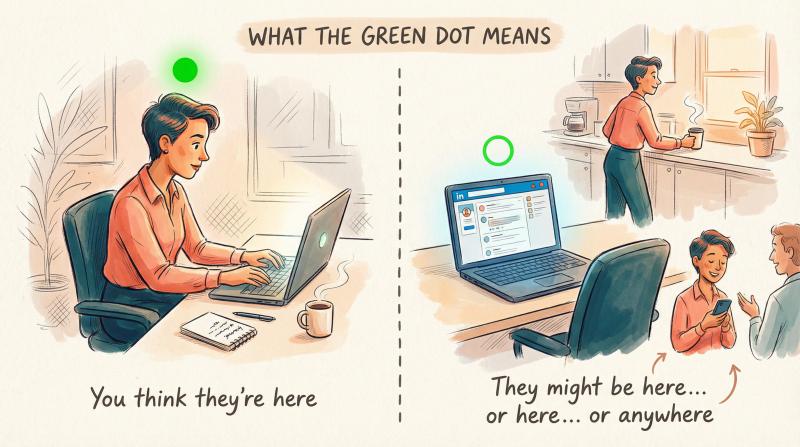
let's be clear about something: the green dot shows LinkedIn is open, not that someone is staring at their screen.
Someone could have LinkedIn running in a background browser tab. They could be on their phone with the app active but doing something else.
the green dot doesn't guarantee they're actively clicking through profiles or posts at that exact second.
think of it like this: the active status means the door is open for a conversation. it doesn't mean they're sitting there waiting for you specifically or that they're free for a 20-minute discussion.
use it as a strong signal, but pair it with common sense.
if someone shows active at 11 PM, they might not appreciate a non-urgent work request unless you know them well. if they're online during typical business hours, that's usually a better bet for professional outreach.
(btw, for more networking strategies, check out our organic marketing guide.)
the beauty of the system is that it works both ways. you can check who's online before reaching out, and others can gauge when you're available too.
It's situational awareness for professional networking, similar to the principles outlined in our social media best practices guide.
Who Can See Your LinkedIn Green Dot?
by default, LinkedIn shows your active status only to your 1st-degree connections, the people you're directly connected with.
This keeps your online activity semi-private within your professional network.
but you can change this. LinkedIn gives you three visibility options:
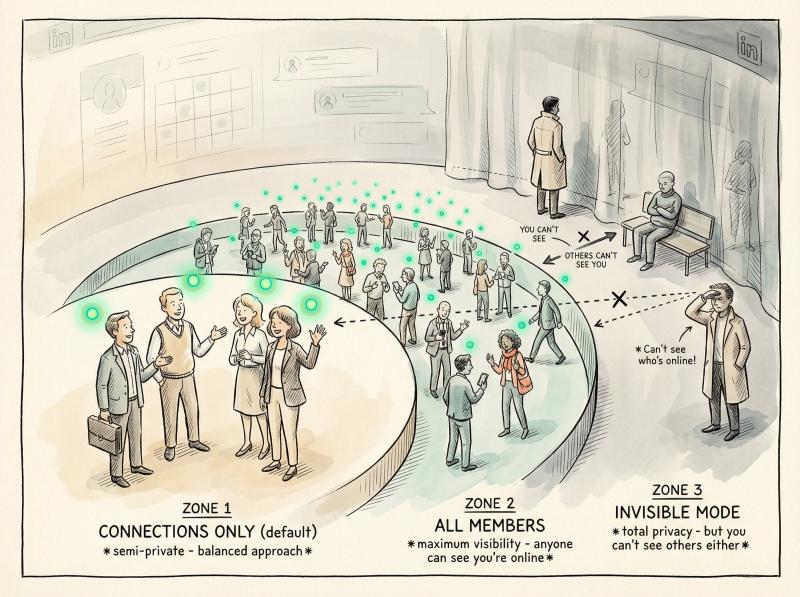
Privacy Setting - Who Sees Your Green Dot - Best For - Trade-off
- Your Connections Only (default) - Only 1st-degree connections - Most professionals balancing availability + privacy - Can't see non-connections' status either
- All LinkedIn Members - Everyone on LinkedIn - Active job seekers, aggressive networkers, sales pros - Maximum exposure - anyone can track your activity
- No One (invisible mode) - Nobody sees your status ever - Privacy-focused professionals, passive job seekers - You can't see anyone else's green dots either
LinkedIn Active Status: Connections Only (Default)
only people you've accepted as connections can see when you're active.
this is LinkedIn's default privacy level and what most professionals use. it balances availability with privacy.
If a recruiter you haven't connected with visits your profile, they won't see your green dot even if you're online. Same goes for 2nd or 3rd degree connections.
LinkedIn Active Status: All Members
this setting makes your active status visible to everyone on LinkedIn, whether you're connected or not.
you might choose this if you're:
- actively job searching and want recruiters to see you're available
- running outbound sales and want to appear maximally accessible to prospects
- building your network aggressively and signaling openness to conversations
The tradeoff? Anyone who comes across your profile or sees you in comments will know when you're online.
It's maximum visibility, which can be good or overwhelming depending on your situation.
LinkedIn Invisible Mode: Hiding Your Active Status
turn off your status completely and nobody sees a green dot on your profile, period.
You appear offline to everyone, all the time.
but here's the catch: LinkedIn uses a reciprocal visibility rule.
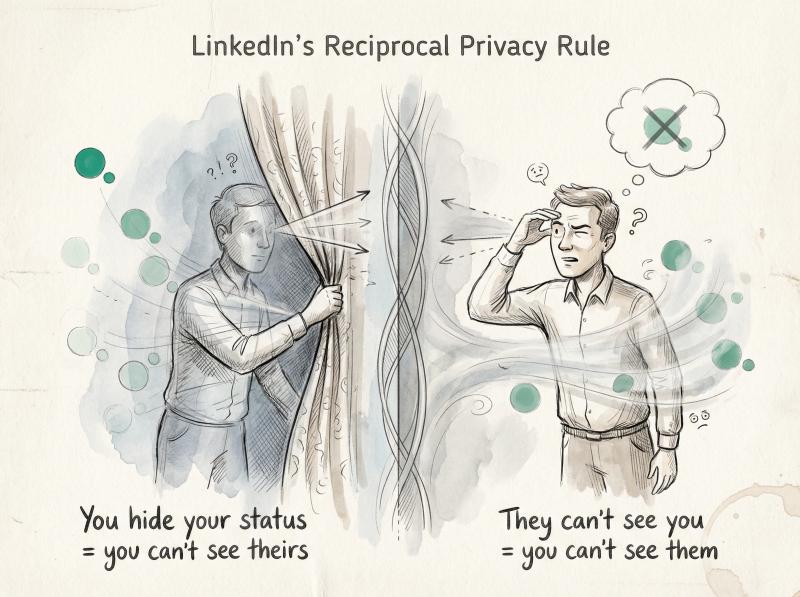
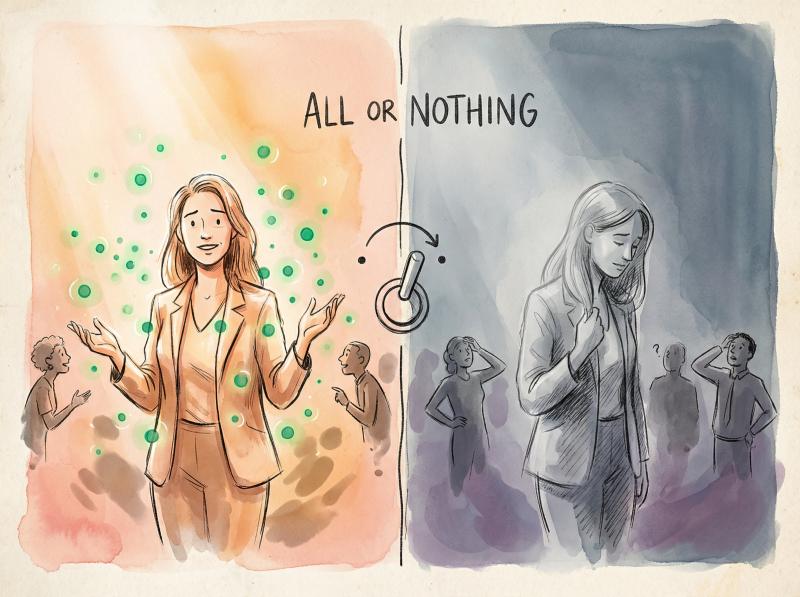
critical privacy tradeoff: if you turn off your active status, you won't be able to see anyone else's green dots either. it's an all-or-nothing privacy tradeoff. you can go dark, but you lose the ability to see when others are online.
this matters more than you might think. if you've ever wondered "why do i never see green dots on LinkedIn?" while everyone else does, check your settings.
You might have unknowingly disabled your own status, which blocks you from seeing others' in return.
How to Turn Off LinkedIn Active Status
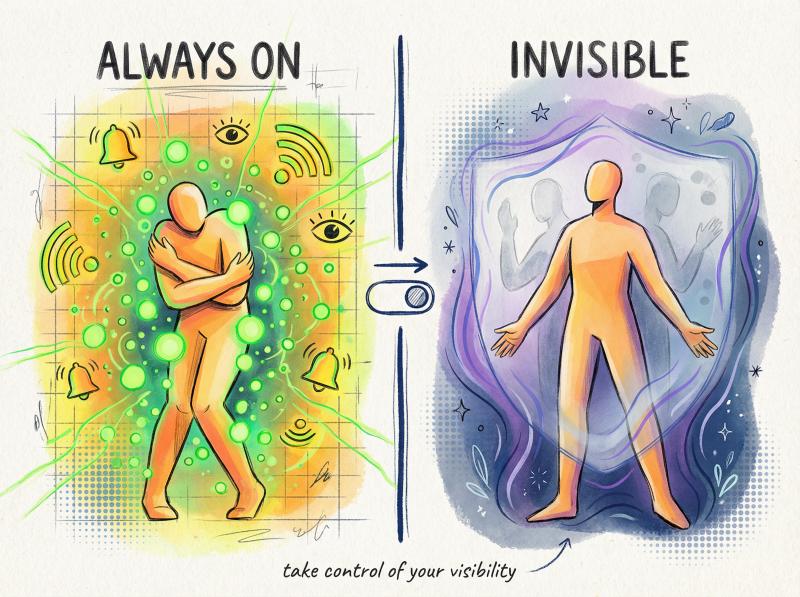
adjusting your visibility takes about 30 seconds. here's the exact process:
on linkedin's website:
① click the Me icon (your profile picture) at the top right
② select Settings & Privacy from the dropdown
③ navigate to the Visibility section in the left menu
④ find "Manage active status" and click it
⑤ choose your preferred setting: Your connections, All LinkedIn members, or No one
⑥ save if prompted
on the mobile app:
① tap your profile icon
② go to Settings
③ find Visibility settings
④ select Manage active status
⑤ choose your visibility level
Changes take effect immediately. If you switch to "No one," you'll instantly appear offline to everyone, and all green dots will disappear from your view across LinkedIn.
note: LinkedIn doesn't offer per-person blocking for active status. you can't appear offline to specific people while staying visible to others.
It's either everyone in your chosen group sees you, or nobody does.
similar selective visibility challenges exist across all social media platforms.
Why LinkedIn Active Status Matters for Networking
knowing what the green dot means is useful.
knowing when to use that information is where the real value lives.
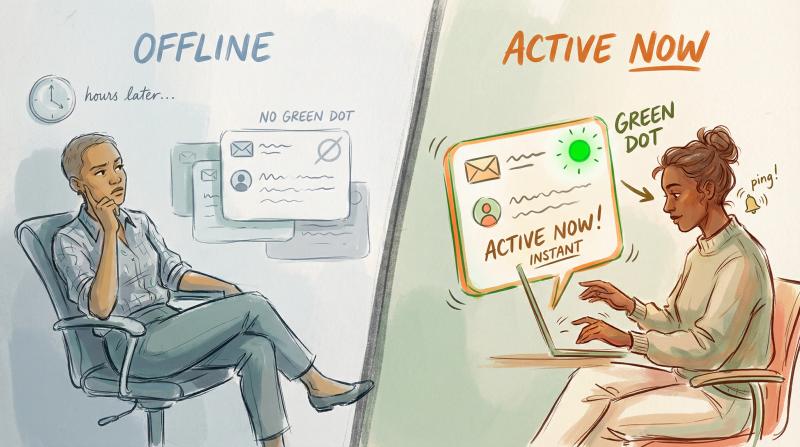
Timing your outreach when someone is active dramatically increases your chances of getting a prompt reply. Messages sent while someone is offline might sit for hours or days.
messages sent while they're online get seen immediately.
When to Message Someone on LinkedIn
→ job hunting: you've applied to a role and want to follow up with the hiring manager.
Sending a brief message when you see their green dot active could mean your note gets read right then, rather than buried under 50 other InMails.
One job seeker reported that messaging a hiring manager during their active window led to an immediate conversation and interview, simply because the timing was right.
→ sales and business development: in sales, response speed matters immensely.
If a decision-maker is online now and you reach out, you could get your answer within minutes instead of waiting days for email replies.
A quick "saw you're online, got a moment for a question about our proposal?" can accelerate deal velocity.
→ networking with executives or mentors: busy professionals appreciate respect for their time.
If you catch them during an active LinkedIn session with a concise, valuable message, you're more likely to get genuine engagement.
It shows you're being thoughtful about when to reach out, not just spamming their inbox whenever.
→ urgent team communication: while most teams use Slack or Microsoft Teams for internal chat, some cross-company collaborations or freelance arrangements happen over LinkedIn.
If you need a quick answer from a contractor or partner and notice they're active, LinkedIn can serve as an effective backchannel.
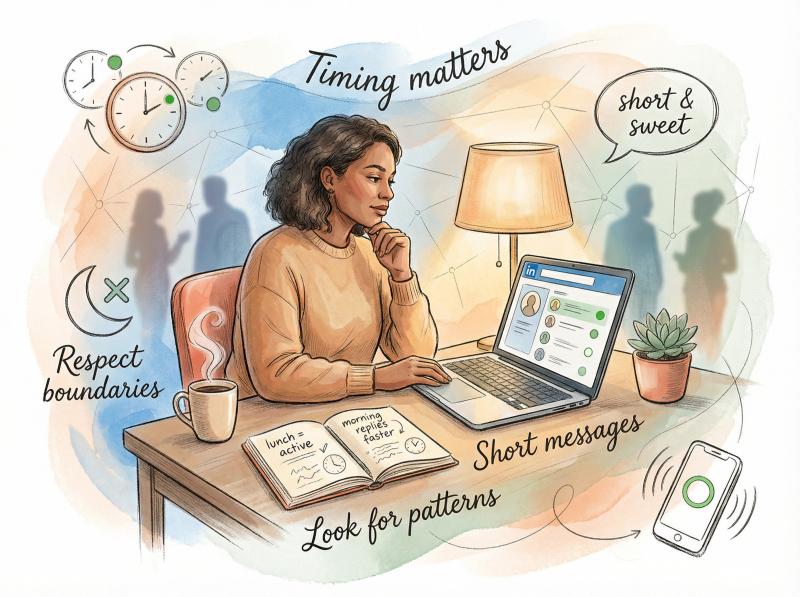
Best Practices for LinkedIn Active Status
keep initial messages short when someone's online.
If they're active right now, they might be multitasking or on mobile. A concise message gets a faster response than a wall of text.
You can always provide more detail once they reply.
respect boundaries and context.
Someone showing active at odd hours doesn't automatically invite your outreach unless you have that kind of relationship. Use judgment.
If they've turned their status off completely, honor that signal that they prefer asynchronous communication.
don't assume constant availability.
The green dot means "good time to reach out," not "definitely free for a 30-minute conversation right now."
They might step away, get pulled into a meeting, or be busy despite being logged in. If they don't reply immediately, that's normal.
look for patterns over time.
Notice that a key contact tends to be active around lunchtime? Or that someone in another timezone is usually online during your early morning?
Use those insights to schedule your outreach for maximum impact, similar to how you'd time your social media posts for optimal engagement.
For example, if you're managing a content calendar across multiple social platforms and need to coordinate with team members or clients, timing matters just as much as the message itself.
tools like Post Bridge for LinkedIn let you schedule your LinkedIn posts for when your audience is most active, ensuring your content lands when people are actually online to see it.
Same principle applies to direct messaging: reach out when they're there.
How to Use LinkedIn Active Status for Different Goals
the way you use active status should depend on what you're trying to accomplish on LinkedIn.
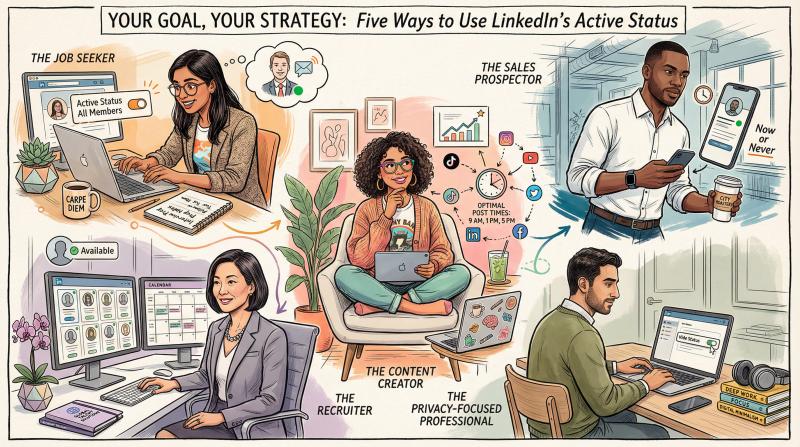
Your Goal - How to Use Active Status
- Job searching - Set your status to "All LinkedIn members" temporarily so recruiters can see you're available. Message hiring managers when they're active for faster responses.
- Sales prospecting - Monitor decision-makers' active times to time your outreach. When they're online, your message has instant impact instead of sitting unread.
- Content promotion - Notice when your target audience tends to be active, then post during those windows for maximum initial engagement.
- Recruiting talent - If you're hiring, show as available to signal you're accessible for quick questions from candidates.
- Privacy-focused networking - Turn status off completely if you don't want colleagues or competitors tracking your LinkedIn activity patterns.
for content creators and marketers: understanding when your audience is active isn't just about messaging. it's about when you publish.
If you're posting articles, updates, or videos, timing them for when your connections are online means more immediate eyeballs, engagement, and algorithm boost.
Managing this manually across your network can be exhausting. That's where automation helps.
our LinkedIn scheduler handles cross-platform scheduling so you can queue LinkedIn content (plus Instagram, TikTok, X/Twitter, Facebook, YouTube, and more) to go live during peak activity windows without having to manually post at specific times.
you study when your audience is online, then let the tool handle the execution.
it's the difference between "i need to remember to post at 2 PM" and "it's already queued to post at 2 PM automatically."
For professionals managing LinkedIn presence alongside 5+ other platforms, this removes the busywork entirely. You focus on creating good content and understanding your audience.
the tool handles the execution and timing.
LinkedIn Active Status: Common Questions
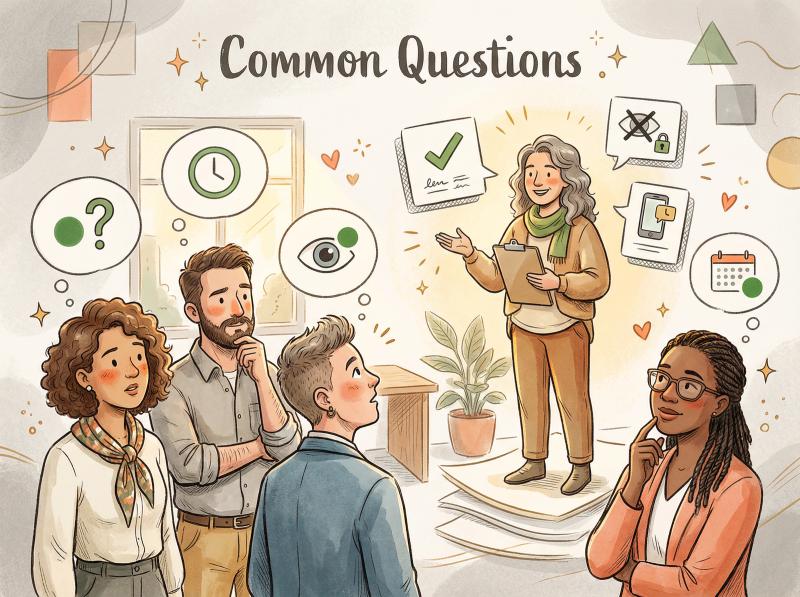
does the green dot mean someone is actively browsing linkedin right now?
not necessarily.
it means LinkedIn is open and active, but they might have it running in the background. think of it like someone being at their desk versus actively working.
The solid dot shows they're logged in and haven't gone idle, so there's a strong chance they'll notice new activity.
but it's not a guarantee they're staring at their feed that exact second.
can i see when someone was last active if there's no green dot?
on desktop, no. you won't see "last seen at 3:45 PM" timestamps like WhatsApp.
On mobile, LinkedIn shows subtle "last active" timestamps for connections with push notifications enabled. You might see "Active 2h ago" in your message thread.
but if someone has their status off or hasn't been on in a long time, there's no timestamp.
LinkedIn keeps this minimal intentionally. It's about current availability, not tracking people's activity history.
will people know if i check their green dot status?
no.
Looking at someone's profile or seeing their active status doesn't notify them. There's no "Who's Checking If I'm Online" feature.
Your connections can't tell whether you looked at their green dot. It's purely for your situational awareness.
does being active make me look unprofessional or "always online"?
not at all.
the green dot just shows you're using the platform when you're actually using it. nobody expects you to be on LinkedIn 24/7.
Appearing active during your work hours is completely normal and even signals that you're an engaged professional.
If you're concerned about seeming "always available," you can turn your status off during evenings, weekends, or vacation. But generally, there's no stigma to the green dot.
some recruiters and clients actually appreciate knowing when they can reach you.
if i message someone who's online and we aren't connected, will they see it?
that depends on LinkedIn's messaging rules, not the active status feature.
You generally can't directly message people you're not connected with unless they've accepted your InMail or you're both in a group conversation.
The green dot visibility is about who can see your status, not who can message whom.
If you do send an InMail to someone who's active, they might notice it sooner while checking their inbox. But you likely won't see their green dot unless they've set visibility to "All LinkedIn members."
can i appear online to some people and offline to others?
no.
LinkedIn's active status is an all-or-nothing setting. you can choose to show your status to:
- your connections only
- all LinkedIn members
- no one
But you can't selectively hide from specific individuals while staying visible to everyone else.
if you want to appear offline to someone specific, you'd need to either remove them as a connection or set your entire status to "No one."
How to Make LinkedIn Active Status Work for You
understanding the green dot is step one.
actually using it strategically requires building it into your regular LinkedIn habits.
before you send important messages
check for the green dot first.
If it's there, send your message and expect a faster response. If it's not, you can still send the message, but adjust your expectations.
They'll see it whenever they next check LinkedIn, which might be hours or days from now.
For time-sensitive opportunities (job applications with tight windows, sales deals in negotiation, urgent collaboration needs), that green dot tells you whether reaching out right now makes sense or whether you should try another channel (email, phone) for guaranteed delivery.
monitor patterns over time
pay attention to when key contacts tend to be active.
Maybe a client you're pitching is always online Tuesday mornings. Or a recruiter you're talking to shows active status every weekday around 6 PM.
use those patterns to time your follow-ups for maximum responsiveness.
Understanding audience patterns is key to effective content strategy.
This isn't about being creepy or stalking activity. It's just smart timing.
you wouldn't call someone at 3 AM unless it's an emergency. same logic applies here: you reach out when they're actually available and receptive.
coordinate your posting and messaging
if you're publishing LinkedIn content regularly (articles, posts, videos), pair your publishing schedule with your network's active times.
When your connections are online, your content gets immediate engagement, which signals the algorithm to show it to more people.
here's where tools like Post Bridge's scheduler become essential: instead of manually posting at optimal times across LinkedIn (and your other social platforms), you upload once and schedule everything.
Post Bridge handles multi-platform posting from a single dashboard.
You've studied when your audience is active. Post Bridge ensures your content goes live at those exact windows without you having to set alarms or interrupt your day.
It's the difference between "i need to remember to post at 2 PM" and "it's already queued to post at 2 PM automatically."
For professionals managing LinkedIn presence alongside 5+ other platforms, this removes the busywork entirely. You focus on creating good content and understanding your audience.
the tool handles the execution and timing.
adjust your own status based on goals
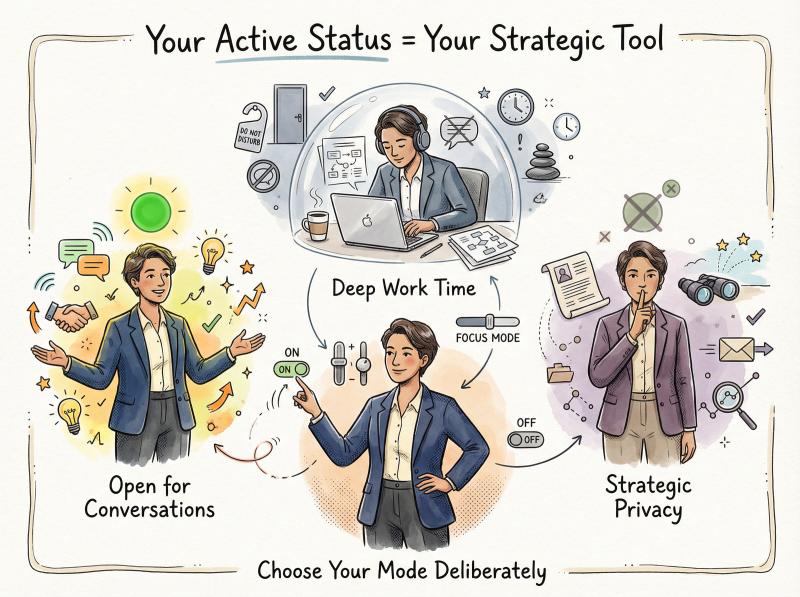
when you want to be available: keep your status on for connections or even all LinkedIn members. signal that you're open to conversations.
when you need focused work time: turn your status off. go invisible. you won't be interrupted by people messaging you just because they saw you're online.
when you're job searching quietly: maybe leave it off if you're connected to your current employer and don't want them noticing you're active on LinkedIn during work hours. or switch to "All members" temporarily when applying so recruiters see you're responsive.
Your active status is a tool. Use it deliberately based on what you're trying to accomplish that day or week.
LinkedIn Green Dot: Frequently Asked Questions
what's the difference between a solid green dot and a hollow green circle?
A solid green dot means the person is currently active on LinkedIn right now.
A hollow green circle (green outline with white center) means they were recently active (usually within the last 30 minutes) and have push notifications enabled on their mobile app, so they'll still get instant alerts if you message them.
can i turn off my active status just for certain people?
no.
LinkedIn's active status settings apply to everyone equally. You can choose to show your status to your connections only, all LinkedIn members, or no one, but you can't selectively hide from specific individuals.
To appear offline to someone particular, you'd need to either disconnect from them or turn off your status for everyone.
why can't i see anyone's green dots on linkedin?
If you don't see any green dots at all, it's likely because you've turned off your own active status.
LinkedIn uses reciprocal visibility: if you hide your status by setting it to "No one," you also can't see when others are online.
Check your settings under Visibility > Manage active status.
does checking someone's active status notify them?
no.
Viewing someone's profile or seeing their green dot doesn't send them any notification. They won't know you looked.
The active status is purely for your awareness, not something that creates alerts on their end.
how long does the green dot stay active after i close linkedin?
The solid green dot disappears almost immediately when you close LinkedIn or go idle.
The hollow green circle (indicating recent activity with mobile notifications) typically shows for about 30 minutes after you were last active, signaling that you're still reachable via push notifications even though you're not actively browsing.
can i see someone's active status if we're not connected?
Only if they've set their active status visibility to "All LinkedIn members."
By default, LinkedIn only shows active status to 1st-degree connections. If you're not connected to someone, you won't see their green dot unless they've explicitly changed their settings to make it public.
will people think i'm unprofessional if i'm always showing as active on linkedin?
not at all.
The green dot just shows when you're using the platform. Nobody expects you to be offline all the time, and appearing active during normal business hours actually signals you're an engaged professional.
If you're concerned about seeming "always on," you can turn your status off during evenings or weekends, but there's generally no negative perception of having the green dot during work hours.
can i schedule messages to send when someone becomes active?
LinkedIn doesn't have a native feature to automatically send messages when someone comes online.
You'd need to manually check their status and send the message at the right time.
However, for scheduling your LinkedIn posts to go live when your audience is most active, our LinkedIn scheduler can automate that timing across all your social platforms.
Check out our pricing page to see which option fits your needs.
what happens if i message someone with a hollow green circle?
They'll receive an instant push notification on their mobile device, even though they're not currently browsing LinkedIn.
The hollow circle indicates they were recently active and have the LinkedIn app with notifications enabled. So while they might not see your message in-app immediately, they'll get an alert on their phone right away, increasing the chances of a quick response.
why does the active status sometimes disappear and reappear for the same person?
This usually happens when someone is using LinkedIn intermittently, closing and reopening the app or website.
Their solid green dot might disappear when they close LinkedIn, then switch to a hollow circle for the next 30 minutes, then disappear entirely, then reappear as a solid dot when they log back in.
It's just reflecting their actual usage pattern in real time.
LinkedIn Green Dot Meaning: Final Takeaways
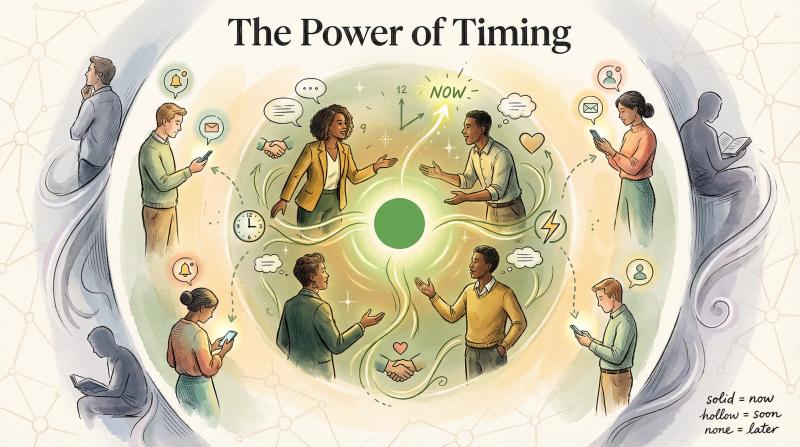
the green dot on LinkedIn isn't just a decorative feature. it's real-time intelligence about when your professional network is available for conversation.
remember this: a solid green dot means they're online now and will see your message immediately. a hollow green circle means they were recently active and have mobile notifications turned on, so they'll get pinged right away. no dot means they're offline or have hidden their status.
use this information strategically.
Time your important outreach for when people are actually there. Respect boundaries when someone has turned their status off.
adjust your own visibility based on whether you want to signal availability or maintain privacy.
For professionals juggling LinkedIn alongside multiple social platforms, managing all this manually can become overwhelming.
That's exactly why Post Bridge exists: to handle the scheduling, timing, and cross-platform execution so you can focus on creating valuable content and building genuine connections.
Upload once, post everywhere, perfectly timed.
the green dot is your window into when conversations can happen in real time instead of getting lost in the noise.
use it wisely, and you'll see better response rates, faster networking outcomes, and more meaningful professional relationships.
Explore our free social media tools to enhance your LinkedIn strategy even further.