
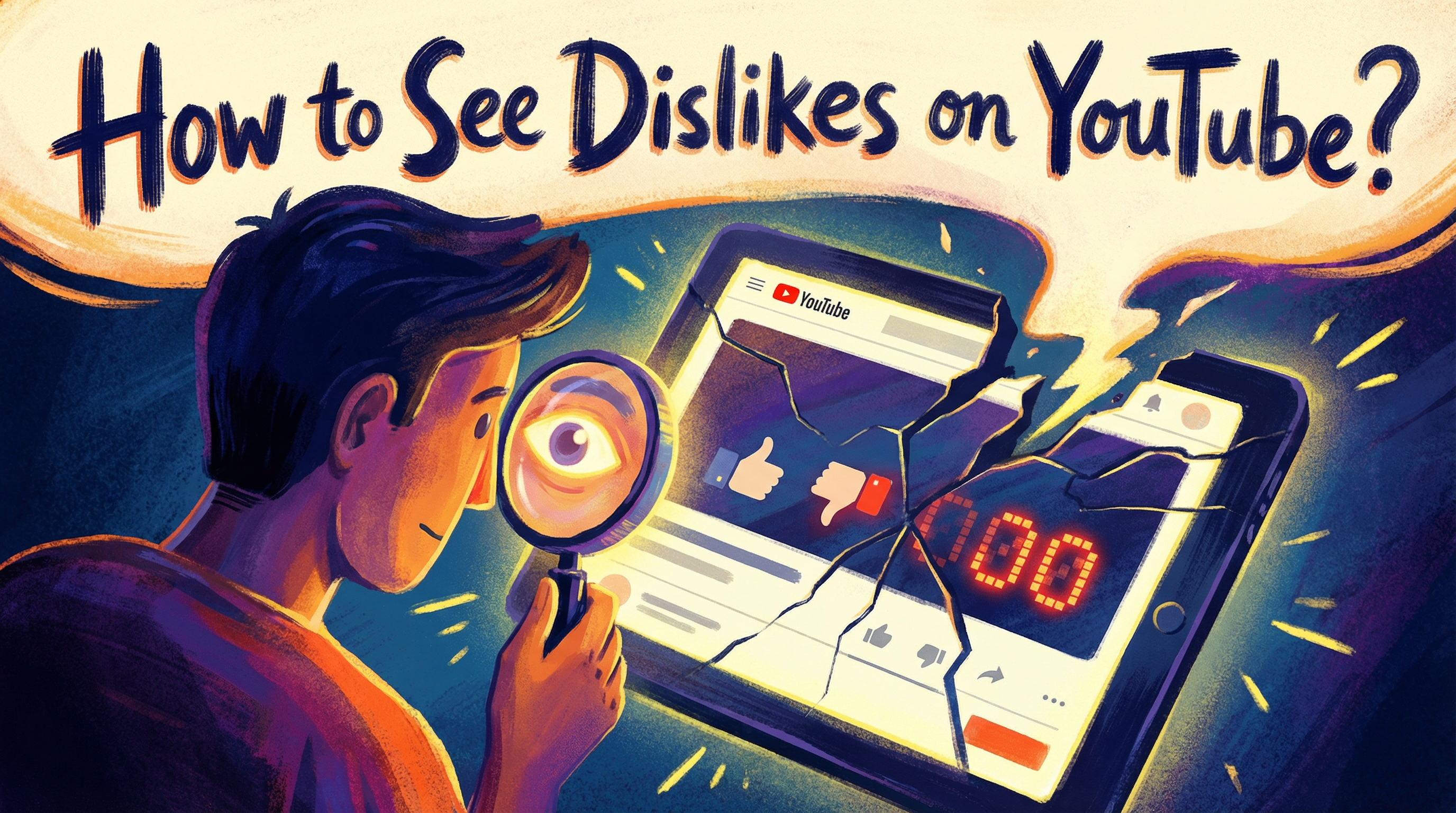
YouTube stopped showing public dislike counts back in November 2021. The thumbs-down button still exists, but you can't see the actual number anymore. Only creators get access to those stats through YouTube Studio.
This frustrated millions of users who used the dislike count to judge video quality. Think about it: you're about to watch a tutorial on fixing your car. Would you rather see 1,000 likes with 50 dislikes, or 1,000 likes with 800 dislikes?
That ratio tells you everything.
The good news? There are legitimate ways to bring back dislike visibility in 2025. Whether you're a creator checking your own videos or a viewer trying to avoid clickbait, I'll show you exactly how to see YouTube dislikes again.
Above: Current YouTube interface - notice how dislike counts are completely hidden from viewers.
Why Did YouTube Hide the Dislike Count?
YouTube's official explanation focused on creator protection. According to their announcement, they wanted to reduce targeted harassment and "dislike attacks" against smaller channels.
Their research showed something interesting: when dislike counts disappeared, viewers were less likely to pile on with mass dislikes just to drive up the number. The company claimed this would create a more inclusive environment where creators could succeed without fear of coordinated negativity.
But here's what YouTube kept: the dislike button itself still works. You can click it, and your feedback gets recorded. It affects your recommendations and gives creators data about their content performance.
The only thing that changed was public visibility.
Many users pushed back on this decision. The dislike count served as a quick quality filter, especially for:
- Tutorial videos (Does this actually work?)
- Product reviews (Is this genuine or sponsored?)
- News coverage (How credible is this source?)
- Educational content (Is this information accurate?)
YouTube acknowledged these concerns but stuck with the decision anyway. They argued the benefits of reducing harassment outweighed the loss of transparency.
How to See Your Own Dislikes as a Creator
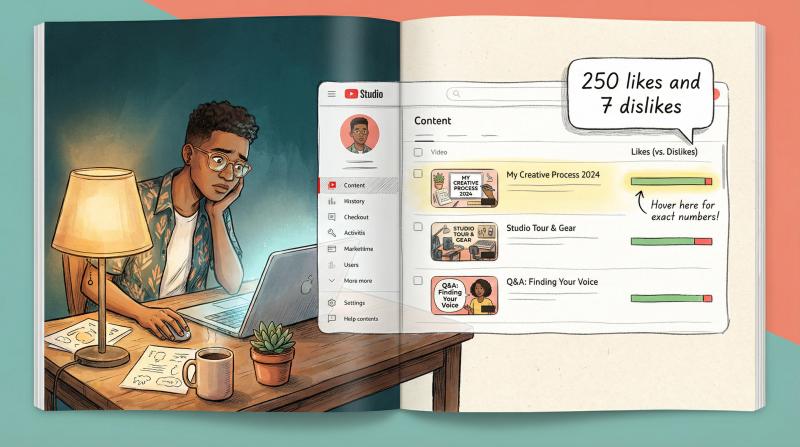
If you upload videos to YouTube, you still have full access to your dislike data. Here's exactly where to find it:
① Log into YouTube and click your profile icon in the top right
② Select YouTube Studio from the dropdown menu
③ Click Content in the left sidebar to see your video list
④ Look at the Likes (vs. Dislikes) column on the right side of each video row
You'll see a small bar chart showing the ratio. Hover your mouse over it and a tooltip pops up with exact numbers. For example: "250 likes and 7 dislikes."
This data is incredibly valuable. A sudden spike in dislikes might signal:
- Audio or video quality issues
- Factual errors that viewers caught
- Controversial opinions that didn't land well
- Technical problems (video cut off early, wrong upload)
Don't obsess over every single dislike. Some people just click it randomly. But if you notice a pattern or an unusually high dislike rate compared to your other videos, read the comments to understand what went wrong.
Pro tip: If you're publishing content across multiple platforms, you'll want to track engagement everywhere. Post bridge lets you schedule posts to YouTube, TikTok, Instagram, Facebook, LinkedIn, and five other networks from one dashboard. Instead of manually uploading to each platform and checking stats separately, you can manage everything centrally and compare performance across channels.
How to See YouTube Dislikes as a Viewer
URL: https://www.youtube.com/watch?v=[POPULARVIDEOID]
Location: Extension Demo Section
Instructions: Install Return YouTube Dislike extension in Chrome, navigate to a popular YouTube video, capture screenshot showing the extension's dislike count in action. Detailed instructions available in: web-screenshots/captures/SC-03.md
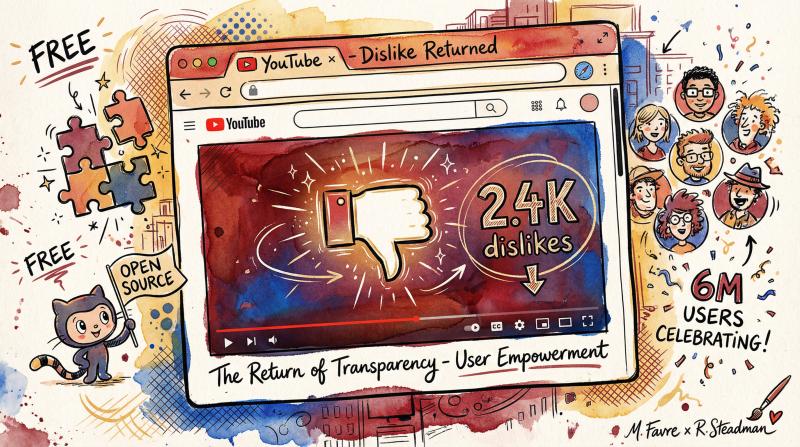
For regular YouTube viewers, the most reliable solution is a browser extension called Return YouTube Dislike. This free, open-source tool brings back the dislike counter on every video you watch.
How Return YouTube Dislike Works
The extension pulls data from multiple sources:
Historical archive: Before YouTube shut down public dislike access in December 2021, Return YouTube Dislike saved the official counts for millions of videos.
Crowdsourced updates: The extension has over 6 million users. When these users watch videos and click like/dislike, that data gets anonymously collected and used to estimate current dislike counts.
Creator contributions: Some YouTube creators voluntarily share their exact dislike numbers with the project to improve accuracy.
The result?
You get dislike estimates that are remarkably close to the real numbers, especially on popular videos where lots of extension users have watched and engaged.
How to Install Return YouTube Dislike (30 Seconds)
For Chrome/Edge users:
① Go to the Chrome Web Store page for Return YouTube Dislike
Above: Official Chrome Web Store listing showing the extension's strong ratings and 6+ million users.
② Click Add to Chrome (or Add to Edge)
③ Confirm when prompted
④ Refresh any open YouTube tabs
That's it. The dislike count will now appear next to the dislike button on every video, just like before 2021.
For Firefox users:
Visit the Firefox Add-ons page for Return YouTube Dislike and click "Add to Firefox." Same simple process.
For other browsers:
The extension works on Opera, Brave, and most Chromium-based browsers. There's even a userscript version for browsers that don't support extensions directly.
Is Return YouTube Dislike Safe and Accurate?
Aspect - What You Need to Know
- Safety - Completely safe. Open-source code on GitHub, no personal data collection, zero account permissions needed. Over 6 million users with no account issues.
- Accuracy - Popular videos: within a few percentage points of reality. Less popular videos: wider margins initially, but improves as more users watch.
- Data Scale - Nearly 1 billion videos tracked. Updates continuously.
Safety: Return YouTube Dislike is completely safe. It's open-source (you can review the code on GitHub), doesn't collect personal data, and doesn't require any YouTube account permissions. Over 6 million people use it with zero reports of account issues.
The extension simply reads the video ID from the YouTube page you're watching, queries its database for the dislike count, and displays it. Nothing sketchy.
Accuracy: For popular videos, the estimates are typically within a few percentage points of the real number. Tests where creators compared the extension's data to their YouTube Studio stats showed strong correlation.
Less popular videos might have wider margins initially (especially brand new uploads), but accuracy improves as more extension users watch. Even if the exact number is off by 10-20%, you'll still get the general picture.
A video with 100 likes and 500 dislikes is clearly problematic, whether the actual count is 480 or 520 dislikes.
The extension aggregates data from nearly 1 billion videos and updates continuously. While not 100% perfect, it's reliable enough to make informed decisions about which videos to trust.
How to View YouTube Dislikes on Mobile Devices
Most people watch YouTube on their phones these days. Browser extensions don't work in the native YouTube app, but you've got options.
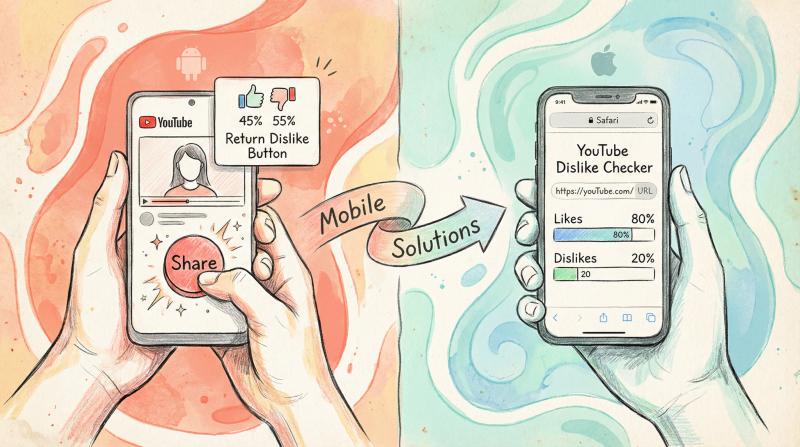
For Android: Return Dislike Button App
There's a companion app on the Google Play Store called Return Dislike Button that integrates with the YouTube app.
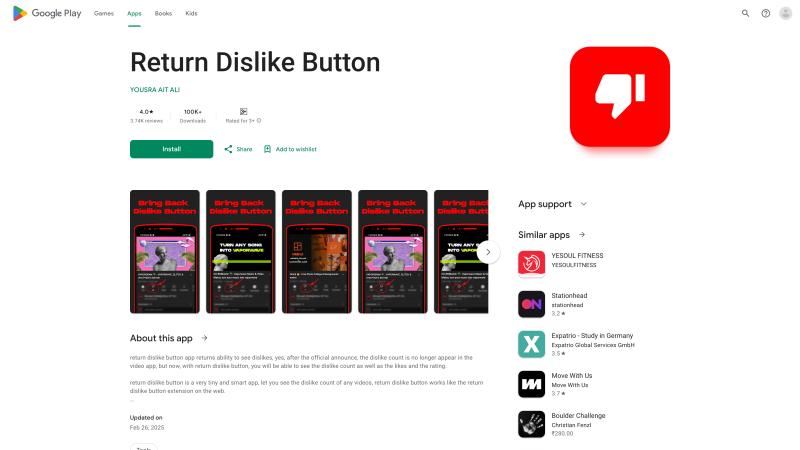
Above: The Return Dislike Button Android app with over 100K downloads.
Here's how it works:
① Install the app from the Play Store (it's free with no ads)
② Open the regular YouTube app and start playing any video
③ Tap the Share button on the video
④ Select Return Dislike Button from the share menu
⑤ A small overlay pops up showing the like count, dislike count, and approval rating percentage
The overlay appears right over the YouTube app, so you can see the stats without leaving. It pulls data from the same Return YouTube Dislike database that the browser extension uses.
The app is lightweight and has over 100,000 downloads. Users praise it for being clean and ad-free (unlike some competitor apps that serve ads).
For iPhone/iPad: Web-Based Dislike Checkers
Since iOS doesn't allow the same kind of app integration, your best option is a web-based dislike viewer.
Here's a simple method to check dislikes on any video:
① Copy the URL of the YouTube video you want to check
② Open your mobile browser (Safari, Chrome, etc.)
③ Search for "YouTube dislike checker" to find web-based tools
④ Paste the video URL into the checker
⑤ View the like count, dislike count, and ratio
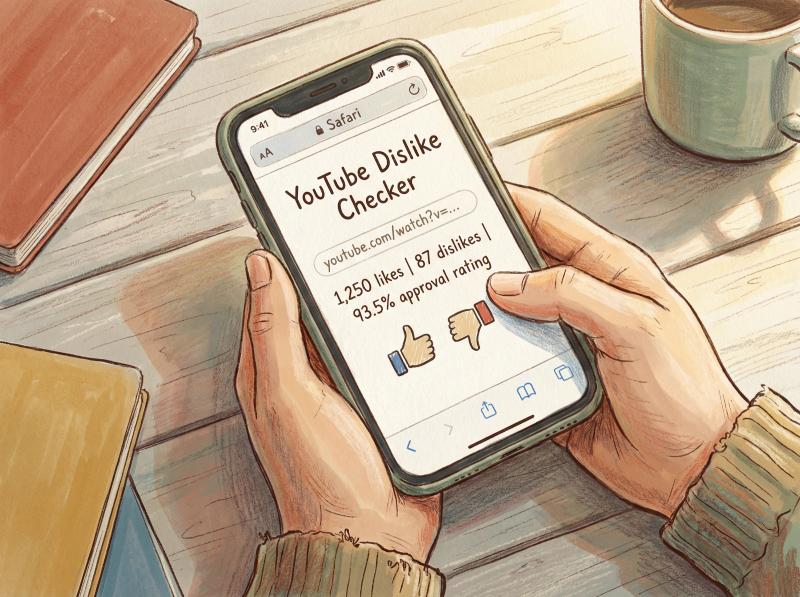
This works on any device with a web browser, not just iOS. It's perfect for one-off checks when you're curious about a specific video's reception.
The downside is convenience. You can't see dislikes automatically on every video like with the browser extension. But for occasional checks or devices where you can't install extensions (work computers, shared devices), it's a solid workaround.
Advanced Option: Modified YouTube Apps
Power users sometimes install modded YouTube apps like YouTube ReVanced (Android) or jailbreak tweaks (iOS) that build in dislike count functionality. These integrate the Return YouTube Dislike API directly into the app interface.
We don't recommend this for most people. It requires technical knowledge, often violates YouTube's terms of service, and can cause stability issues. Stick with the official YouTube app plus the share-to-Return-Dislike method, or just use a web browser with the extension installed.
What Are the Limitations of These Tools?
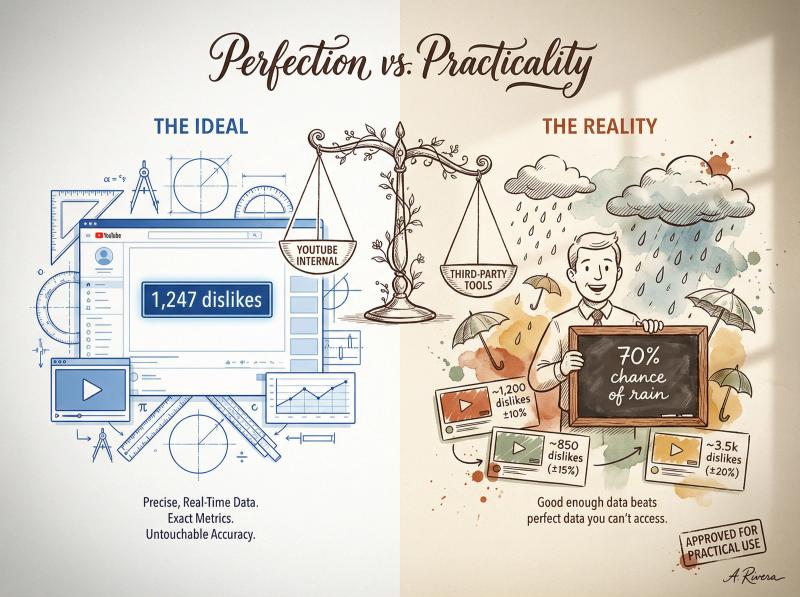
No third-party solution will ever be as accurate as YouTube's internal data. Let's be realistic about what you're getting.
What these tools do well:
- Show reliable estimates for popular videos (usually within 5% of actual counts)
- Reveal general sentiment (heavily liked vs heavily disliked)
- Provide historical data for older videos
- Update continuously as new data comes in
Where they struggle:
- Very new videos (less than a few hours old)
- Obscure videos with minimal views
- Videos where the creator disabled all ratings
- Exact precision (might be off by 10-20% on smaller videos)
Think of it like weather forecasts. A 70% chance of rain isn't perfectly accurate, but it's useful information for deciding whether to carry an umbrella. Similarly, seeing that a video has a 60% like ratio versus a 95% like ratio is valuable context, even if the exact dislike count might be an estimate.
The data gets more accurate over time as:
- More extension users watch the video
- Creators voluntarily share their stats
- The algorithm refines its estimates based on engagement patterns
For most practical purposes (avoiding scam tutorials, checking if a news source is credible, gauging community reaction), these estimates are more than good enough.
Why Does Seeing YouTube Dislikes Still Matter in 2025?
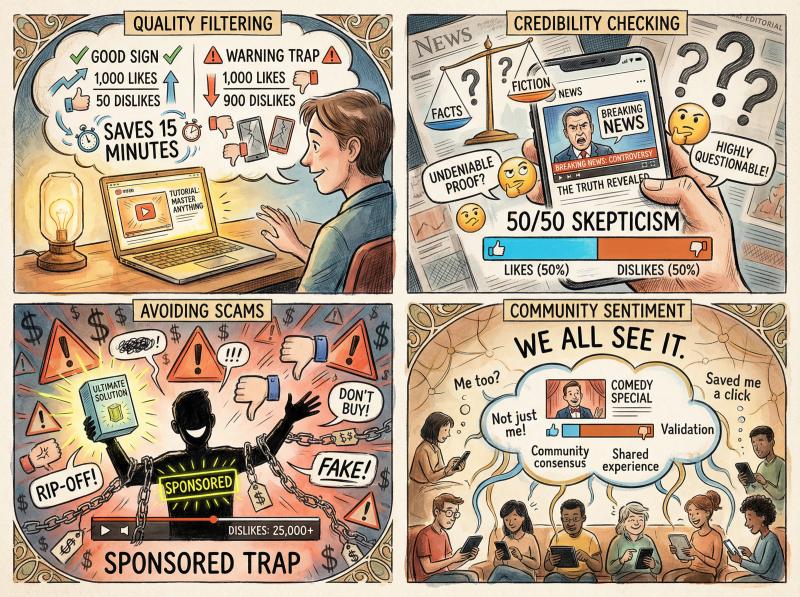
YouTube removed public dislikes nearly four years ago, but the demand for this metric hasn't faded. Here's why people still want to see dislike counts:
Quality filtering: You're about to watch a 15-minute tutorial. If it has 1,000 likes and 900 dislikes, that's a massive red flag. The method probably doesn't work, or the video is misleading. Seeing that ratio saves you 15 minutes.
Credibility checking: A news channel uploads a video claiming something controversial. If the like-to-dislike ratio is 50/50 or worse, that tells you the audience is skeptical. Even if you can't determine who's right, you know the content is disputed.
Avoiding scams: Product review videos often use fake enthusiasm to push affiliate links. A heavily disliked review might indicate the reviewer got called out in the comments for misleading viewers.
Community sentiment: Sometimes you just want to know how other people reacted to something. Did everyone else find that comedy special unfunny too? Are viewers as annoyed by the clickbait title as you are?
YouTube's argument was that removing dislikes would reduce harassment. That's probably true for small creators facing coordinated attacks. But it also removed a valuable transparency tool that helped viewers make informed decisions.
The Return YouTube Dislike project essentially gives users back that choice. If you want to see dislikes, you can. If you prefer YouTube's current system, you don't have to install anything.
How Post bridge Helps Creators Track Engagement Across Platforms
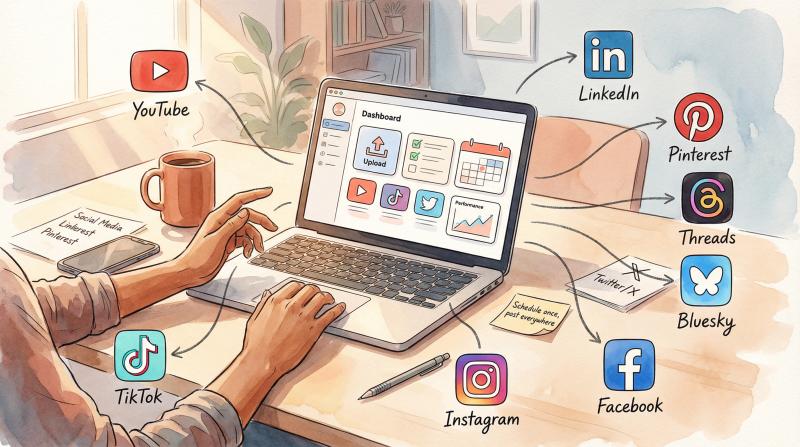
Speaking of engagement metrics, creators today can't focus only on YouTube. Your audience is scattered across TikTok, Instagram, LinkedIn, Facebook, Twitter, and more.
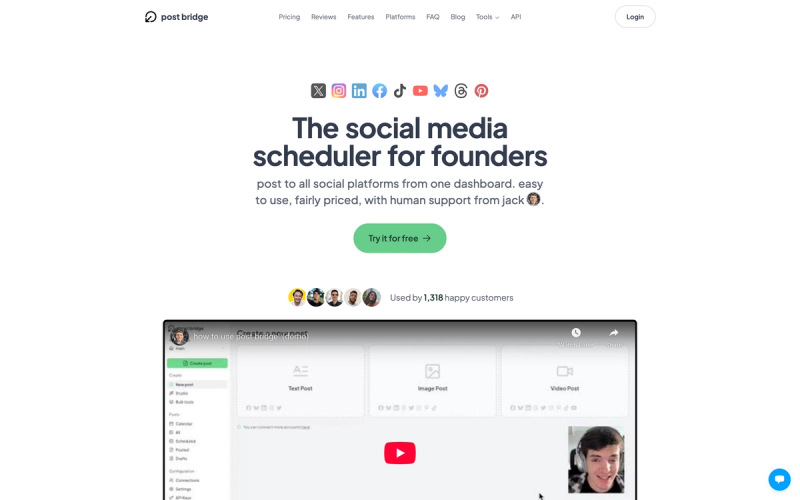
Above: Post bridge simplifies multi-platform content distribution for creators.
Managing all those platforms manually is exhausting:
- Upload the same video to YouTube, then TikTok, then Instagram Reels
- Write platform-specific captions for each one
- Schedule posts at optimal times for each audience
- Track engagement across nine different dashboards
This is where Post bridge becomes essential. Instead of the repetitive grind of multi-platform posting, you upload your content once and Post bridge handles distribution to all your connected accounts.
Here's the workflow:
① Connect your accounts (YouTube, TikTok, Instagram, Facebook, LinkedIn, Pinterest, Threads, Bluesky, Twitter)
② Upload your video or write your post in the Post bridge dashboard
③ Select which platforms you want to publish to (or choose all)
④ Schedule for optimal times or publish instantly
⑤ Track performance from one centralized view instead of jumping between apps
The platform handles all the technical stuff like auto-resizing for different aspect ratios, custom thumbnails (where supported), and platform-specific formatting. You can even set up content recycling to automatically repost your best-performing content after a set period.
Pricing is creator-friendly:
Plan - Monthly Price - Social Accounts - Best For
- Starter - $9 - 5 accounts - Solo creators testing multi-platform
- Creator - $18 - 15 accounts - Active creators with growing audiences
- Pro - $27 - 30 accounts - Teams or power users managing clients
Annual billing gives you 40% off each tier
Above: Transparent pricing with no hidden fees — see exactly what you get at each tier.
Compare that to traditional scheduling tools which often charge significantly more for multi-platform access. If you're posting to nine platforms, Post bridge gives you the same functionality at a fraction of the cost. Learn more about Post bridge pricing.
The connection to our YouTube dislike topic? Engagement data matters across all platforms, not just YouTube. When you publish the same video to YouTube and TikTok simultaneously via Post bridge, you can compare how audiences respond on each platform. Maybe YouTube viewers dislike it but TikTok users love it. That tells you something about content-audience fit.

Instead of manually uploading everywhere and checking ten different analytics dashboards, Post bridge gives you a unified view. You'll spot patterns faster and adjust your strategy accordingly.
Create your free account here and connect your first five social accounts. The onboarding takes less than two minutes.
Frequently Asked Questions
Can I get banned from YouTube for using Return YouTube Dislike?
No. The extension doesn't violate YouTube's terms of service. It operates entirely on your device, reading publicly available video IDs and fetching data from an external database. Millions of people use it without any account issues. You're not hacking or modifying YouTube's servers in any way.
Are the dislike counts completely accurate?
They're estimates, not exact numbers. For popular videos with lots of extension users watching, the counts are typically within a few percentage points of reality. Less popular or very new videos might have wider margins initially, but accuracy improves over time. Think of them as reliable indicators rather than perfect measurements.
Can creators see who disliked their videos?
No. YouTube has never shown creators the identities of people who liked or disliked their content. All you get in YouTube Studio is the total number of likes and dislikes. This applies whether you're looking at your own analytics or using third-party tools.
What if a video has dislikes disabled entirely?
Some creators disable both likes and dislikes in their video settings (you've probably seen videos where neither button shows a count). In these cases, Return YouTube Dislike might show "RATINGS DISABLED" or display zeros. The extension can only provide data for videos where at least the like count is publicly visible.
Does Return YouTube Dislike work on YouTube TV or smart TVs?
No, the extension only works in web browsers (Chrome, Firefox, Edge, etc.) and through the Android app workaround mentioned earlier. Smart TV YouTube apps and YouTube TV don't support browser extensions. Your best option there is to check the dislike count on your phone first, then decide if you want to watch on the big screen.
Why did YouTube really hide dislikes?
YouTube's official reason was creator protection and reducing harassment. Skeptics suggest it was also about protecting corporate content (trailers, corporate announcements) that often got heavily disliked. The real reason is probably a mix of both. Regardless of the motivation, the change is permanent and unlikely to be reversed.
Can I use Return YouTube Dislike on a work computer without admin rights?
If your work computer locks down browser extension installation, you won't be able to add Return YouTube Dislike. Your alternative is using a web-based dislike checker which doesn't require any installation. Just copy-paste video URLs into the checker.
Does clicking dislike on a video hurt the creator financially?
Not directly. YouTube doesn't pay creators less because of dislikes. But if a video gets heavily disliked, YouTube's algorithm might recommend it less often, which could reduce views and therefore ad revenue. One dislike from you won't make a meaningful difference. The creator will see it in their analytics, but it won't tank their income.
If you're a creator concerned about engagement across platforms, consider using Post bridge to maximize your reach while minimizing the time spent on manual uploads. Read our guide on social media best practices for more tips.
What's the best way to give negative feedback to a creator?
Honestly? Leave a constructive comment. Creators actually read comments and can respond. A dislike is anonymous and doesn't explain what you didn't like. If a tutorial didn't work for you, comment about it. The creator might update the video description with fixes or make a follow-up video addressing the issue.
Can I see dislikes on YouTube Shorts?
Yes. Return YouTube Dislike works on Shorts just like regular videos. Install the extension and you'll see dislike counts on Shorts in your browser. The Android app also supports checking Shorts dislikes via the share menu.
If you're creating YouTube Shorts along with other short-form content for TikTok and Instagram Reels, you can use Post bridge to publish to all three platforms simultaneously. Check out our article on how to clip a YouTube video for tips on repurposing long-form content into Shorts.
Is there a way to see dislikes without installing anything?
For one-off checks, yes. Use a web-based YouTube dislike viewer tool. Search for "YouTube dislike checker" in your browser and pick a reputable option. Copy the video URL, paste it into the tool, and it'll fetch the dislike count. This works on any device with a browser but isn't as convenient as having the extension show counts automatically.
Do dislikes affect what YouTube recommends to me?
Yes. When you dislike a video, YouTube's algorithm takes that as feedback about your preferences. You might see fewer videos from that channel or on that topic in your recommendations. This works whether or not the dislike count is publicly visible. Your clicks still matter for personalization.
For creators, understanding what content resonates (or doesn't) across different platforms is crucial. That's why many successful creators use Post bridge to test the same content across YouTube, TikTok, Instagram, and other platforms to see where it performs best. Learn more in our creator growth guide.
The removal of public YouTube dislikes was one of the platform's most controversial decisions. But thanks to tools like Return YouTube Dislike, you can restore that transparency with a simple browser extension or app.
For creators, the lesson is clear: engagement metrics matter across every platform, not just YouTube. That's why using a multi-platform scheduling tool like Post bridge makes sense. You can publish content everywhere simultaneously, track what resonates with each audience, and adjust your strategy without spending hours on manual uploads.
Whether you're a viewer trying to avoid bad tutorials or a creator managing a multi-platform presence, you now have the tools to make informed decisions. Install Return YouTube Dislike for transparency, and consider signing up for Post bridge to simplify your content distribution workflow.
If you're interested in learning more about YouTube strategies, check out these related articles:
- How to Recover Your YouTube Account
- How to See Your YouTube Subscribers
- How to Live Stream on YouTube Without 1000 Subscribers
- How Much Does YouTube Pay for 1000 Views
- When Does YouTube Start Paying You
And if you're looking to expand your presence beyond YouTube:
- How to Go Viral on Instagram
- How to Get 1k Followers on Instagram in 5 Minutes
- How to Watch TikTok Without App
Stay informed, stay efficient, and don't let algorithm changes dictate your entire strategy. Start your free Post bridge trial today and see how much time you can save on multi-platform content distribution.